Setting up the integration to import from a Cloud Storage Provider
How to set up integrations to import from a cloud provider
The App Center includes a multitude of integrations that allow you to unlock more from Planhat. With Planhat integrations, you can easily import data periodically from any of our supported cloud providers (Google Cloud Storage, Google Drive, Amazon AWS S3 and OneDrive).
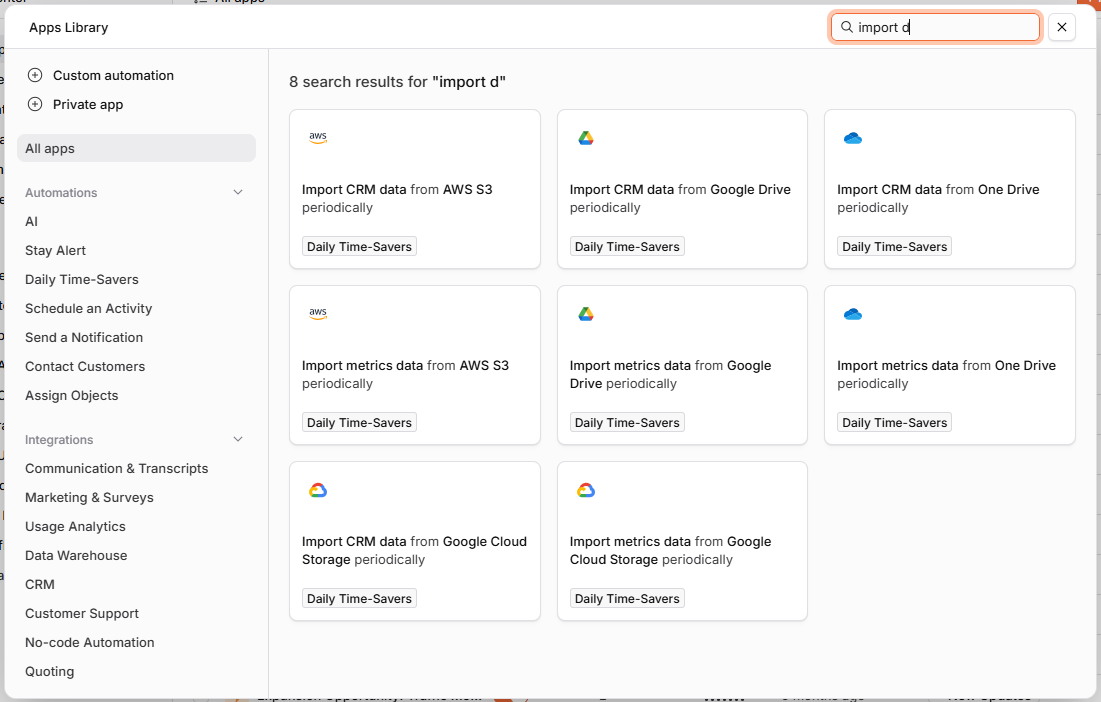
This article briefly explains what the native integrations for cloud providers support, and how to set them up.
Contents
1. How does it work?
When the integration is active, Planhat will run a scheduled job at the frequency you define, to access your bucket folder, retrieve all the files, and import (create or update) their data into Planhat.
This means you can drop as many files as you want into your connected bucket, and Planhat will process them periodically.
What do the integrations support?
Formats: XLSX, XLS, CSV, JSON. (Google Drive also accepts native Google Sheets.)
Providers: Google Cloud Storage (GCP), AWS S3 (Amazon Web Services), Google Drive, and Microsoft OneDrive (One Drive).
🚀 Tip
Once a file is processed, it is moved to a folder called "processed" within your bucket. This ensures that we do not process the same file more than once.
📌 Important to note
For technical details - including a discussion of file size limitations and troubleshooting information - see our appendix here.
Key points:
Each file can be up to 30,000,000 bytes (exactly)
Each file can be up to 99,998 data rows
2. How do I set it up?
Select any of these links to jump to your provider-specific instructions.
GCP Google Cloud Storage
Authentication: OAuth2
Requirements:
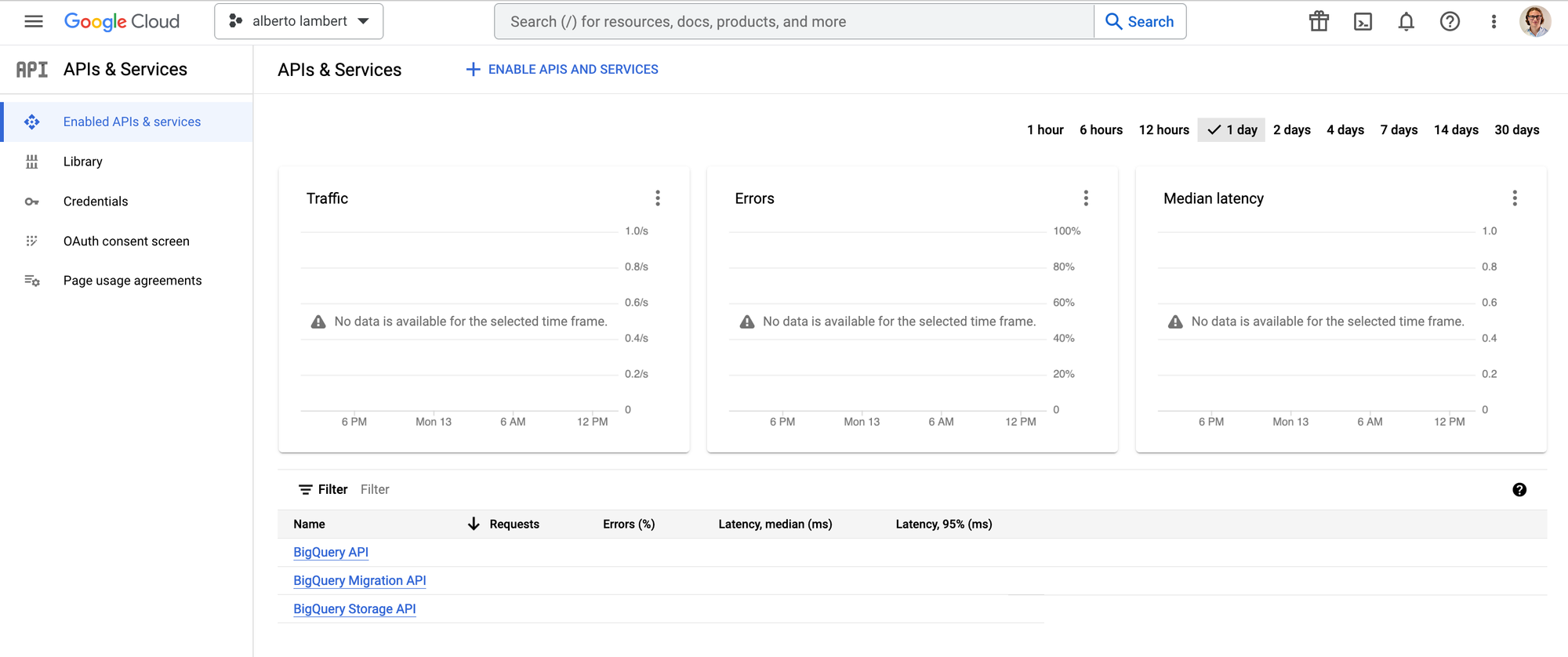
access to the Google Developer Console
a Google Cloud Storage bucket
a Planhat account with access to the App Center
In Google Cloud Storage
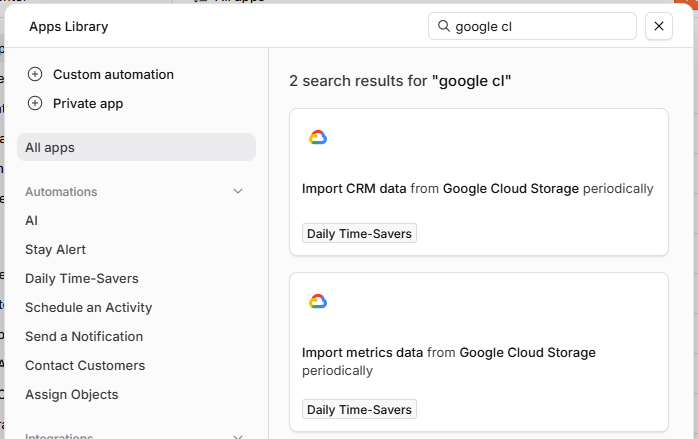
In Planhat
Google Drive
Authentication: OAuth2
Requirements:
access to the Google Developer Console
a Google Drive (folder)
a Planhat account with access to the App Center
In Google Cloud Storage
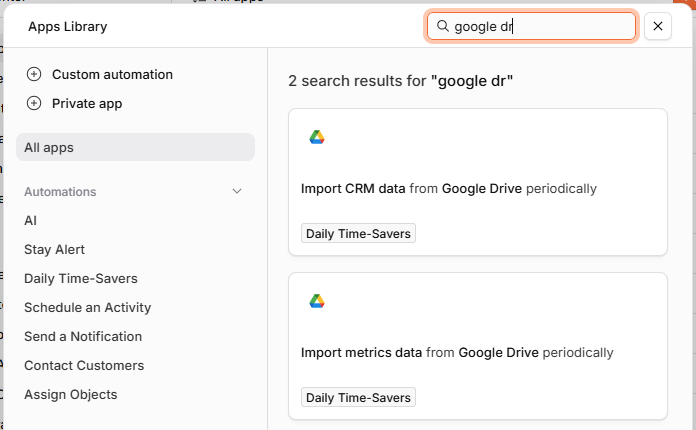
In Planhat
Microsoft OneDrive
Authentication: OAuth2
Requirements:
access to the Microsoft Azure Developer Console
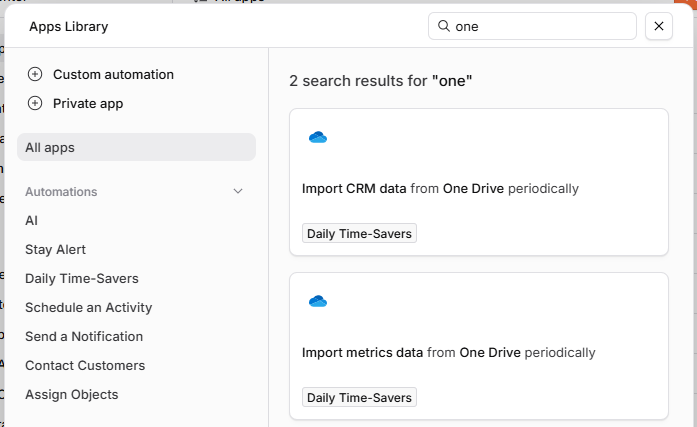
Microsoft OneDrive (One Drive)
a Planhat account with access to the App Center
In Microsoft Azure
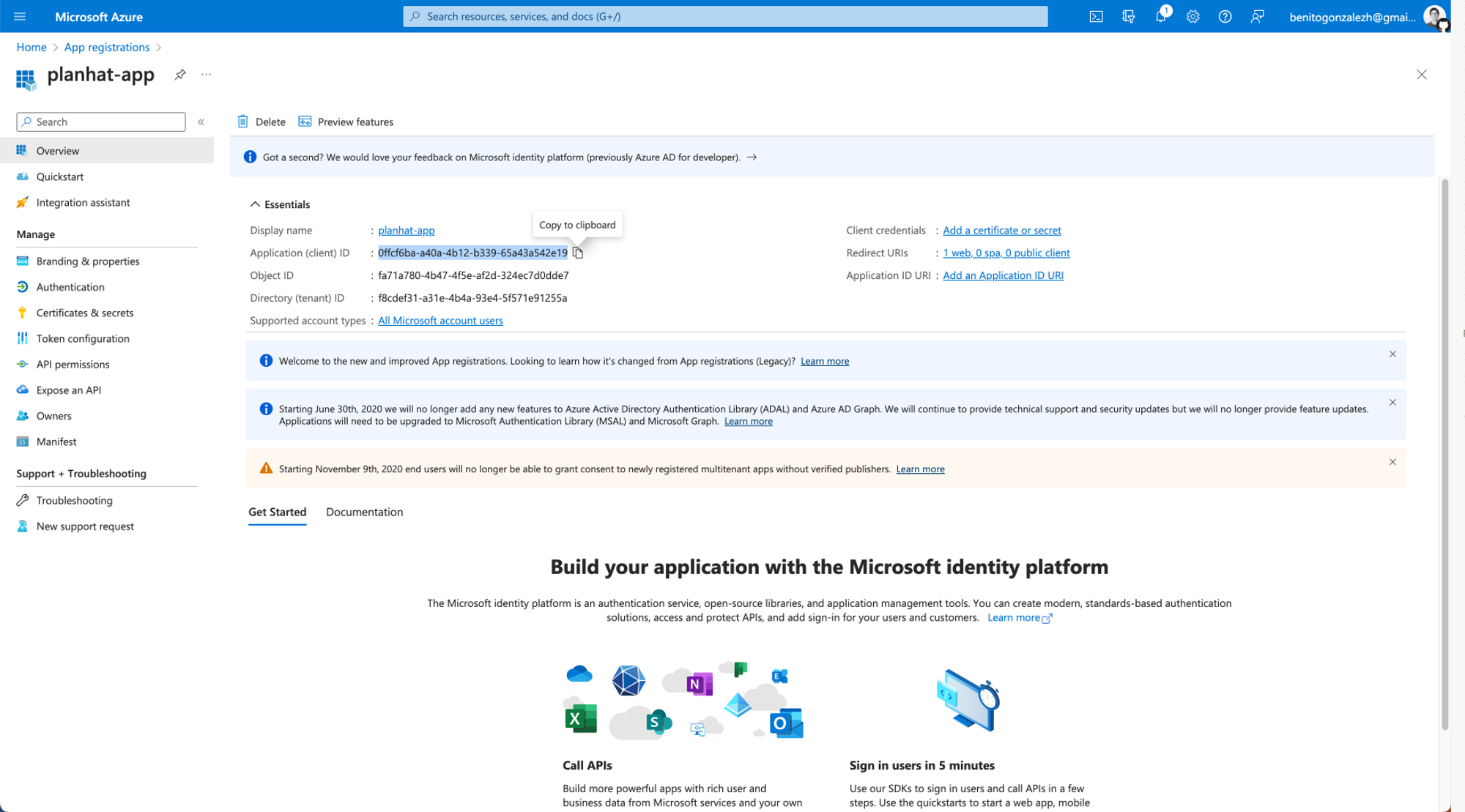
In Planhat
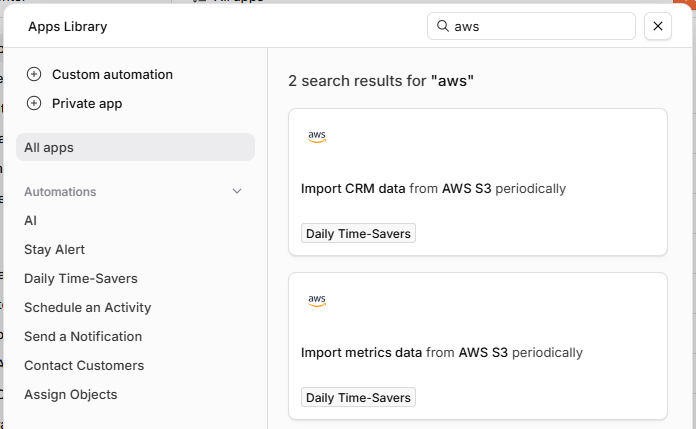
AWS S3 (Amazon Web Services)
Authentication: Basic Auth
Requirements:
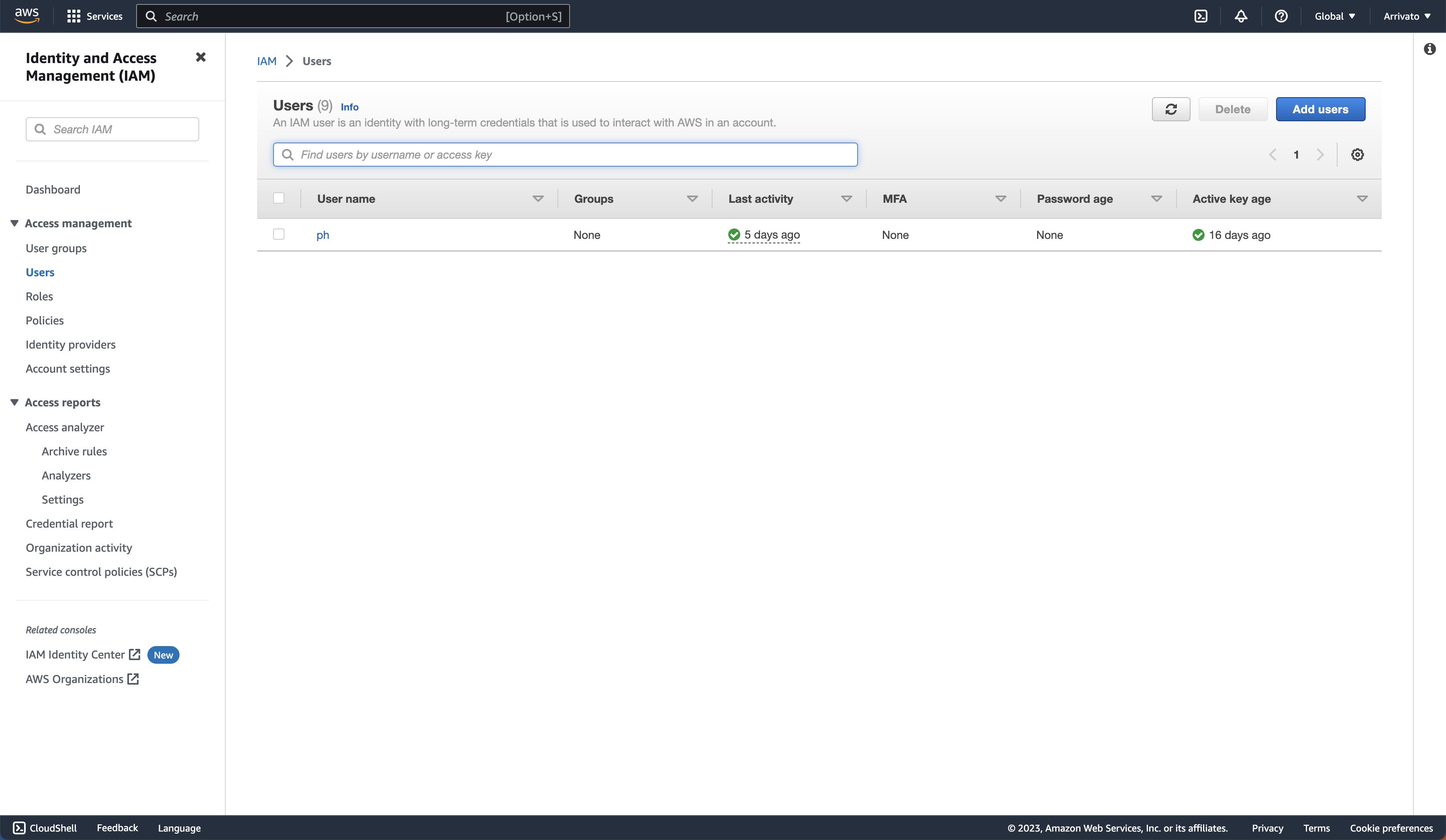
access to the AWS Console
an AWS S3 bucket
a Planhat account with access to the App Center
In AWS S3
In Planhat
3. Add actions
Now that your integration is set up, you can go ahead and apply the actions from the action templates:
Click on any of the templated actions you wish to set up
Configure the template as you wish, setting:
Frequency: how often should new files be scanned and imported from your bucket?
Object / Metric:
For CRM data, decide where in Planhat you wish to import the data to
For Metrics data, decide what type of data you wish to configure it as in Planhat
Complete the Required Fields.
GCP Cloud Storage: Bucket Name, Folder Path
Google Drive: Folder Id
Microsoft OneDrive: Folder Path
AWS S3: Bucket Name, Folder Path, Region, ARN Role
Note:
To refer to the root of the bucket, leave the folder path field empty
If you want to use a folder, please start with its name and end with a slash (/)
Click
Add ActionNow you're all set and the action will fetch data on the schedule you defined. If at any point you want the fetch to run immediately
4. Appendix: technical details
File size limits and troubleshooting
To ensure a successful upload, your files need to meet both the bytes limit and the rows limit.
Bytes limit
Each file can be up to 30,000,000 bytes (exactly)
Note that this is not 30 MiB - 30,000,000 bytes is 28.61 MiB
30 MiB = 31,457,280 bytes (31.46 MB) - so that would be over the limit
Consequences of exceeding this limit
The file is skipped entirely - it stays in the folder
Nothing is logged
The import run simply reports
"No files to import."
Number of rows limit
Each file has a 99,998-row cap
This check runs after the file has been copied into Planhat
Consequences of exceeding this limit
The file is (partially) imported, but every row past the limit is silently dropped
The run is reported as a success
How to adhere to these limits
Option 1 - if the files come from Snowflake, cap the output size directly on the COPY INTO statement that unloads the data, so Snowflake never writes a file that's too large or has too many rows in the first place
Simplest version: set MAX_FILE_SIZE on the COPY INTO to a value well under 30,000,000 bytes (e.g. 8,000,000), so the row-count limit is also respected as long as rows aren't unusually small
More robust version: split into row-bucketed files (e.g. 80,000 rows per file) using a temp table and a loop, guaranteeing the row cap is never crossed regardless of row width
Either way, add a check after the COPY (Snowflake's DETAILED_OUTPUT option returns the size and row count of every file it wrote) and fail the job if any file is still too close to the limit. This turns a silent truncation into a visible, catchable failure
Option 2 - if the files come from another pipeline
The same idea applies: add a step before the file is handed off that checks - or actively splits - the file so it never exceeds the two limits
This can be a lightweight check (reject or flag oversized files), or an active pre-processing step that splits large files into safe-sized parts
Doing this as pre-processing, before the file reaches the import feed, has a real advantage: it's also the natural place to add validation of the data itself - e.g. catching empty required fields - so problems surface in your own logs rather than being discovered later
Option 3 - safety net for files already stuck, or if the export can't be changed
For files that are already sitting in storage over the limit, or in cases where the export job itself is hard to modify (e.g. several producers writing into the same location), a small automated splitter can sit downstream: it watches a staging location, cuts any oversized file into safe-sized parts, and writes those parts to the location the import normally reads from
This doesn't require changing the export at all - it's a corrective step that runs automatically whenever a new file lands
It's the recommended way to clear a backlog of files that are already stuck, even if one of the previous two options is adopted going forward for new files
Other technical details
None of the fetchers paginate: one page of results per run. S3 and GCS see the first 1,000 objects at the prefix; Drive requests 1,000 files; OneDrive takes one Graph page (200 by default). Files beyond that page aren't seen until earlier ones are consumed
Files must sit directly in the configured folder - S3 and GCS list with a
/delimiter; Drive queries direct children of the folder; OneDrive lists children of that exact path. Nested files are invisible with no errorGoogle Drive ignores trashed files; the others have no equivalent