SSO: Setting up Okta
Setting up Okta integration requires Admin Access in both Okta and Planhat. Both apps will require input from the other. Integration is made more accessible with Planhat being part of the Okta Integration Network (OIN).
Setup in Okta integration is divided into two parts:
Integrating Planhat with Okta Account
Inputting parameters across systems
Finalizing SSO Settings
Preparing your Okta Account
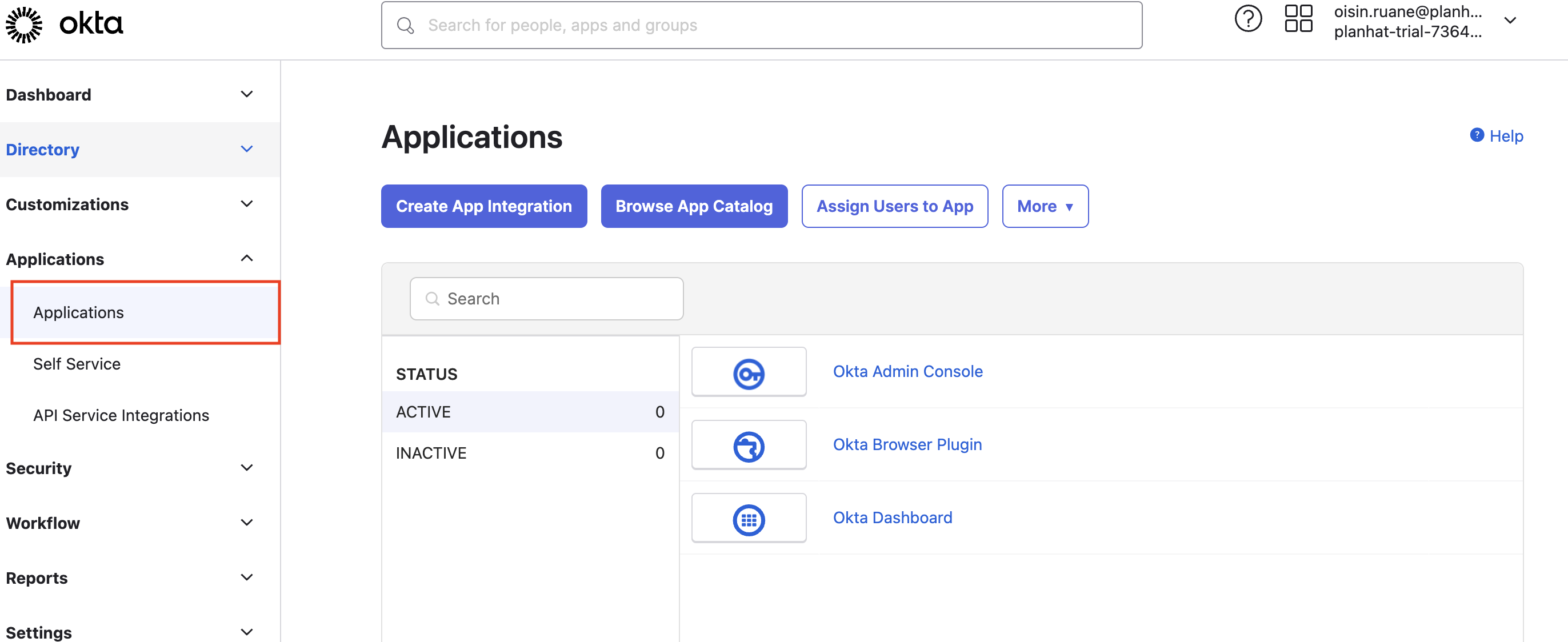
Before you begin, it is important to note that the administrator running this task must be a super admin for the Okta org, and the admin must be signed in to the Okta Admin Console.
After the app integration is added to the Okta org, app admins can configure and assign the app integration to the appropriate users and groups.
Integrating Planhat
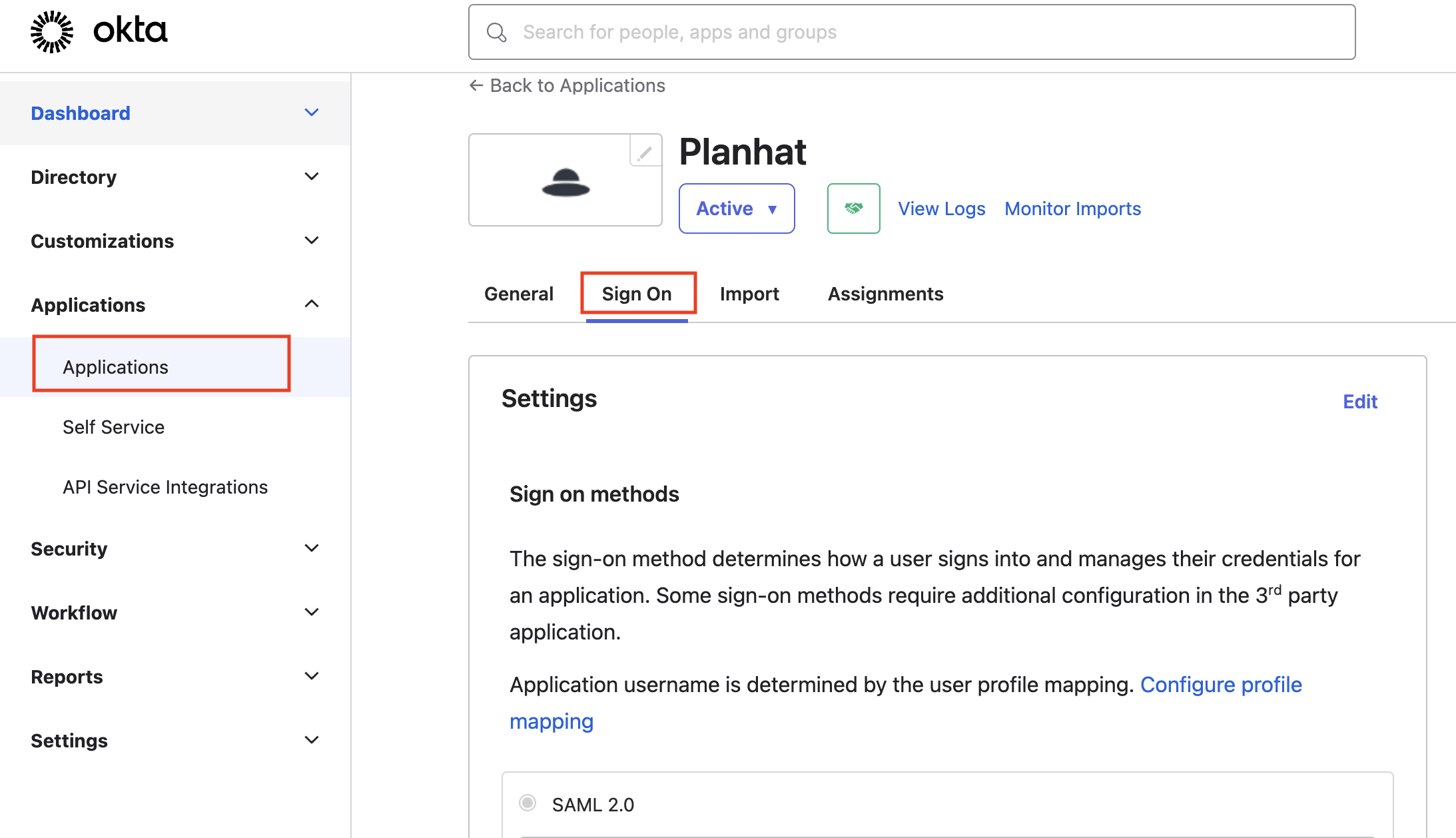
To add an existing app integration to your org:
Input parameters across systems
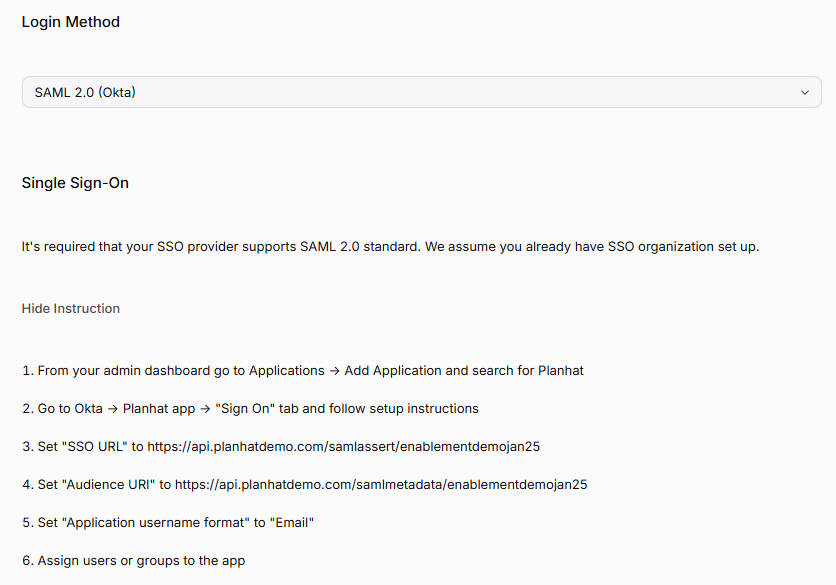
To set up the SSO connection, there are some values in Planhat you need to input to Okta, and vice versa. Below we will walk through the required parameters, and the Planhat/Okta defines where the value should be input.
Inputs into Okta
Inputs into Planhat
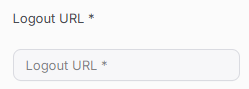
Planhat: Logout URL
The next input will be found in your Okta app under Identity Provider Metadata. Copy and paste this value into Planhat.
Finalizing SSO Settings
There are several other important settings that must be set up in Planhat to have a successful SSO integration with Okta.
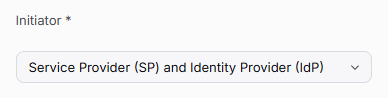
Planhat: Initiator - required
This controls whether users should be able to log-in via IdP-initiated flow only (ie, only log in via Okta Directory), or also SP-initiated (ie, via Planhat's website). It's purely a setting, requiring no other input than a decision from your end on what works best. We recommend to use both (IdP + SP).
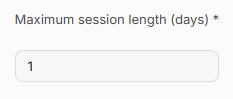
Maximum session length (days) - required
This setting is used to dictate the number of days the user is logged on at a time. Once the time limit is reached the User will be signed out automatically and will have to sign via SSO again.
Time-based log-out
This is an optional setting that logs users out at a certain time. This time is based on the user's most recent recorded timezone. If the user hits the session length before the time-based log-out, they will also be logged out.

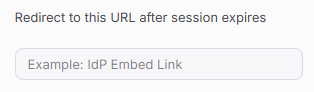
Redirect to this URL after session expires
This is the URL that the user will be redirected to once either the maximum session length or time-based log-out criteria are met.
Users that are allowed to use username & password or "Sign in with Google" when SSO is turned on
This setting allows users to continue to use their username and password instead of the "Sign in with Google" SSO option.

Disable SAML AuthnContext
When enabled do not request a specific authentication context allowing the SSO Provider to make its own decision.
