Lifecycle Phases
Learn how to customize Company "Lifecycle Phases" in upgraded Planhat, and why Phases are useful in customer/prospect management
Summary
The Lifecycle Phase field helps you understand a customer or prospect's journey, ensuring timely engagement, support, and strategic actions at every stage
You can easily create new Phases (list values) or edit the existing ones
Who is this article for?
Planhat builders/admins who configure their tenant for their team
Article contents
What is a Lifecycle Phase?
In customer management, Lifecycle Phases help businesses to deliver the right messaging, support, and strategies at each stage of the customer journey, maximizing satisfaction and long-term value.
Common Phase examples include:
Prospect
Trial/POC
Onboarding
Adoption
Success
Expansion
Renewal
Churn
In Planhat, "Phase" is tracked through a customizable system (default/standard) list field on the Company model.
Why use Lifecycle Phases?
Phases can be used to:
Segment and filter data – easily group Companies by their Lifecycle Phase for targeted outreach and reporting
Align teams – ensure CS, Sales, and Revenue teams have a shared understanding of where each Company stands and what actions to take next
Automate Workflows – trigger specific actions based on Phase changes, such as onboarding Sequences or renewal reminders
Customize Dashboards – display relevant metrics and insights based on a Company's Phase
How to add and edit Phases
Within the "Data Model" Global Tool:
Select the Company model on the left
Select "Fields" along the top
Search for "Phase"
Click on the "Phase" field
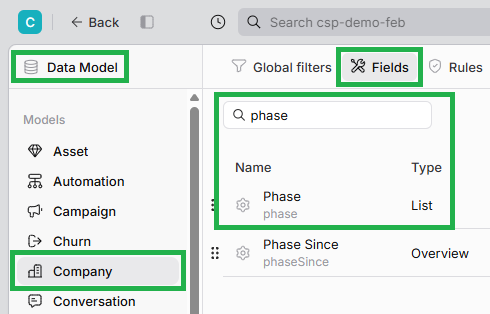
Within the Phase popup window:
To edit an existing Phase (list value), click on it, make your changes and then hit enter
You can also delete a Phase, then choose whether to reassign Companies to a different Phase, or keep the previous value as "deprecated"
To add a new Phase, click "Add new", type out the new Phase, and hit enter
If applicable, set a default value for new Companies or those without an assigned Phase
Click "Save" when you're finished making changes
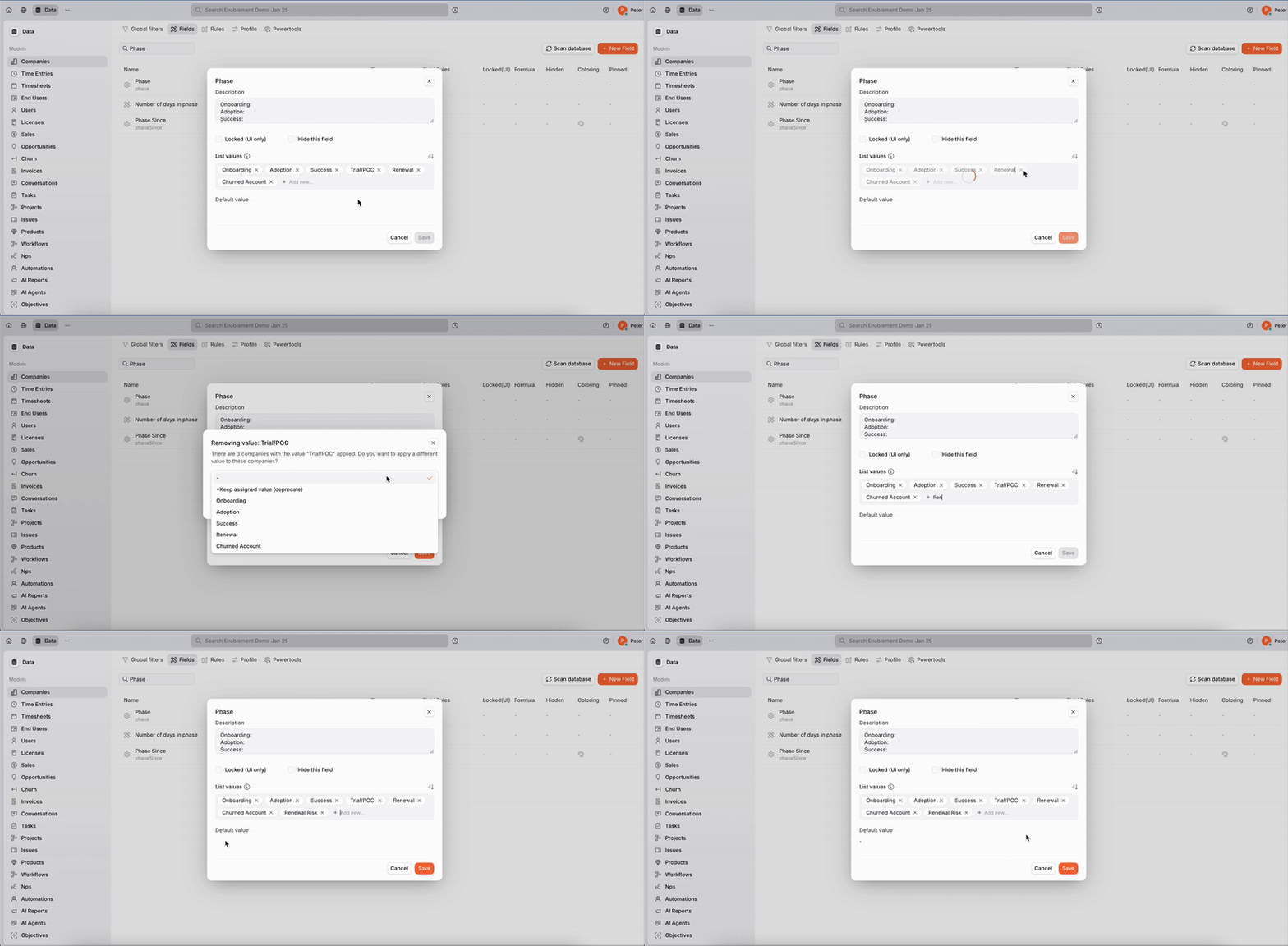
Click the GIF to view it enlarged