Global Tools for general Planhat users
Learn about features in the top gray bar of your Planhat tenant - Federated Search, History, Help, and your personal account
Summary
In the top gray bar of your Planhat tenant you'll find a range of Global Tools applicable to all Planhat users:
Federated Search - search for anything across your tenant, such as all items related to "Onboarding", or all items related to "Company X"
History - see what you've been looking at in Planhat, and quickly jump back
Help - access Help Center articles, the Dojo (the Planhat training platform), other Enablement content (videos, tutorials and guides), and live chat support; plus, learn about keyboard shortcuts, and enable certain feature flags
Your personal account - connect up your email/calendar, adjust notifications, apply dark mode, and more
Who is this article for?
All Planhat users
Article contents
Introduction
While much of your Planhat UI is very customizable, there are also some default elements applicable to everyone, which are always available for you in easy reach. In this article we'll introduce you to the Global Tools in the top gray bar that apply to all Planhat users:
Your personal account - your initial/avatar/profile
(You can click the links above to jump directly to more detailed articles on these features.)

Click the image to view it enlarged
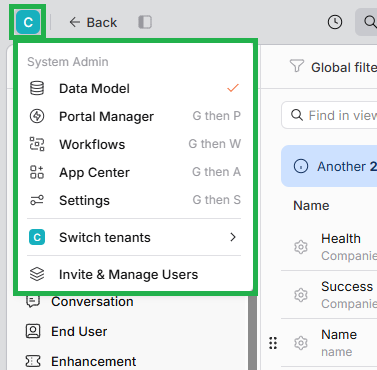
Federated Search
Planhat's search functionality is super powered! It's "federated", meaning it compiles and searches all sorts of data from across your tenant. Rather than only being able to search just a narrow subset of data, such as only Company records, you can search for more general terms such as "Onboarding", and see related Workspaces, Workflows, Metrics, Pages and More. If you do search for a Company name, you'll see a variety of related data, like in the example below.
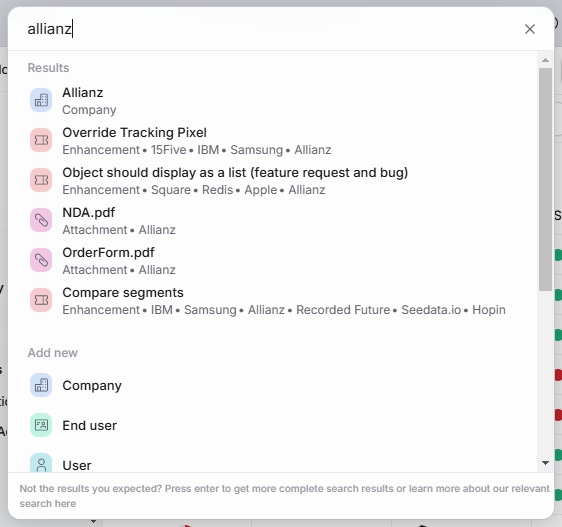
The search is "live" - you'll see the search results update as you type. It's so quick and convenient!
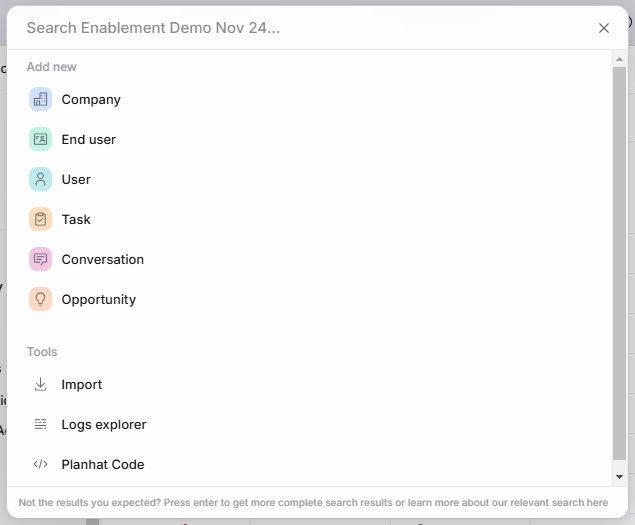
Within the Federated Search box, you can additionally access various tools (such as the ability to add/import data), and you can even jump quickly to other URLs within your Planhat tenant!
📚 Further reading
To learn more about Federated Search, read our separate article here.
History
Within Planhat, you'll be frequently navigating between different parts of the app - e.g. maybe you're looking at an Inbox Page, then you open up a specific Conversation, and then you go to look at the Company it's associated with, and then you view a particular End User at that Company ... you get the idea.
You may sometimes want to go back in your navigation - jump to something you saw earlier. Well, History (accessed via the clock icon next to Federated Search) is your solution here - and it's more advanced than just a simple "back" button, as you can easily jump back to, for example, something you were looking at 2 days ago, rather than just the most recent thing.
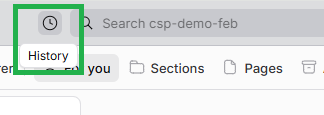
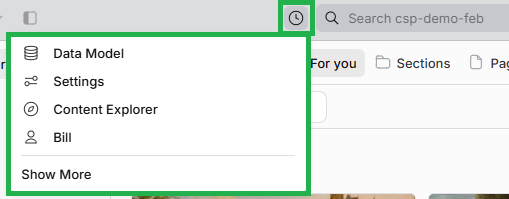
When you first open History, you will see short-form results as pictured in the screenshot above. If you click on "Show More" at the bottom, you'll see long-form results, both with more items listed, and more information (date/time) for each.
📚 Further reading
To learn more about History, read our separate article here.
Help
If you have any questions about Planhat, there are a wide range of self-help resources available to you under the question mark icon in the top right of your tenant.
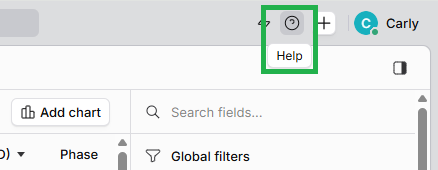
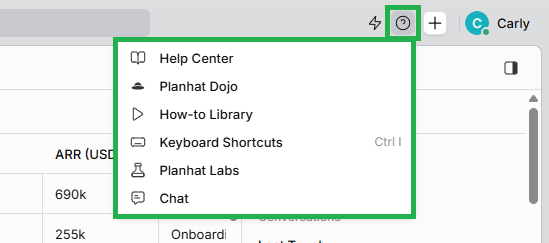
Under "Help", you will find:
Help Center - a wide range of instructional articles, such as the one you're reading right now!
Planhat Dojo - our online learning platform, where you can take training courses to learn about Planhat
How-to Library - Enablement videos, tutorials and guides
Keyboard Shortcuts - view a list of keyboard shortcuts you can use to quickly navigate around Planhat and get things done!
Planhat Labs - where you (if you are a Planhat admin) and Planhat staff members can manage activation of certain features within your Planhat tenant
Chat - access our live chat support with our helpful and knowledgeable Support team, and our AI chat bot ("Fin")
📚 Further reading
To learn more about Help, read our separate article here.
Your personal account
In the top right of your tenant, you'll see your personal account - this shows in the gray bar as your initial or photo, plus your name.
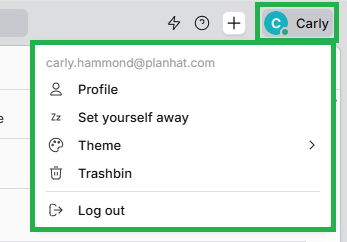
Click here and you'll see a number of options:
Profile - this takes you to your User Profile, where you can connect your email account and calendar, and configure notifications, and more
Set yourself away/available - this corresponds to the green dot by the initial in the screenshot above
Theme - this is where you can turn on/off dark mode! Choose from dark mode, light mode, or "system" (which will use your overall system settings)
Trashbin - the trash bin is where you can see deleted items, including who deleted them in your tenant, and restore them if necessary
Logout - here is where you can log out of your Planhat tenant