Set up your Health Score Profiles
Everything you need to know about Planhat's Health Profiles
Planhat's Health Profiles give you the ability to apply rules to a specific segment of customers, and those rules can have a negative or positive impact on the Health Score.
📌 Important to note: Health Scores are usually monitored very closely, so please be careful when creating Health Profiles. If you were to make a change to an existing Health Profile, or apply a Health Profile to many Companies, then the Companies' Health Scores could drop or increase which may trigger notifications and automations etc., which could cause a bit of a mess.
With that in mind, grab a coffee and let's get started!
How to Create a Health Profile
In upgraded Planhat (ws.planhat.com), Health is considered a specialist field on the Company model. To configure Health Profiles:
Go to the "Data" Global Tool
Ensure "Companies" is selected in the "Models" list
Click on the "Fields" tab
Click on the "Health" field
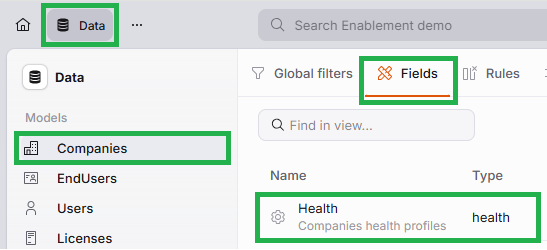
This will open up a modal like this:
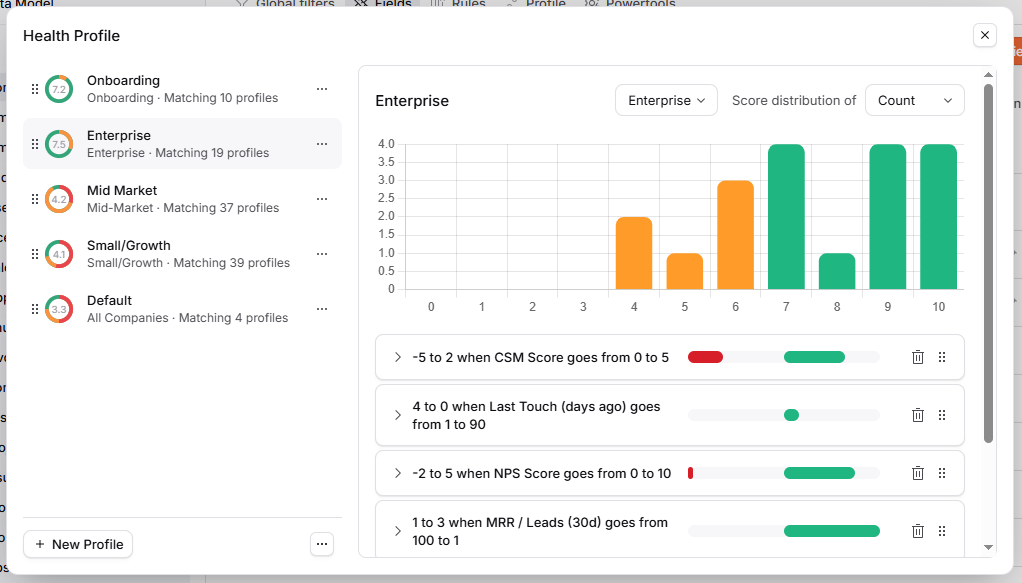
Click the image to view it enlarged
Note: if you haven't configured any Health Profiles yet, you will just see the Default Profile.
You can edit any existing Health Profile by clicking on its name on the left and then configuring the Health Factors on the right, or you can create a brand new Health Profile by clicking "+ New Profile" in the bottom right of the modal (shown above).
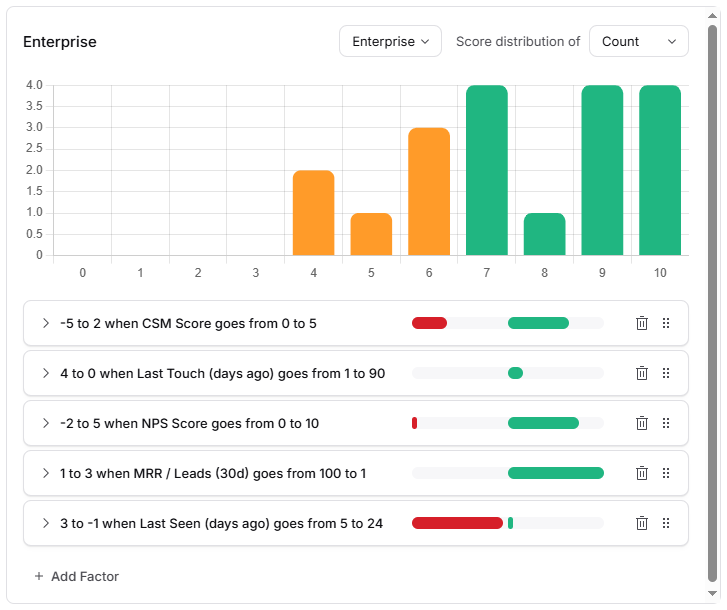
For each Health Profile, you can set:
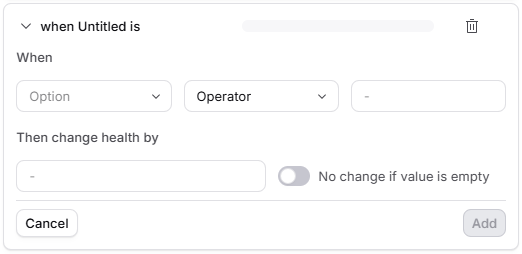
📌 Important to note:
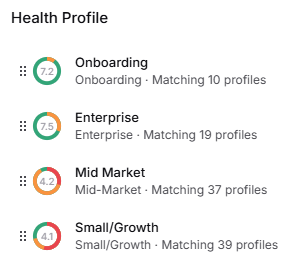
Each Company can only have one Health Profile applied at a time, which is what calculates their Health Score. If a Company matches the filters of multiple Health Scores, we work from the top of the list of Health Profiles and work downwards - so the first one that matches will be the one that applies.
So, taking the example set of Health Profiles below, if there is a Company that's in the Onboarding Phase and the Enterprise Tier, it will initially have the Onboarding Health Profile applied while it is in the Onboarding Phase because that's the top/first one, and then once the Company moves out of Onboarding, it will no longer meet the filter of the Onboarding Health Profile, so it will have the Enterprise Health Profile applied instead.
🚀 Quick tip:
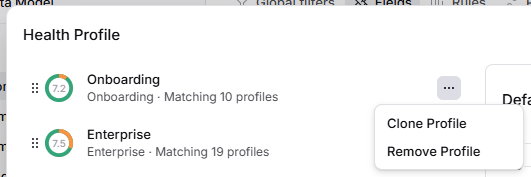
If you click on the ellipsis symbol next to a Health Profile, you will see that you have option to remove or clone (copy) the Profile.
If you would like to know more about Health Factors, or how Health Scores are calculated, then check out these articles: Setting Up Your Health Factors & How Health is Calculated 👍