Setting up the Pipedrive integration
The Pipedrive integration lets you sync your Organizations, Contacts, Deals and Notes with Planhat
Summary
Data you can sync
Key models/objects - CRM data (including revenue data)
Custom field mapping available for Organization, People Contact and Deal
Sync direction
Managed at object and field level
Choose between
Bidirectional (available for Company/Organization only)
Send to Pipedrive (available for Company/Organization only)
Receive from Pipedrive
None (i.e. don't sync)
Sync frequency
Automatic sync: near instant
Initial manual "Fetch All" in the integration to sync in historical data
You can also initiate manual syncing for individual Companies
Data mapping
See table below
Who is this article for?
All Planhat users
It's particularly relevant to those setting up the Pipedrive integration
Series
Pipedrive integration:
Setting up the Pipedrive integration ⬅️ You are here
Article contents
Introduction
Planhat's Pipedrive integration enables you to sync your CRM data into Planhat quickly and easily.
There are two options when syncing from Pipedrive using the integration:
If you are using Planhat as a Customer Success Platform (CSP), you can just sync data (e.g. Organizations) associated with a "won" Deal in Pipedrive. Your post-sales team can then manage your paying customers in Planhat
Alternatively, if you will be using Planhat as your CRM, replacing Pipedrive, you can set the integration to sync in data (e.g. Organizations) regardless of the Deal stage, so you can migrate the data from your legacy CRM provider to Planhat
Some data can also be synced back to Pipedrive if desired.
Once in Planhat, your CRM data is combined with other data types, such as conversation data (emails and tickets etc.) and product usage data, so you have a complete 360° view of your customers/prospects. You can create custom dashboards to visualise your choice of data for the greatest insights. Planhat enables automatic data-driven actions for maximum efficiency and impact - e.g. you can automatically assign a Workflow to new customers, or customers where opportunities or risks are identified, so relevant tasks and emails are scheduled for you.
Data mapping
Planhat model | Sync direction | Pipedrive object |
Company | Can be bidirectional | Organization |
End User | From Pipedrive to Planhat | People Contact |
Note | From Pipedrive to Planhat | Note |
License and Sale | From Pipedrive to Planhat | Deal |
How does the sync work?
Automatic sync
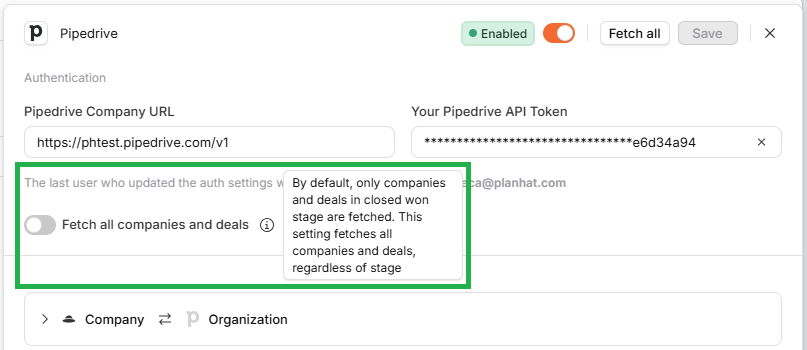
The sync can work in two slightly different ways, depending on whether you toggle the "Fetch all companies and deals", in the "Authentication" section, on or not.
Click the image to view it enlarged
The default automatic sync (with the toggle switch off) from Pipedrive to Planhat is triggered when an eligible* Deal is marked as "won", or a won Deal is updated. This prompts the data to sync into Planhat from that Deal and the associated Organization/Contacts/Notes (assuming their sync direction is set in the integration to "Receive from Pipedrive" or "Both directions"). We recommend this setup if you are using Planhat as a Customer Success Platform (CSP), as in this case you only want the data of paying customers to be synced into Planhat.
Alternatively, if you have the toggle switch enabled, the sync doesn't look at the Deal stage in Pipedrive, and instead the automatic sync is triggered when an eligible* Deal is created or updated. Again, the associated Organization/Contacts/Notes are also synced (assuming their sync direction is set in the integration to "Receive from Pipedrive" or "Both directions"). We recommend this setup if you will be using Planhat as your CRM going forward, as you'll want to sync data from all prospects and customers into Planhat. See also the information on manually syncing via "Fetch All" below. Note that even with the "Fetch all companies and deals" toggle on, only Organizations associated with Deals are fetched from Pipedrive, not Organizations without any Deal.
*For a Deal and its associated Organization etc. to be synced:
The Deal needs to be in a valid pipeline. In the integration settings, you can select specific pipelines, or if you don't select any, then all pipelines will be included
The Deal must be associated with an Organization in Pipedrive (i.e. the Deal can't sync in by itself)
The Deal must have a valid start date
Manual sync
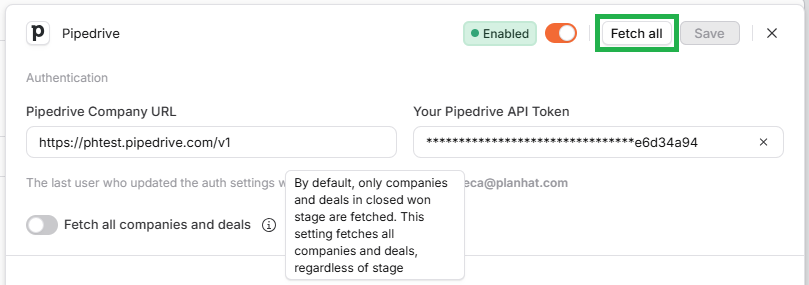
There is a "Fetch all" in the integration that's perfect for initially syncing in historical data - and this may be all you need if you are migrating data from Pipedrive to Planhat as your CRM. The behaviour of this manual sync respects whether the aforementioned "Fetch all companies and deals" toggle switch is off (in which case, it only syncs in data associated with a won Deal) or on (where the Deal stage in Pipedrive does not matter).
Click the image to view it enlarged
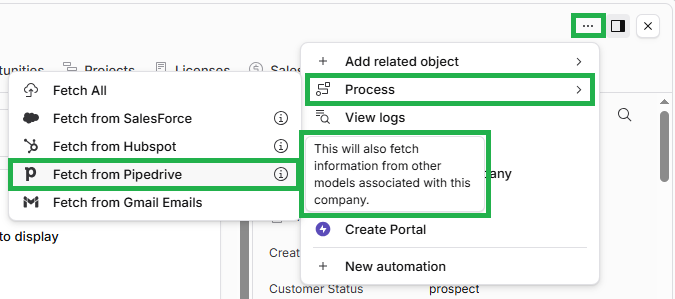
If you will be using Planhat as a CSP, so there will be an ongoing sync from Pipedrive, you will subsequently simply rely on the automatic sync, but sometimes you may want to trigger a targeted manual sync. If you have made changes in Pipedrive to an Organization, People Contact or Note, but not to the associated Deal, so the automatic sync will not have been triggered, you can manually sync via the relevant Company Profile(s) in Planhat. Simply click on the icon of three vertical dots in the top right, mouse over "Process", and select "Sync with Pipedrive".
Setting up the integration
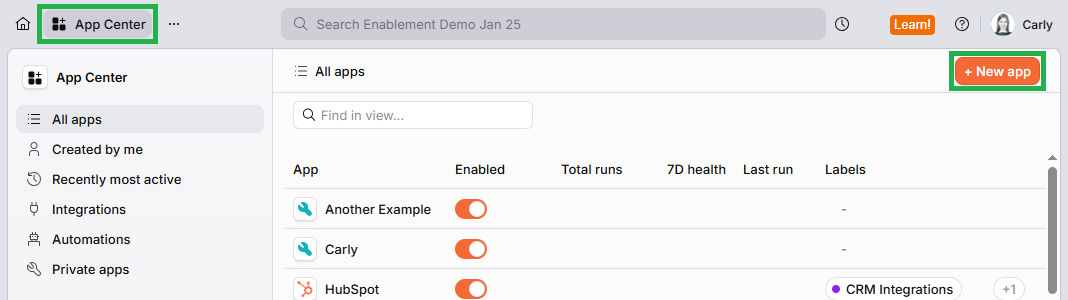
To set up Planhat's Pipedrive integration, follow these steps:
Further information
The sync operates via a webhook in Pipedrive, which is created by the integration in your Pipedrive account
If you set up the integration with a particular pipeline, sync in Deals/Licences etc. from it, and then later deselect it, the previously synced associated Deals/Licenses won't be deleted from Planhat, but they will no longer be updated
The Deal object is by default mapped to the License model in Planhat, which is for recurring revenue, but you can also configure the integration to sync certain Deals to the Sale model in Planhat, which represents non-recurring revenue. There are instructions for this in the left-hand panel of the integration
The integration ignores "empty" fields, but it will sync "null" values. "Empty" fields are fields where no value has been defined, whereas "null" fields are intentionally defined values
Further reading
If you'd like some troubleshooting help with setting up or using the Pipedrive integration, check out this article.