Preparing BigQuery and connecting the integration
Part 1 of the setup steps for the BigQuery integration
Summary
This article takes you through the simple steps to authenticate and enable the BigQuery integration in Planhat
You begin by carrying out some initial steps via the Google Developer Console
You then enter your BigQuery credentials in the integration in Planhat and complete the authentication. Enable the integration and you're ready to start mapping data!
Who is this article for?
Planhat users who are setting up the BigQuery integration (e.g. Tech/Ops)
Series
This article is part of a series on the BigQuery integration:
Setting up the BigQuery integration - an overview
Preparing BigQuery and connecting the integration - part 1 of the main instructions ⬅️ You are here
Data mapping in the BigQuery integration - part 2 of the main instructions
Article contents
Introduction

Planhat's BigQuery integration makes it easy for you to sync time-series usage data into Planhat, and sync CRM data (Company, End User and License etc.) bidirectionally.
There are two main stages to setting up the BigQuery integration.
The first stage, described in this article, is preparation in BigQuery and authentication in the integration. The main steps we'll go through here are:
A. In BigQuery
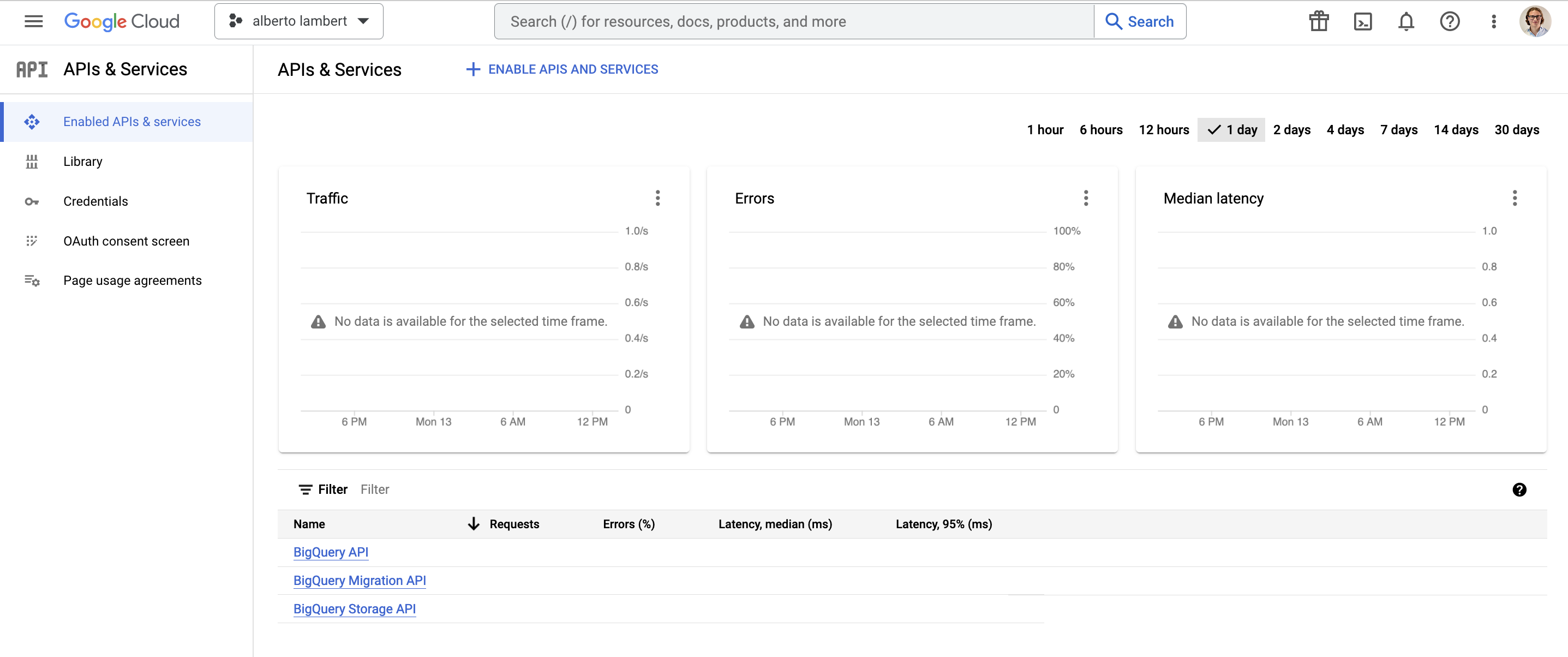
Create a new project in Google Cloud
Set up OAuth consent screen
Begin to configure credentials
B. In Planhat
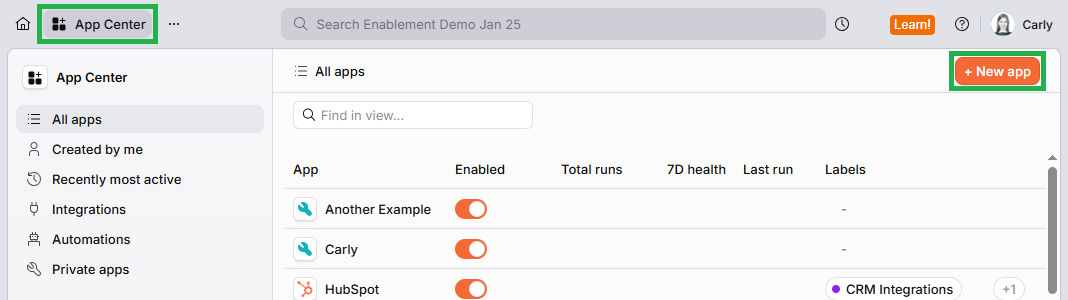
Open BigQuery
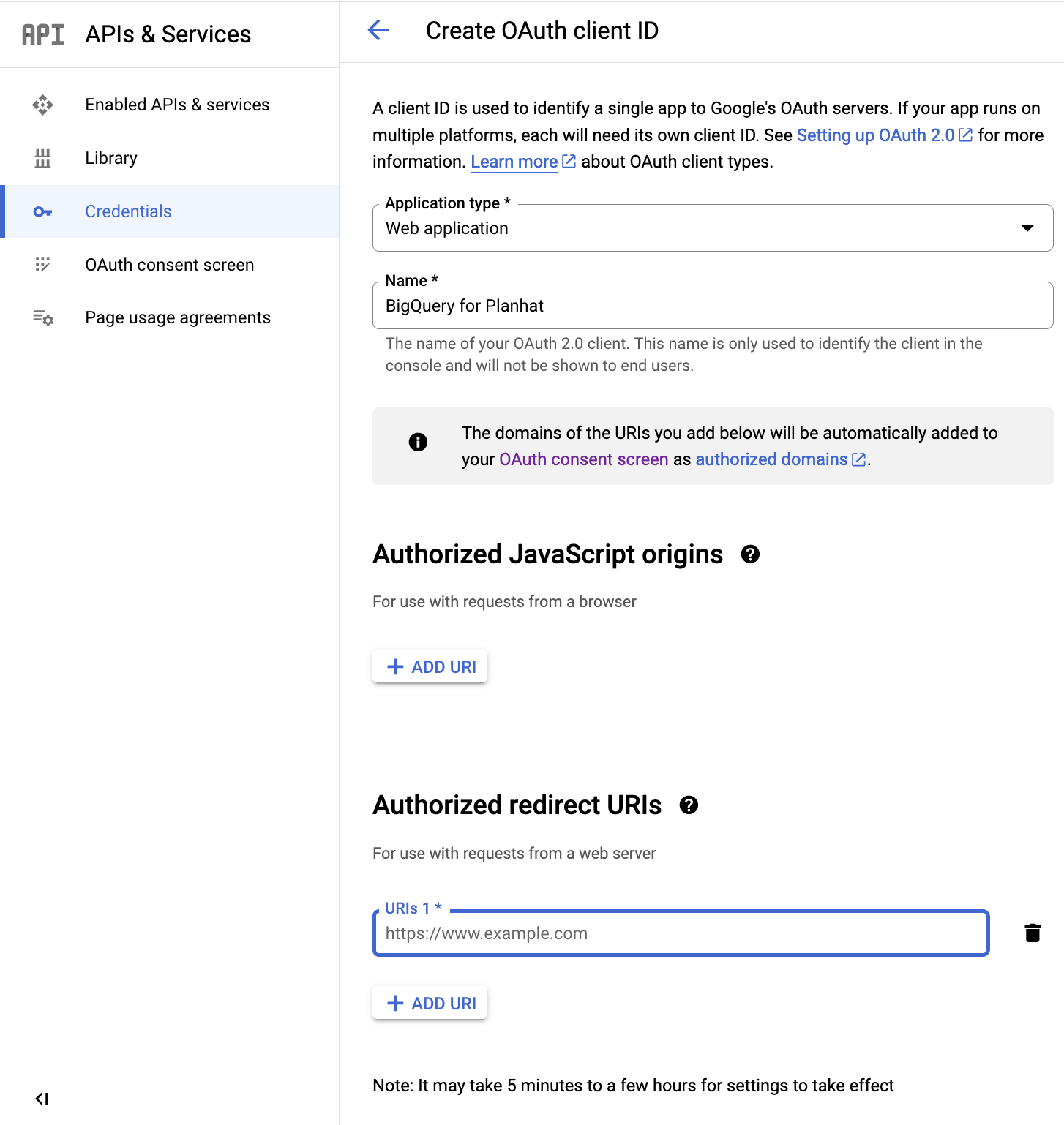
Copy redirect URI
C. In BigQuery
Generate credentials (using URI from Planhat)
D. In Planhat
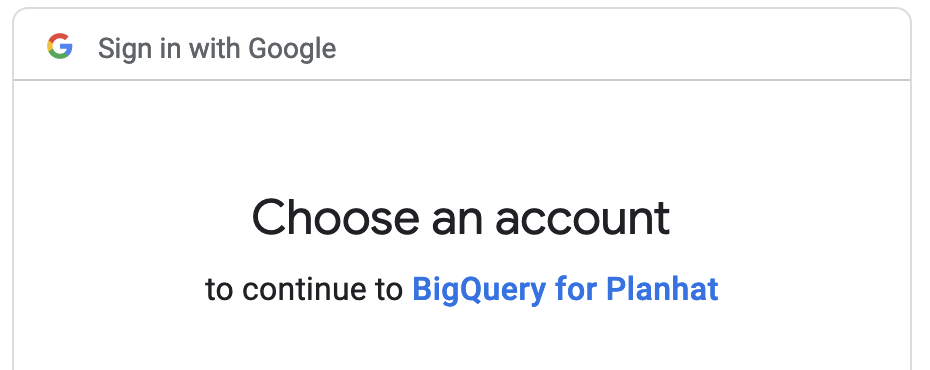
Enter BigQuery credentials and authenticate
Enable the integration
Select your BigQuery database
The next stage is data mapping, which we cover in the next article in the series.
A. Initial preparation steps in BigQuery
Before you connect BigQuery to Planhat's integration, there are some setup steps to carry out in BigQuery.
Make sure you have BigQuery admin access before carrying out the following steps.
🚀 Tip
You can click on each of the screenshots below to view them enlarged in a new tab.
B. Open the BigQuery integration in Planhat
In another tab, open up Planhat. Firstly, you'll copy some information from the integration back to BigQuery.
C. Complete the setup in BigQuery
Now you can pick up where you left of in section A, copying the URI from Planhat into BigQuery.
D. Connect the BigQuery integration in Planhat
Now you can add the relevant information from BigQuery to the integration in Planhat in order to make the connection.
🎉 Congratulations - your connection is now fully set up! You are now ready to start the data mapping, which we go through in the next article.
Next steps
Once you've followed the instructions in this article and connected BigQuery to the integration in your Planhat tenant, the next step is to configure the data mapping. Learn how to do this in the next article in the series.
[Tag for search purposes: Big Query]