Planhat OS - AI Governance Hub
Govern and control how AI is used in Planhat
Summary
The "Governance" screen in Pi Studio is a place to view and manage how Planhat's AI works for your organization
It shows how AI is set up, which models Pi uses, what Pi is allowed to read and change, and how many AI credits you have left
Who is this article for?
Anyone who would like to understand how Planhat OS enables AI governance for their organization
It's particularly relevant for Planhat Admins (Ops, RevOps, or IT) who are responsible for AI setup, data access, and cost
Related articles
Other articles particularly relevant to this article are:
Article contents
Introduction
The AI Governance Hub is an area within Pi Studio that gathers your AI governance controls in one place.
As your team works more with Pi - answering questions and building Automations, etc. - Admins need clear answers and governance capabilities. The AI Governance Hub brings them together, so you can view the whole picture at a glance and jump to the exact setting you need.
To see/access the AI Governance Hub, you need the "Admin Access" workflow permission in your Role.
Where is the AI Governance Hub?
The AI Governance Hub is located in Pi Studio.
When you first open Pi Studio, you will see a "Governance" area near the top, which summarizes key analytics data such as numbers of runs and credits.
If you mouse over this "Governance" area, and click the "More" that appears, this opens up the more detailed, full AI Governance Hub.
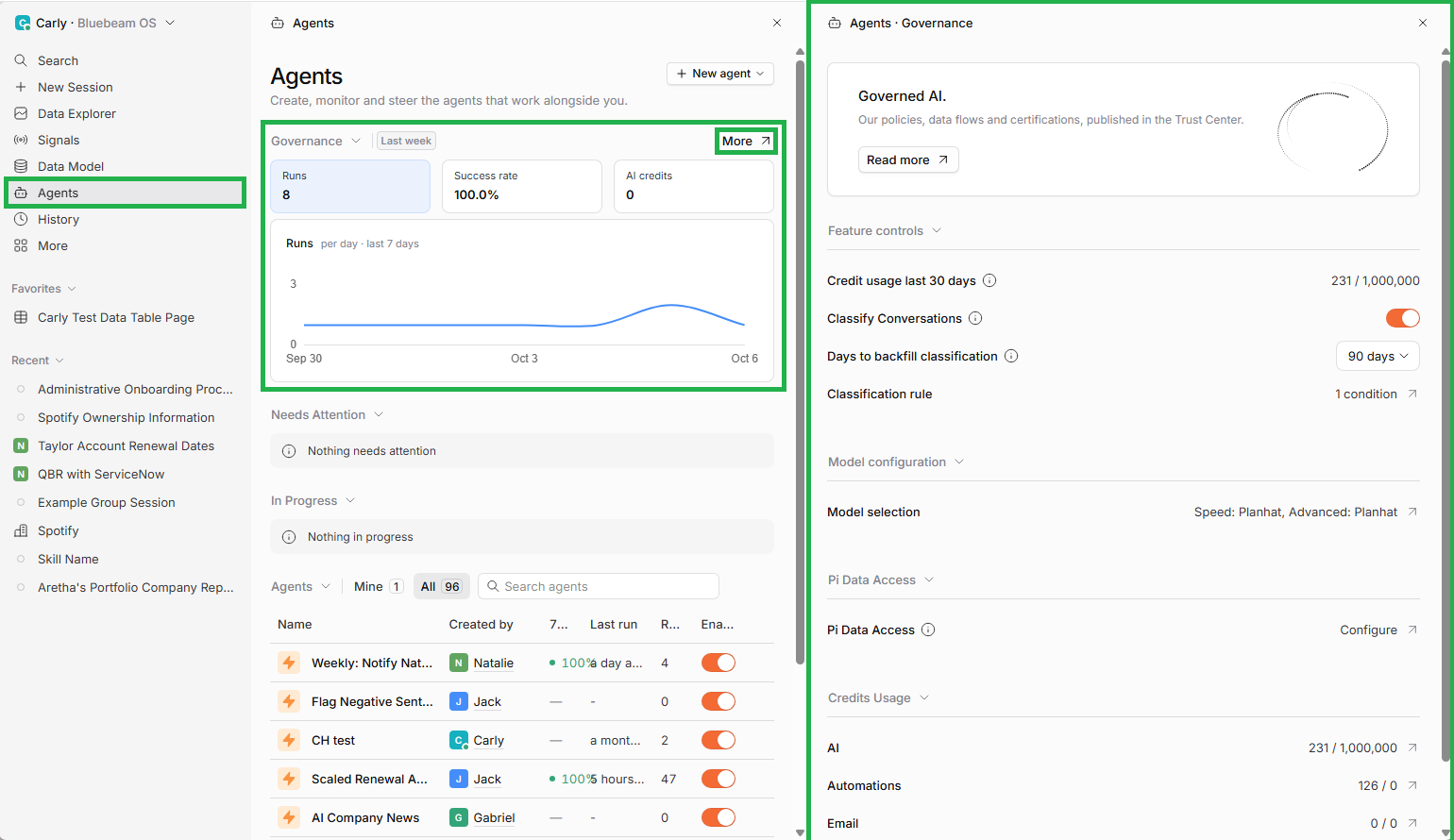
Click the image to view it enlarged
Next, we will go through each of the components of the AI Governance Hub.
Trust Center
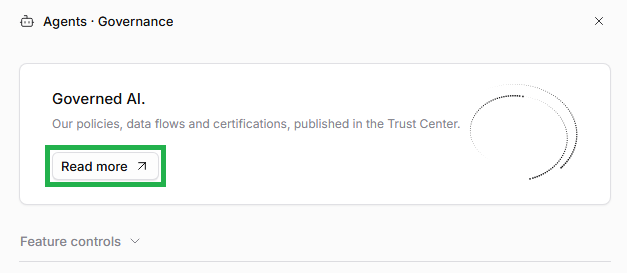
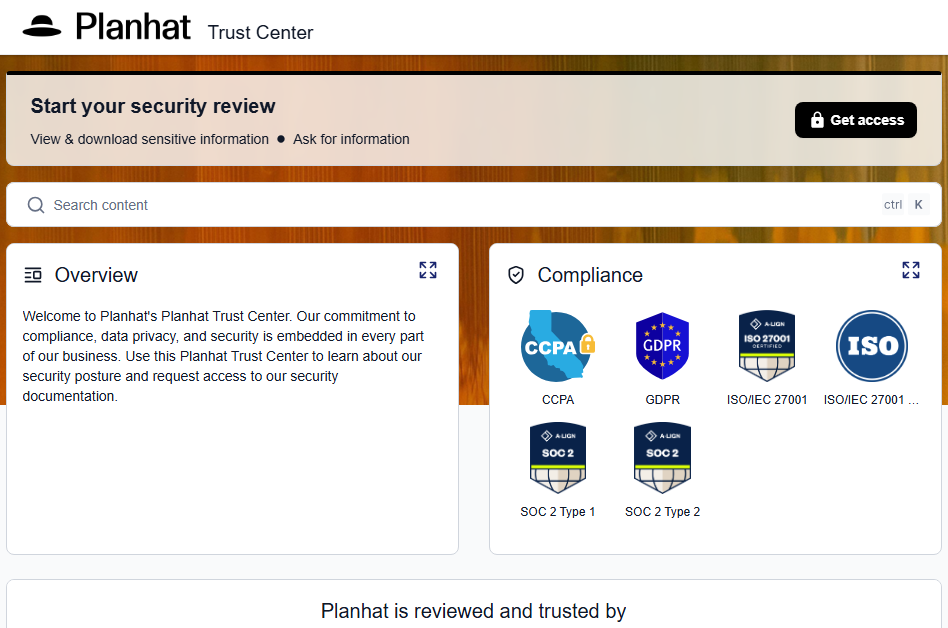
Our policies, data flows, and certifications related to AI are published in the Trust Center.
To go to our Trust Center, click on "Read More" at the top, and it will open in a new tab.
Feature controls
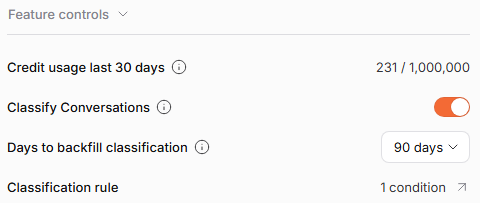
If AI is activated in your tenant (i.e. your organization's copy of Planhat), you will see the following:
"Credit usage last 30 days" shows the AI credits you have used against your total for the last 30 days
"Classify Conversations" is a toggle that turns automatic Conversation classification on or off. When on, emails, chats, tickets, and any Conversations with a transcript are analyzed
"Days to backfill classification" sets how far back to analyze when you turn classification on ("Starting today", "30 days", or "90 days".)
"Classification rule" lets you limit classification to Conversations that match conditions you set
If AI is not yet activated, you will see an "Activate Planhat" panel instead, with a "Get started" button to accept the terms and enable AI.
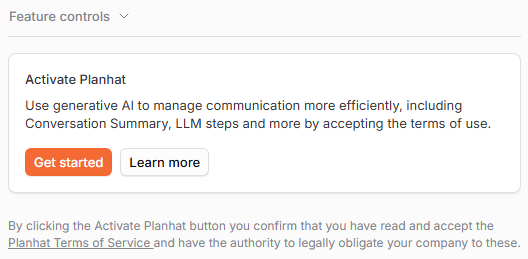
Model configuration
📌 Important to note
This part of the Governance Hub only shows once AI is activated for your organization (see screenshot above).
It's also behind a feature flag at time of writing - so speak with a Planhat representative if you can't see this but you would like access.
"Model configuration" / "Model selection" displays which AI models are used by Pi and other AI features within Planhat OS, split into two kinds of work:
Speed - for quick, simple work
Advanced - for complex tasks that need more capabilities

Clicking into this, you'll see the dropdown menus where you can make your selection:
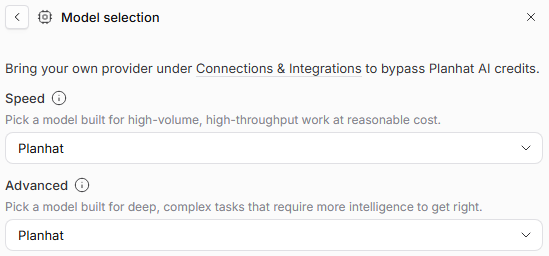
You can choose to let Planhat determine which models to use, or connect your own provider (bring-your-own, or BYO, LLM) for control or compliance reasons.
You need to have set up your AI connections in the "Connections" part of the Settings Tool for you to select them as your models. Your own AI provider can be OpenAI, Azure, Anthropic/Claude, Gemini, etc.
Changes can take up to 30 minutes to take effect.
📚 Further reading
You can read more about bringing your own provider (BYOLLM, also called BYOM - bring your own model) in our deep-dive article here.
📌 Important to note
AI models in BYOLLM are not to be confused with Planhat data models (Company, End User, and so on), which is a separate concept.
Pi Data Access
This part of the AI Governance Hub lets you (as an Admin in your Planhat tenant) define Pi permissions to set limits that apply to everyone in your tenant, in addition to the limits set by each User's Role.

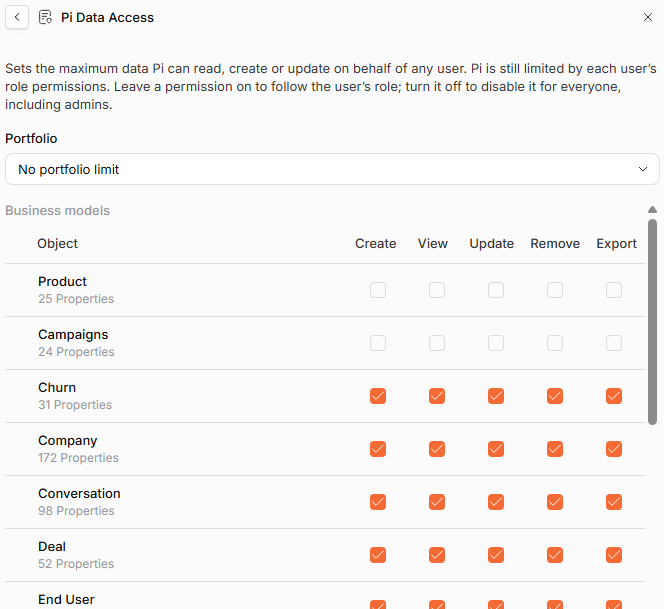
The Pi Data Access settings only ever narrow what Pi can do: these Pi permissions never give Pi more access than the User already has from their Role. They are a security feature that gives you additional control over Pi.
📚 Further reading
You can read more about Pi Data Access in our deep-dive article here.
Credits Usage
This part shows credits consumed against your total, broken down by area:
AI
Automations
Email
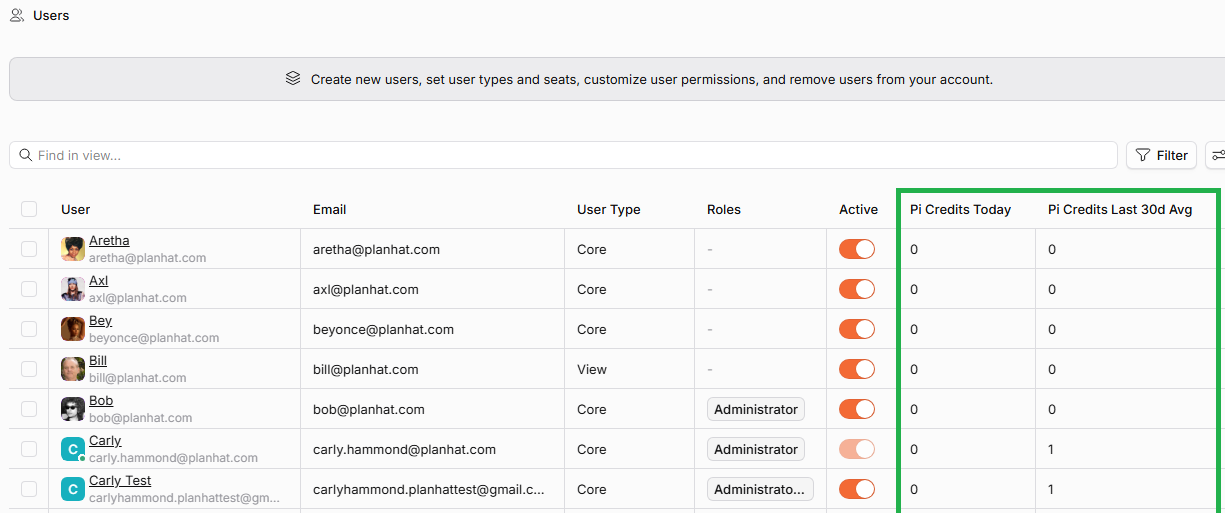
Per User
Each row links to a fuller usage view for that area.
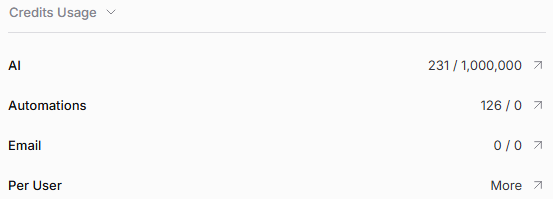
For "Per User", you can see the "Pi Credits" used by each User.
Click the image to view it enlarged
Frequently asked questions (FAQs)
Q: What is the AI Governance Hub in Planhat?
A: It is an area within the Pi Studio that houses your AI governance controls: AI activation, AI model choice, Pi Data Access (Pi permissions), and credit usage, in one place
Q: Who can see the AI Governance Hub?
A: This requires the "Admin Access" Role workflow permission
Q: Can I use my own AI model?
A: Yes. In the "Model configuration" settings you can select your own LLM provider
Q: Where do I see how many AI credits we have left?
A: The "Credits Usage" part of the AI Governance Hub shows credits consumed against your total for AI, Automations, and Email. The "Feature controls" area also shows AI credit usage for the last 30 days