Planhat OS - Sessions
Sessions are where you chat with Pi and/or co-workers in Planhat OS
Summary
A "Session" is a place to collaborate in Planhat OS, with Pi (Planhat's AI Agent) and/or with colleagues
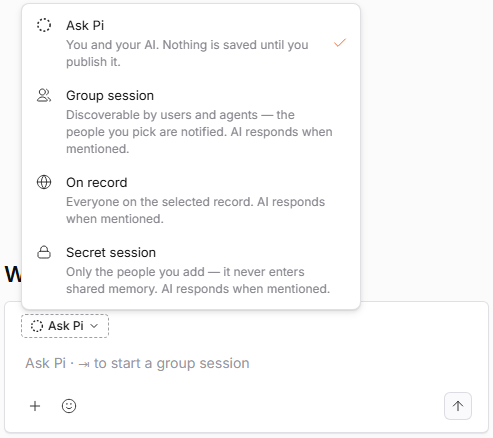
Before you write your first message, you pick a mode: "Ask Pi", "Group session", "On record" or "Secret session". The mode sets two things at once: who can see the Session, and whether Pi replies to everything or only when brought into the Session by being @-mentioned
Your Sessions sit in the sidebar, most recently active first (in the default grouping), where you can rename, favorite, close, leave or delete them
You can also view all your Sessions in the Sessions Tool (also sometimes called the Sessions Hub)
Who is this article for?
Planhat Users using Planhat OS
Anyone else who would like to learn about Sessions
Related articles
Other articles particularly relevant to this article are:
Article contents
What is a Session?
What is a Session?
A "Session" is where collaboration takes place within Planhat OS - a series of messages between you, your colleagues and/or Pi. You can use Sessions to brainstorm ideas with Pi, coordinate across teams, or automate processes.
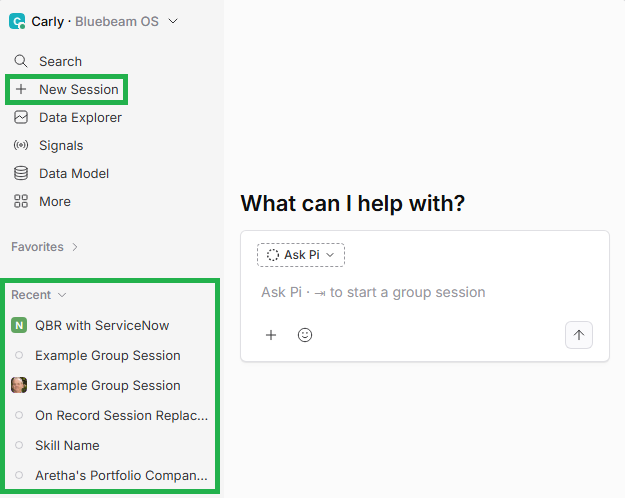
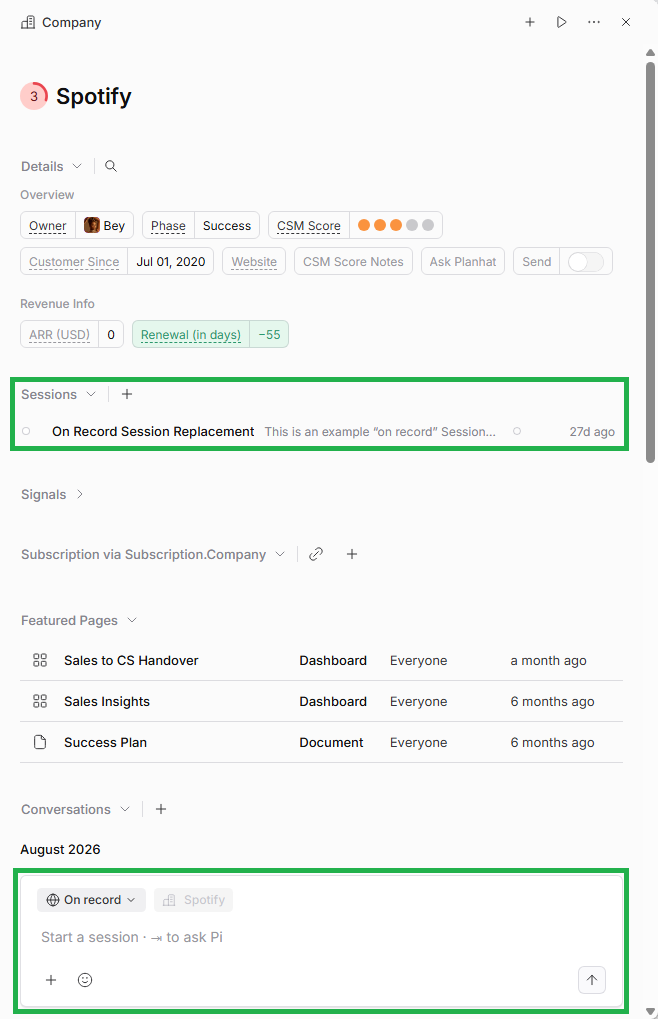
Sessions are also the replacement to the comments you may be familiar with from pre-OS Planhat. Instead of adding comments to an individual record (e.g. a specific Company), now you have "On record" Sessions instead, as shown in the example Company Profile screenshot below.
Modes
Each Session is one of 4 modes:
Mode | Who can see it; further details | Example use cases |
Ask Pi |
Only you; you may also hear this Session type referred to as "Just me"
Pi always responds
Data exploration
Working out phrasing
Drafting emails or responses
Checking metrics before sharing
Group session |
The people (Users) you add
This Session is discoverable by other Users and Agents in your Planhat tenant
Making a team decision
Sharing context across Team Members
Building a QBR with the CSM Team
On record |
Anyone with access to the linked record (e.g. a specific Company)
Sessions on Topics are a subset of this mode, and can be set to public or private (discussed here)
Collaborating on a Task
Building a Statement of Work (SOW) on a Project
Troubleshooting customer complaints
Secret session |
Only the people (Users) you add
It never enters shared memory
Confidential content - e.g. an HR or financial discussion with a specific group of people only
📌 Important to note
In "Ask Pi" ("Just me") mode, Pi will respond to anything you say, whereas in all other modes, Pi will only respond once it's been invited into the Session by @-mentioning (
@pi)You can search Sessions by asking Pi, or search (by Session title) within the Sessions Tool (Sessions Hub). "Ask Pi" and "Secret session" Sessions (and Sessions on private Topics) are not searchable by anyone else outside of the Session
You can branch a new Session off an existing Session (discussed more here). Any branched Session created in this way adopts the original Session's mode
Each mode shows a one-line description in the picker, so you can see what you're choosing before you select one. (The mode can also be changed later.)
How to start a Session
Here we'll go over the main, general process of starting a Session. Alternatively, it's possible to start a Session when you're looking at an individual record in Planhat (e.g. a Company Profile or a Topic), and you can also start a new Session by branching off an existing Session (discussed more here).
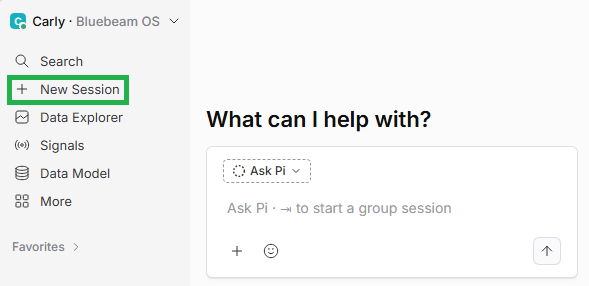
General method to create a new Session:
🚀 Tips
If you start a Session from a record - for example from a Company Profile - the mode and the record is already filled in for you
You can use "Ask Pi" as your thinking space. Pi replies to everything in this case, so you don't need to @-mention it to bring it in, and nothing you try out here is visible to anyone else
You should start a new Session per question, not per day. One Session per topic, clearly titled, is far easier to come back to than one long Session covering e.g. ten topics
How to change a Session mode/participants
The mode is a starting point, not a permanent setting. At the top of an open Session you can:
Change the mode
Change who the participants are
Change which record it's connected to. Changing this asks you to confirm, because participants who don't have access to the new record will lose access to the Session
Changing the mode
The screenshots below show examples of clicking on the name of the Session in the top left of the Session to open a menu where you can change the mode, either by linking to a record, or by selecting "Convert to Secret Session" or "Convert to Group Session".
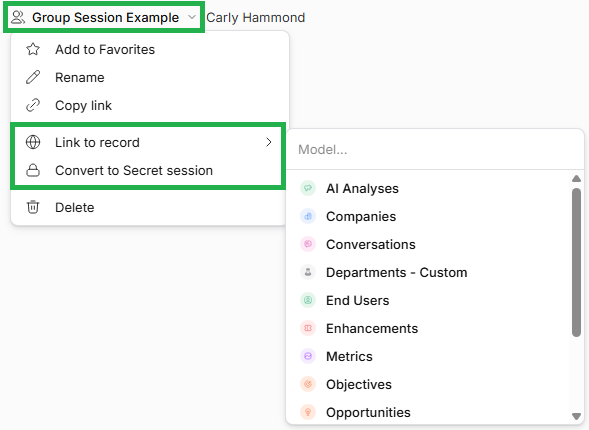
Note that if your Session is an "Ask Pi" / "only me and Pi" Session, the conversion options are nested under "Share...".
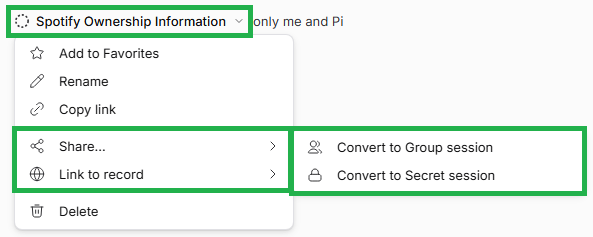
Changing participants
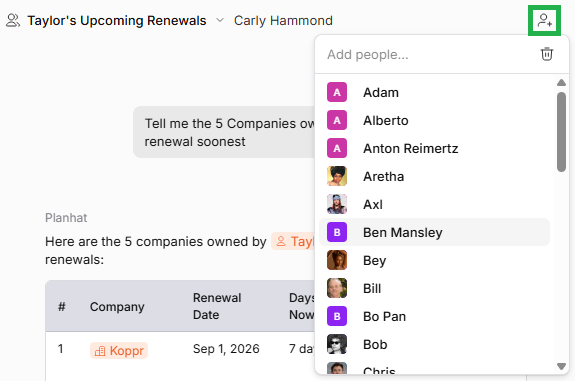
The next couple of screenshots show how you can click on the User icon(s) in the top right of a Session to add/remove participants.
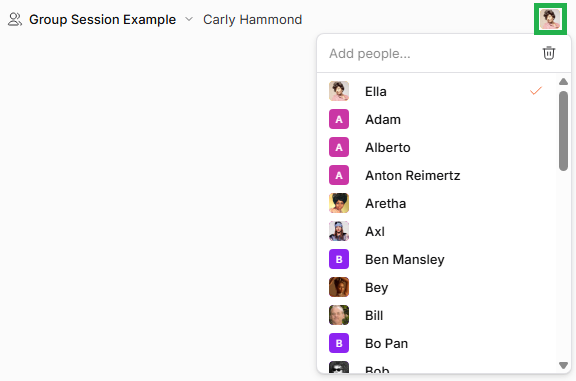
Note that if your Session is an "Ask Pi" / "only me and Pi" Session, you will need to share/convert the Session before you see the option to add participants.
Where you can find Sessions
Once a Session exists, you'll find it in at least two (in some cases, three) places:
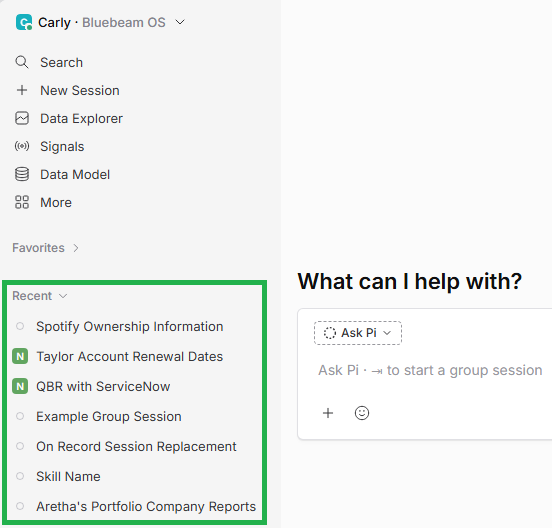
Managing Sessions in the sidebar
Right-click a Session in the sidebar - or select its "..." menu (by mousing over a Session name and clicking on the ellipsis that appears) - for these actions:
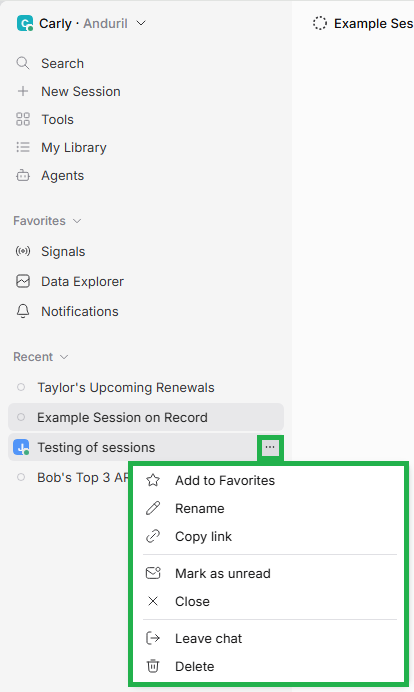
"Add to Favorites" / "Remove from Favorites" - this pins (bookmarks) the Session in the "Favorites" section of your sidebar
See our separate article on Favorites
"Rename" - edits the Session title in place
To save, press enter (return), or click away from the box
"Copy link" - copies a direct link to the Session
"Mark as unread" - flags the Session so it shows as unread, without moving it
Useful for something you've read but haven't dealt with
Sessions are marked read automatically once you've opened them
"Close" - removes the Session from your sidebar
Nothing is deleted, and nobody else is affected
See Tip box below
"Leave chat"- removes you from the participants list, and tells the other participants that you've left
It asks you to confirm first
This option is only available for some Sessions. You can't leave a Session that's just between you and Pi. The option also doesn't appear for other Session modes if you're the person who created the Session. If you created it, your only exit is "Delete".
See Tip box below
"Delete" - deletes the Session for everyone
It asks you to confirm, and it can't be undone
The "Delete" option is only available if you created the Session, or if you're a chat admin
See Tip box below
🚀 Tip
"Close" only affects your own sidebar. The Session itself is untouched, the other people in it see no change, and it returns to your sidebar as soon as anyone @-mentions you in it or you write in it yourself. Use "Close" freely for tidying up
Use "Leave chat" when you want out of a Session that's still running
Use "Delete" only when the whole Session should stop existing
Group by
The sidebar's "Group by" button gives you different ways to organize the Sessions list. To access these options, mouse over "Recent" (or equivalent) in the sidebar, and click on the slider icon.
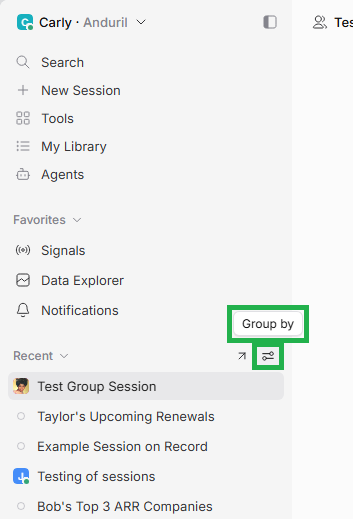
"None" - one list under "Recent", most recent first
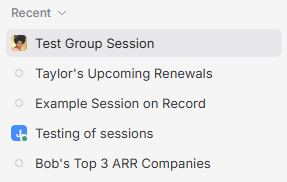
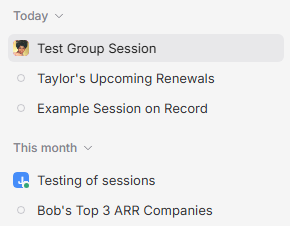
"Date" - buckets by "Today", "Yesterday", "This week", "This month" and "Older"
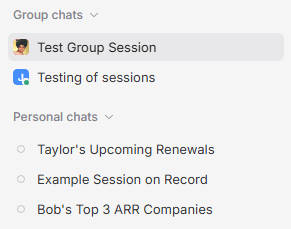
"Type" - splits into "Group" and "Personal" Sessions
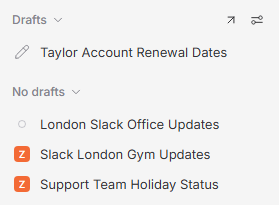
Further details
Automatic Session aggregation
In addition to the grouping/sorting choices described above, Sessions in your sidebar are automatically aggregated to some extent.
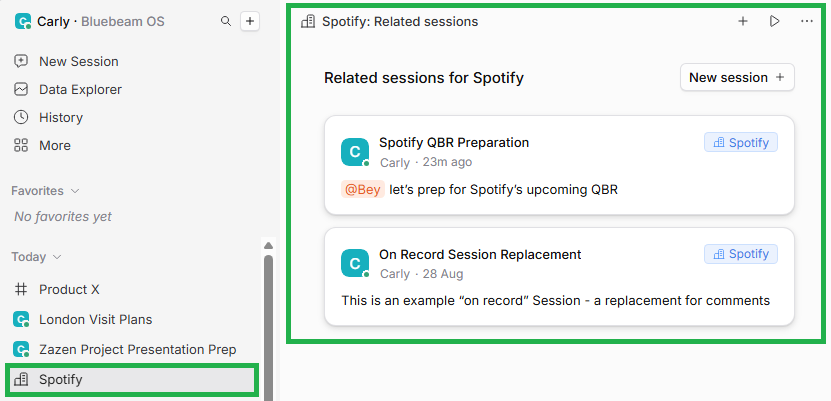
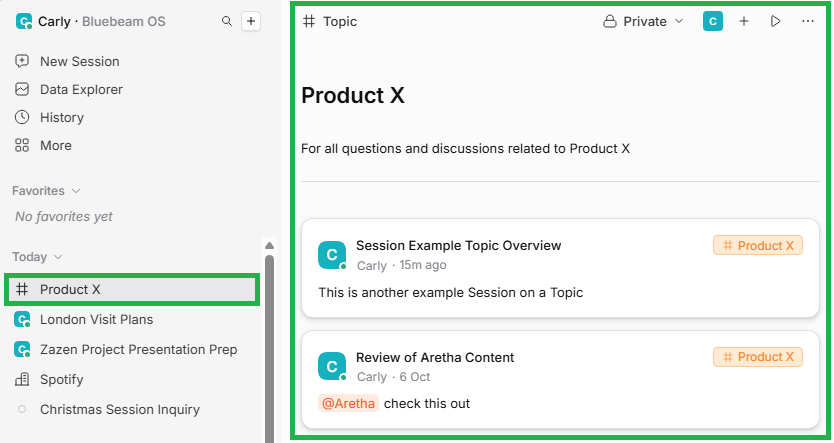
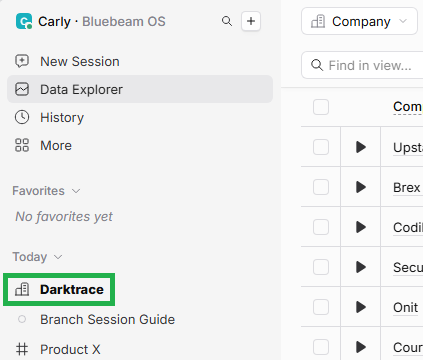
If you have multiple Sessions about a single record - such as a Company or a Topic -then only the record/Topic name will be listed in your sidebar, to avoid taking up too much space. You can click into it there to see the list of related Sessions.
This is an example for a Company record ...
... and this is an example for a Topic:
Subscribing
You can subscribe to Sessions on a particular record, such as a Company (e.g. one you are the Owner of) or Topic (e.g. one where your organization announces product updates). This functionality is great to ensure that you keep up to date with what your colleagues are discussing.
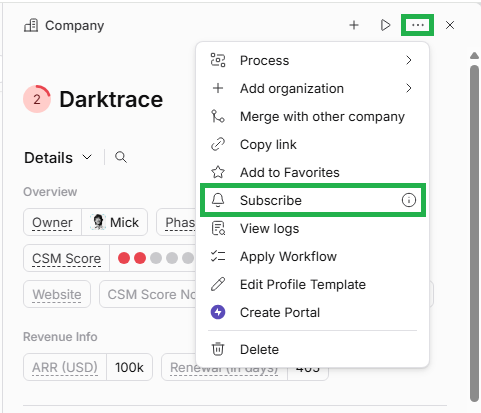
To do this, open the record, click on the ellipsis symbol (3 dots) in the top right, and select "Subscribe".
New Sessions matching your subscription preferences will then come into your sidebar.
Unreads
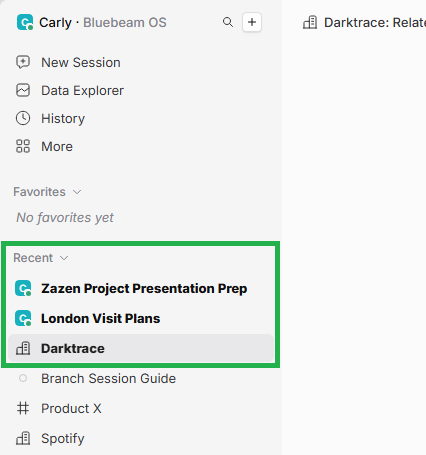
Sessions where you have unread messages are shown in bold and go to the top of your Sessions list in the sidebar.
Branching
As well as starting a brand new Session (like we discussed above), you can also branch a Session off an existing Session. For example, you might have an initial Session that's a big product announcement, and then you want to branch off a new related Session discussing one specific aspect of that.
You branch off a Session from a specific message within a Session, rather than from a whole Session.
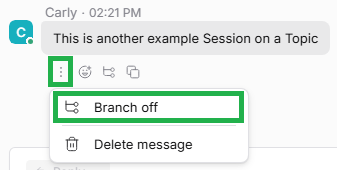
To do this, you mouse over the particular message to view its 3 dots ("More") menu underneath the message. Click this, and then you'll see "Branch off" underneath to click on.
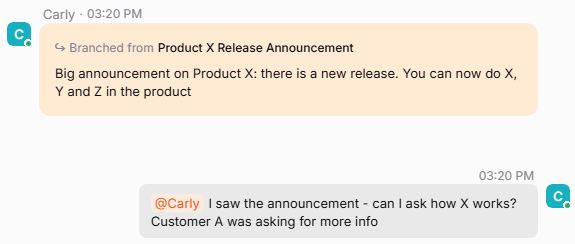
The new Session will begin with a reference to the original Session in orange at the beginning.
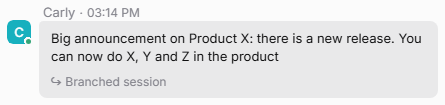
On the original Session, it will state that a Session has been branched off it.
Skills
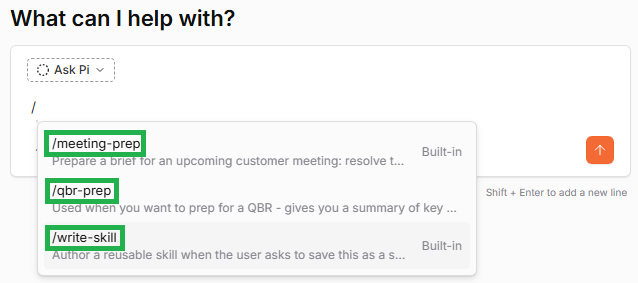
When you're chatting in a Session, you can use Skills. A Skill is a saved, reusable procedure that Pi can follow, so it works the same way every time. Pi has some built-in Skills created by Planhat (e.g. meeting-prep), but you can also create your own custom Skills. You can manually select a Skill in a Session by typing a forward slash, or otherwise Pi will automatically use applicable Skills where appropriate. You can read more about Skills in our separate article here.
Memory
Memories are facts and preferences that Pi remembers across your Sessions. There are different levels of Memory, from Memories personal to you, to those that apply across your tenant. Like Skills, Memory is another way to tailor Pi in Sessions to suit you and your organization. You can learn more about Pi in our separate article here.
Pi Credits
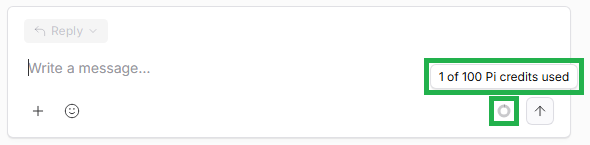
When you chat with Pi in Sessions, it can use "Pi Credits", depending on the complexity of what you are asking Pi, from 0 Credits for something very simple, to 10 Credits for something very complex. Each Planhat User has a daily allowance of Pi Credits, depending on the User Type. You can see how many Pi Credits you have used, and what your daily allowance is, by the ring in the bottom right of the Sessions box. If you would like to discuss Pi Credits further, speak with your Planhat Deployment Strategist (or other Planhat contact).
Frequently asked questions (FAQs)
Q: What's the difference between closing, leaving and deleting a Session?
A: Closing removes the Session from your own sidebar and changes nothing for anyone else. Leaving removes you from the participants list and tells the others you've left. Deleting removes the Session for everyone, and can't be undone
Q: I closed a Session by mistake. How do I get it back?
A: It comes back to your sidebar the next time someone @-mentions you in it, or you write in it yourself. You can also find it in "Your feed" in the Sessions Tool
Q: Why doesn't Pi reply to my message?
A: In "Group session", "On record" and "Secret session" modes, Pi only replies after it's been @-mentioned - type
@and choose "Pi". In "Ask Pi" mode, Pi replies to every message
Q: Can other people read my Sessions?
A: It depends on the mode. "Ask Pi" and "Secret session" Sessions are private to the people in them. "Group session" and "On record" Sessions are discoverable, which means colleagues and Agents in your organization can find and read them. For Topics, it depends whether they are public or private
Q: Why can't I leave a particular Session?
A: You created it. The creator can't leave their own Session - use "Delete" if it should stop existing for everyone
Q: Can I search Sessions, e.g. for specific keywords?
A: There are two ways in which you can search Sessions. Firstly, you can ask Pi, e.g. "Did I have Sessions about X?". Secondly, in the Sessions Tool (Sessions Hub), there is a search box where you can search Sessions by title
Q: Where are comments in Planhat OS?
A: "Comments" no longer exist as a concept in Planhat OS; they have been replaced with messages within Sessions
Q: What happens with comments made in pre-OS Planhat?
A: Any existing comments you had in pre-OS Planhat have been migrated to Planhat OS as messages within Sessions - the title of the Session will start with "Comments". Any new comments in pre-OS Planhat are automatically synced to Planhat OS. Any message (e.g. a reply) added in a OS Session, however, will not sync back to pre-OS Planhat
Q: Which mode are Sessions created by branching off other Sessions?
Each new Session created from branching adopts the original Session's mode