Planhat OAuth Clients - technical deep-dive
Learn more about some topics related to OAuth Clients and MCP server connections
Summary
"Private Clients" are only used to connect to the tenant where the OAuth Client has been created; "Published Clients" can be used with other tenants - speak with Planhat if you would like to publish an OAuth Client
If permissions are changed in a connected user's Role or in the connected OAuth Client, a reduction in permissions is automatically passed on to the external application, but an increase in permissions needs to be specifically authorized by the user - other than the case where you (as an OAuth Client creator) click the "Update connections" button
You (as the builder of an external application) can limit the permissions requested by the external application via OAuth scopes
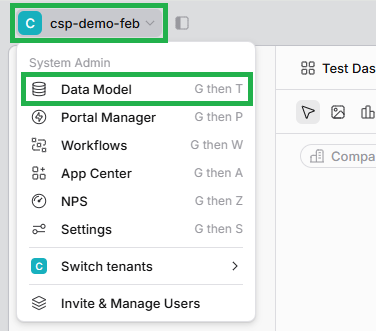
If the "Applications" tab is not showing in User Profiles, you (as a Planhat admin) can add it to the User Full-Page Profile Template in the Planhat "Data Model" Global Tool
Who is this article for?
Technical teams and developers, including integration partners building third-party applications to connect into Planhat
Planhat admins who configure their Planhat tenant on behalf of their organization
Series
Planhat OAuth Clients - technical deep-dive ⬅️ You are here
How to connect ChatGPT to Planhat, using OAuth and Planhat's MCP server
How to connect Claude to Planhat, using OAuth and Planhat's MCP server
Article contents
Introduction
In our overview article on Planhat OAuth Clients, we explain the concept of OAuth Clients, how to create them in Planhat, and how a user would connect to an application outside of Planhat via an OAuth Client. If you haven't yet seen that article, please go through it before reading this one.
In this article, we dive deeper into some specific OAuth Client topics, providing further technical details.
Note that in this article we are talking about OAuth Clients in general; for information about using OAuth Clients to connect with Planhat's MCP server, please refer to the relevant articles listed in the "Series" list above.
Private and Published OAuth Clients
While "Confidential Clients" and "Public Clients" are standard OAuth terms (so you can read general definitions for them online - e.g. see here and here) ...
... "Private Clients" and "Published Clients" refer to something different, and these are Planhat-specific terms.
A Private Client (not the same as a Confidential Client) is an OAuth Client created by/for you and your co-workers
A Private Client is the default state of OAuth Clients within Planhat - "Private" means it has not been "published" (by a Planhat staff member, also called a "Super Admin")
A Private Client can only be used (authorized) by users within the Planhat tenant where it's been created
Editing the Client is possible for users in the Planhat tenant with the relevant access
A Published Client (not the same as a Public Client) is an OAuth Client created for your customers
"Published" means the OAuth Client can be used (authorized) by users in different Planhat tenants
If you want to create one of these, you should work with a Planhat staff member to complete the details in the "External App" tab in the OAuth Client (which is only visible to Planhat staff members - "Super Admins")
The OAuth Client needs to go through an approval process, and then is "published" via a Planhat staff member ("Super Admin"), via a "Publish app" button in the OAuth Client only available to Planhat staff
After a Super Admin has clicked the "Publish app" button, the Public Client will become available to all tenants, so anyone can connect to the relevant external application/integration via this OAuth Client, but each user's authorization will only be for the data in their own tenant
Note that this does not mean that it will be added to Planhat's Apps Library or similar; the authorization request will come into Planhat from the external integrator's side (outside of Planhat), as per the general process we describe in the overview article here
After it's been published, the OAuth Client creator can no longer make changes to the Client (only regenerate the Client Secret and see the Audit Events). Any additional changes must be done through a Planhat staff member
🚀 Tip
If you would like to discuss getting your OAuth Client published, please speak to Planhat staff.
Changing permissions after authorization
In our OAuth Client overview article, we went through an example of authorizing via an OAuth Client that was set to have all permissions for the Company model enabled (and no other model) - you can refer back to this here if you need a refresher.
Let's continue with that example - you can see the OAuth Client permissions pictured below.
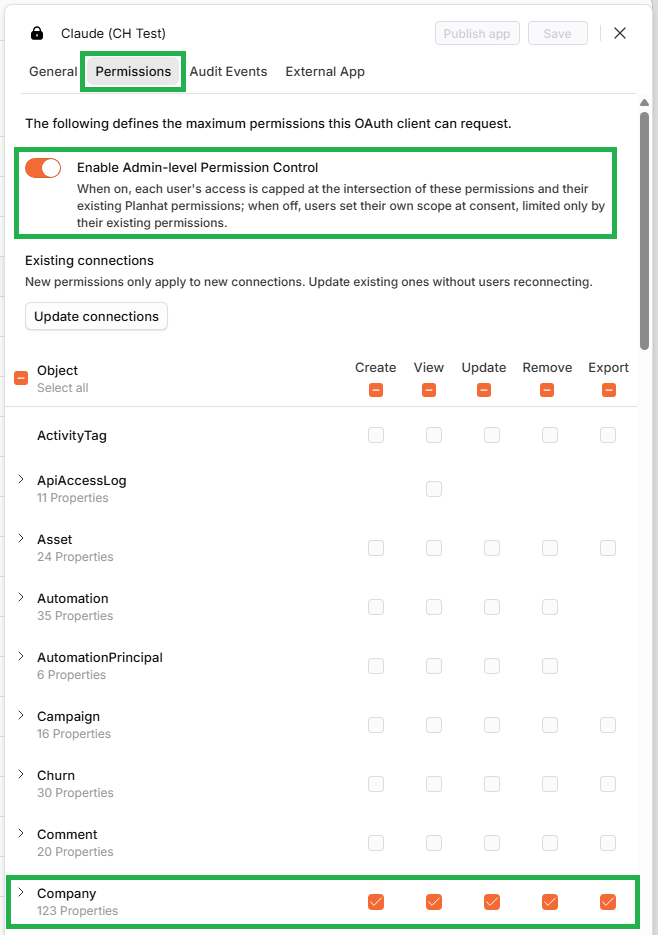
Once a user has authorized access to Planhat via this OAuth Client, assuming that the user themselves has access to Companies (in their Role; we discuss this general concept here), the external application/integration could use the Planhat API to "Get" Companies, but would not have access to the Asset model, for instance (giving an error message if it was tried: You are not allowed to view m_asset.).
Let's go through a couple of scenarios where permissions levels are changed - either in the Planhat user's Role or in the OAuth Client - after the connection has been authorized, to see what the consequences would be.
To summarize, you'll see that the basic principle is that a reduction in permissions (reduction in access) is automatically applied, but an increase in permissions (increase in access) needs to be specifically authorized by the user - with the exception of the "Update connections" button, which we will discuss below.
User losing permissions in Planhat
What happens if a Planhat user connects to an external application/integration via the example OAuth Client above, and then that user loses access (permissions) to the Company model (as their Planhat "Role" changes)?
The external application/integration had got permission to access to Companies on behalf of this user, but now that the user no longer has any access to Companies, if the external application/integration attempts to access Companies, it will fail. In other words, this loss of permissions is automatically passed on.
This works on a granular level too. For example, imagine that a user had full access to the Company model, and granted access to an external application/integration based on this, but then at a later date loses access to specifically the "Address" field on the Company model. If the application then sends a request for Companies, the Planhat API will return the Companies, but without the "Address" field.
User gaining permissions in Planhat
If a connected user's Role in Planhat is updated so that it has more permissions, that extra access would not automatically be passed on to the external application/integration, regardless of the permissions set in the OAuth Client.
Let's go back to our example described above, where an OAuth Client was set to full Company access, and a user connected when they had full Company access, but after authorization, the user's Role was adjusted so they lost access to the Company model (or one of its fields), and the external application/integration automatically lost that access too.
If the user then later regains full access to Companies in Planhat, they will need to go through the authorization process again to give access to the external application/integration.
📌 Important to note
For Role portfolio permissions specifically (so that's about which Company records you can access, rather than model/field permissions) reauthorizing isn't needed if your access level increases.
"Edit permissions" button
In Q3 2026, we introduced a new feature, which applies when an OAuth Client has the "Enable Admin-level Permission Control" toggle switch disabled, which is the scenario where each individual connecting user grants access to their choice of available permissions when they authorize (described here), sometimes referred to as "dynamic permissions".
With this new feature, if the user gains access in Planhat after they have already gone through this authorization/connection process - e.g. because a new field has been created in Planhat, which they have been given access to in their Role - now they can click an "Edit permissions" button in Planhat to update the access, so they don't need to recreate the connection to change the access level.
To do this, the user goes to their individual User Profile in Planhat, clicks into the "Applications" tab, and clicks "Edit permissions" for the application in question.
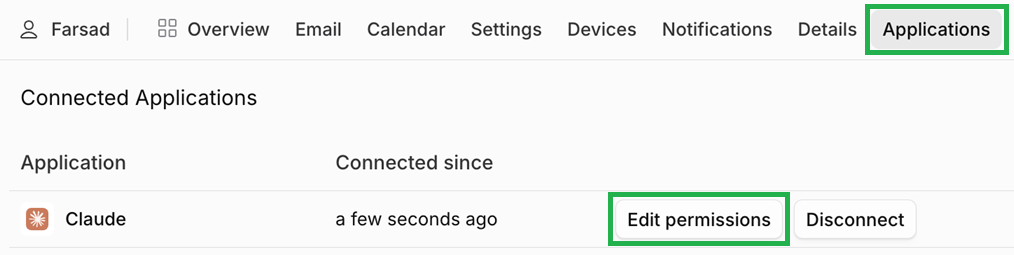
This will open up a permissions panel on the right, where the user can select (or deselect) the model/field permissions for the connection as desired.
OAuth Client / external application requesting more permissions
Let's again say that the user had previously authorized the external application/integration and granted access to Companies in their Planhat tenant via the integrator's OAuth Client.
Now the external integrator also needs access to Issues, so they update their OAuth Client and add permissions for the Issue model.
Updating the OAuth Client like this does not automatically give extra access to the connected external application/integration. The user will need to explicitly grant the additional access by going through the authorization process again.
Exception: "Update connections" button
In Q3 2026, we introduced the "Update connections" button, positioned under an "Existing connections" heading.
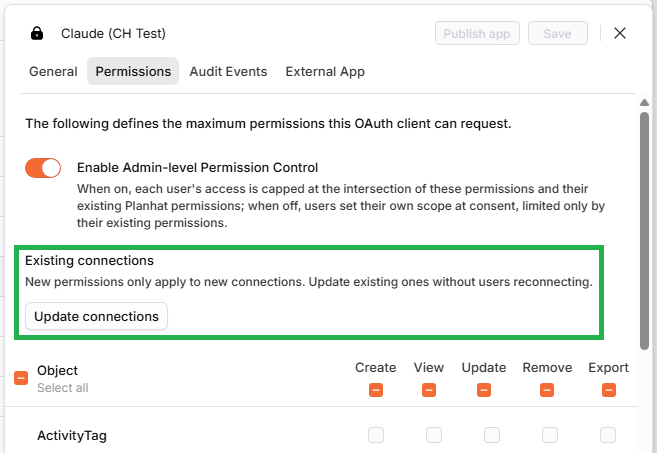
This button only applies in specific circumstances:
The OAuth Client needs to have the "Enable Admin-level Permission Control" toggle switch enabled (as shown in the screenshot above) - so the permissions of the connection are defined in the OAuth Client (and the user's Role), rather than being configured by each individual user when they connect
The OAuth Client needs to be a "Private Client" (defined in detail above) - so that means it's created in a Planhat tenant for use in that tenant only (i.e. for colleagues rather than customers). For example, this may be an OAuth Client you have set up for your organization to connect to Claude or ChatGPT
This button is only available for you if you have the "Admin Access" workflow permission in your Role (and it's also available for "Super Admin" i.e. Planhat staff members)
This option has been added for scenarios where you (as an OAuth Client creator/manager) want to add extra permissions (typically permissions for new custom fields) and push that access out to all your connected co-workers, rather than each individual user having to re-authorize to enable those additional permissions.
In this case, you would simply add the extra permissions within the OAuth Client, press "Save" in the top right of the OAuth Client, and then click "Update connections" to sync that update to existing connections that use that OAuth Client, without those users needing to reconnect.
When you click the "Update connections" button, you will see a confirmation modal checking that you definitely want to proceed, with the message:
Update existing connections?
Each connection will get this client's current permissions, limited to what its user's role allows. Users don't need to reconnect.
Click "Update connections" in this modal, and that will start a background job that updates each connection's grant to the OAuth Client's current permissions (limited to the user's Role), with the action logged in Audit Events. It can take up to 1 hour for all fields to be available across users.
OAuth Client / external application requesting fewer permissions
What about the other way round: where an OAuth Client's permissions are reduced?
Again, let's say that a user had already granted full Company access to the external application/integration via their OAuth Client.
Now, imagine that the external integrator realizes they don't need all the Company permissions (e.g. maybe only "View" is required, whereas "Create" and "Update" are not), so they update their OAuth Client to remove some of the permissions.
In this case, as we are reducing permissions, the user's OAuth grant will be automatically updated to remove those permissions. If the external application/integration then later on tries to use those removed permissions, the Planhat API will return a failure error message.
OAuth scopes
🚀 Tip
OAuth scopes are not something that will be used regularly, as you would typically simply set permissions using the OAuth Client.
However, using OAuth scopes can be useful for developers in some development/debugging scenarios.
In the OAuth Clients overview article, and above, we have discussed how you can specify permissions within an OAuth Client. This defines the maximum access available to an external application/integration using that OAuth Client.
But it's also possible for the external application/integration to request less access than this maximum set within the OAuth Client. This would mean that when the user clicks on an "Authorize" or "Connect" or similar button within the external application/integration, the modal that's shown to them requesting access actually shows a narrower set of permissions, and the user then consents to only that more restricted level of access.
This is achieved via "scopes", which is a standard OAuth concept, rather than being something Planhat-specific. Scopes effectively act as another layer of permission restrictions.
Scopes are set up within the external application/integration, by the integrator.
The general principle is that a user clicks on a button within the external application (as we mentioned above), which requests access to one or more scopes. The details of the scopes are shown to the user, who reviews and can click to authorize. The access token that is issued to the external application will have permissions limited by the scope(s), rather than the OAuth Client (although note that the scopes cannot have greater permissions than the OAuth Client).
📌 Important to note
In June 2026 we introduced the "inclusive" scope, which is applied automatically when using Planhat's MCP server to connect to Claude and ChatGPT (and any MCP server that respects the
.well-knowndefinition).Whereas the "default" scope means a request for all permissions stated in the OAuth Client, which can lead to an "OAuth permission check failed: missing permissions" error if a user who doesn't have all these permissions in their Role tries to connect, using "inclusive" instead means that each user can grant access to only the permissions specified in the OAuth Client that they have access to in their Role. This dynamic action, looking at the intersection of permissions, can enable a smoother connection process.
Technical details
By passing the "default" parameter in the scope, you (as an integrator) request access to whatever was configured in the "Permissions" tab of the OAuth Client - this is the maximum permissions available.
To request partial access, you can specify scopes using a notation beginning with m_ (for "model").
The basic structure is: m_[model][.optional property/field]:[action]
You can specify multiple scopes in one go, with a space between each scope.
Let's go through an example. In this example, the OAuth Client has all the permissions for the Company model enabled.
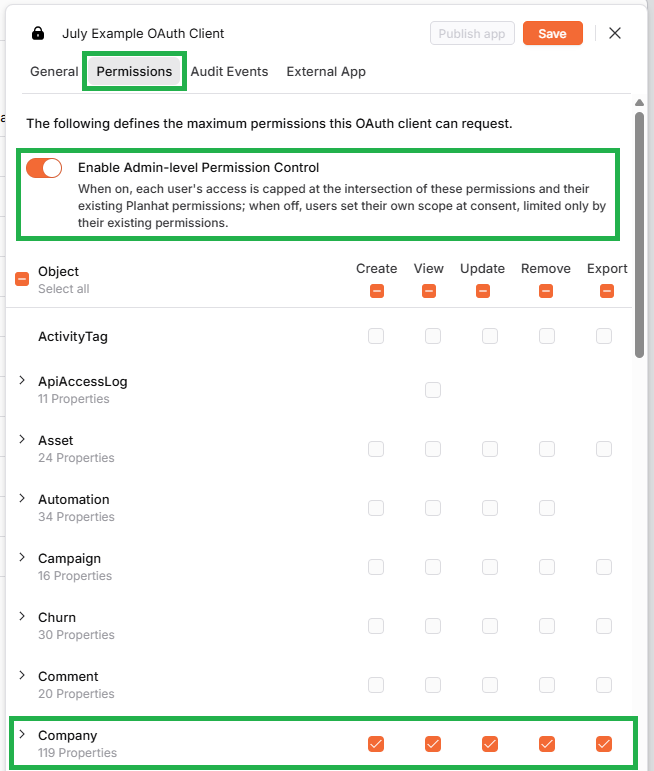
Let's say you are an integrator, and you only need the "View" permission for the Company model, despite there being more permissions available for Company in the OAuth Client in Planhat as shown above.
You can achieve this by specifying "m_company:view" in the scope.
When the user of your application/integration clicks "Authorize" or "Connect" or similar, it will only request Company "Read-only" (i.e. View), as shown below.
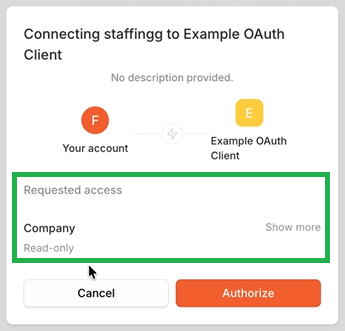
Clicking on "Show more", we can see that all Company properties (fields) are included in this case:
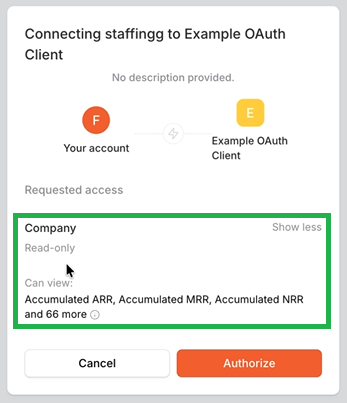
If you (as the integrator) want to specify other actions, such as "Update", it follows a similar structure - e.g. "m_company:update".
If you just want access to a particular property (field) on a Planhat data model, rather than the whole model, you can specify this in the scope. For example, you may want to just view the "Address" property on the Company model.
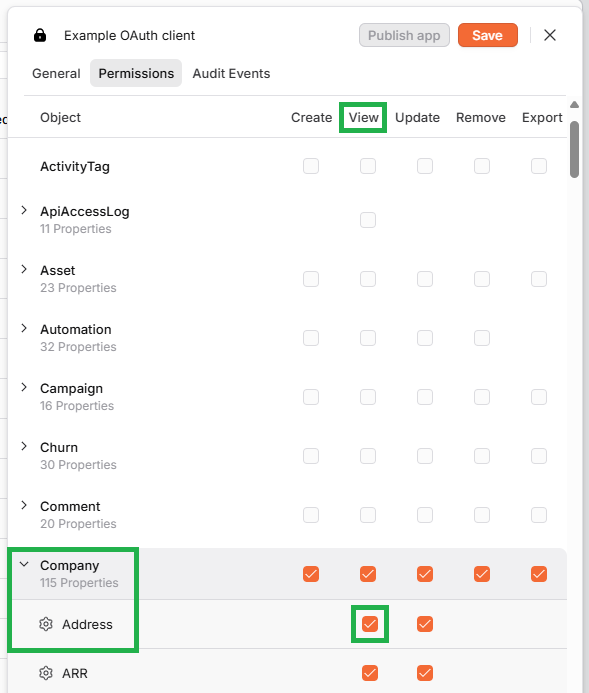
You can specify this by entering "m_company.address:view" in the scope. You do not need to specify "m_company:view" in the scope (for the whole Company model) as well, because that's assumed by the property access requested. Now when the authorization flow is initiated by the user, it will be specifically for "Company Read-only" and "Can view: Address", as shown in the screenshot below
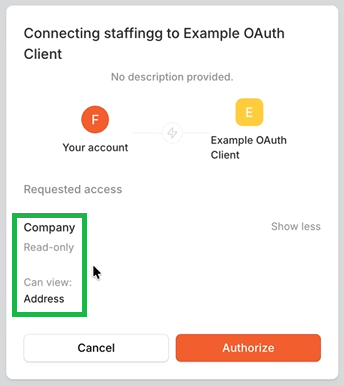
By default, the standard Planhat record ID field is available for all models, so there is no need to ask for the ID specifically.
Both standard fields and custom fields are supported. (For custom fields, you need to specify "custom " before the field name.)
How to add the "Applications" tab to User Profiles
In the OAuth Clients overview article, we discussed how users can disconnect any connected external applications via the "Applications" tab in their Planhat User Profile.
If the "Applications" tab is not showing there, it needs to be added to the Full-Page Profile Template of the User model (by a Planhat user who has the appropriate permissions, e.g. a Planhat admin):
Further reading
For information on connecting Planhat's MCP server to external AI tools via OAuth, please refer to our separate MCP documentation: