How to connect Claude to Planhat, using OAuth and Planhat's MCP server
Steps to link Anthropic's Claude to Planhat, via a Planhat OAuth Client and the Planhat MCP server
Summary
It's easy to connect Claude to Planhat via OAuth, so you can access your Planhat data from the Claude interface
The main setup steps are:
Setting up an OAuth Client in Planhat
Creating a connector for Planhat in Claude
Authorizing the connection
Each connecting user authenticates individually, with the permissions that can be authorized limited to those that are specified in both the OAuth Client and the user's Role in Planhat
Who is this article for?
Anyone who would like to learn about connecting Claude to Planhat via OAuth, to access Planhat data from Claude
It's particularly useful for Admins / Ops users who set things up for their Planhat tenant
Article contents
Introduction
You can use Planhat's MCP (Model Context Protocol) server to connect between your Planhat tenant and Anthropic's Claude or OpenAI's ChatGPT. This means you can ask AI queries in Claude or ChatGPT, and it can securely access and operate on your Planhat data.
While it's possible to set this up using the legacy method of Planhat Private Apps (formerly called Service Accounts), the recommended method of authentication is using Planhat OAuth Clients.
In this article, we will take you through the steps to link your Claude account to your Planhat account via a Planhat OAuth Client. The Planhat data accessible from Claude is limited by both the permissions you set in the OAuth Client and the Planhat Role permissions of each user authenticating.
📚 Further reading
We have additional documentation on related topics, which you can refer to for further details and context:
Prerequisites
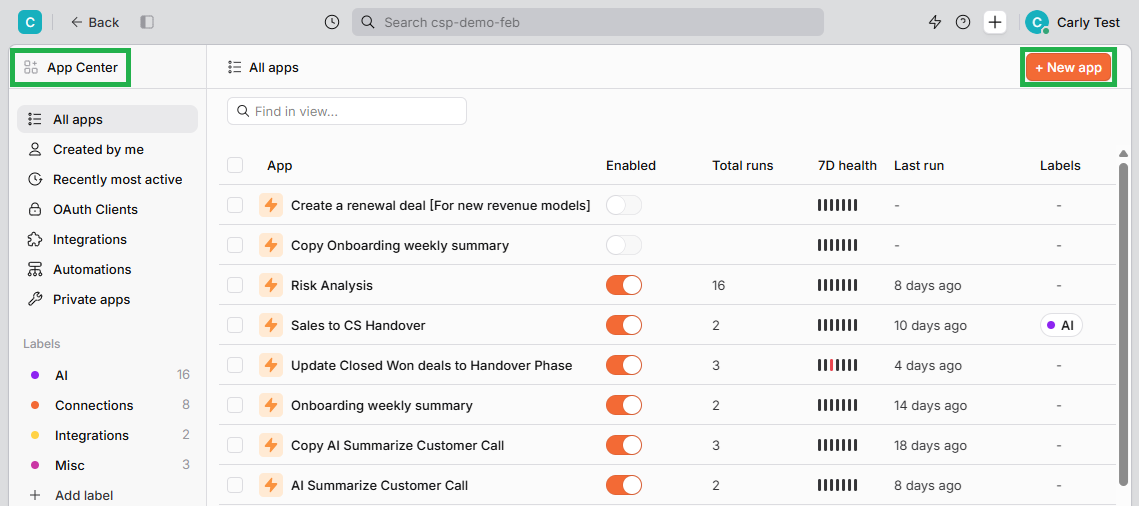
You should be a Planhat user with access to the Planhat App Center (as that's where you set up OAuth Clients) and the "Settings" Global Tool
A Claude account
Stage 1: in Planhat, create an OAuth Client
🚀 Tip
You may sometimes hear Planhat OAuth Clients referred to as "OAuth apps".
📚 Further reading
For more details on Planhat OAuth Clients in general, you can refer to our separate article here.
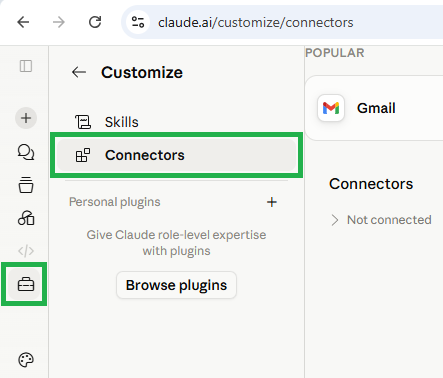
Stage 2: in Claude, add connector
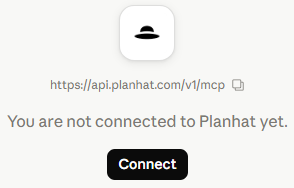
Stage 3: in Claude, authorize the connection
🚀 Tip
Once you (as an Admin) have set this connection up in Claude, then your co-workers can also use it. Each Claude user will authenticate individually, using their own Planhat user account, on first use. To do this, in Claude, each user goes to "Customize" --> "Connectors" (where the Planhat connector was set up) and they will see the Planhat connector listed (as "Not connected") - they can click "Connect" to initiate the authorization flow.
As we described earlier in this article, the permissions you set in the OAuth Client in Planhat act as a maximum; if a connecting user has different permissions in their Planhat Role, they can authorize what's included in both the OAuth Client and their Role (the intersection) but nothing more. (Alternatively, the OAuth Client permissions can be set to be fully dynamic, and selected by each user within the authorization process.) For further discussion of OAuth Client permissions, you can refer to our main OAuth Client articles here and here.
Further reading
If you encounter any error messages, check out our troubleshooting article.