Custom Company Full-Page Profile Templates
Learn how to customize the layout of Company Full-Page Profiles to suit different types of Company or Planhat User (viewer)
Summary
Company Full-Page Profiles are comprehensive displays of data for one Company at a time, so you can get a full 360-degree view
While the default layout is often suitable, in some cases a different layout is better for particular types of Companies (e.g. Companies in Onboarding, or Enterprise Companies) or for different people viewing the Profiles (e.g. Senior Leadership, or Sales)
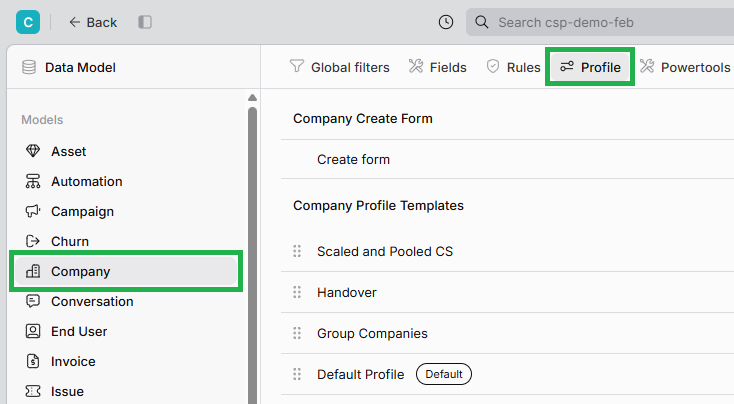
In the "Data Model" Global Tool for admins, in the "Profile" tab, you can create multiple Full-Page Profile Templates, each with a customized sidebar and tabs
This is just one of the many ways you can personalize the UI in Planhat
Who is this article for?
This article is particularly relevant to Planhat builders/admins who configure their tenant for their team (e.g. CS Ops)
Article contents
Introduction

The Company Full-Page Profile is a central part of Planhat. Here you can zoom into a specific Company and gain a complete understanding of an account. As well as field data and Health Scores, you can see Workflow progress, usage data, upcoming meetings, emails, tickets, contracts, subscriptions and more - so much information at your fingertips! You can read an introduction to Full-Page Profiles here.
Often, the default Company Full-Page Profile layout is exactly what you need. But sometimes, there are certain elements that are more relevant to some Companies than others, or to some viewers (Planhat Users) than others.
With Custom Company Profiles, you - as a Planhat builder/admin - can create modified layouts/variants (Templates) of the Company Profile, together with rules to automatically apply that layout to a specific group of Companies or Planhat Users.
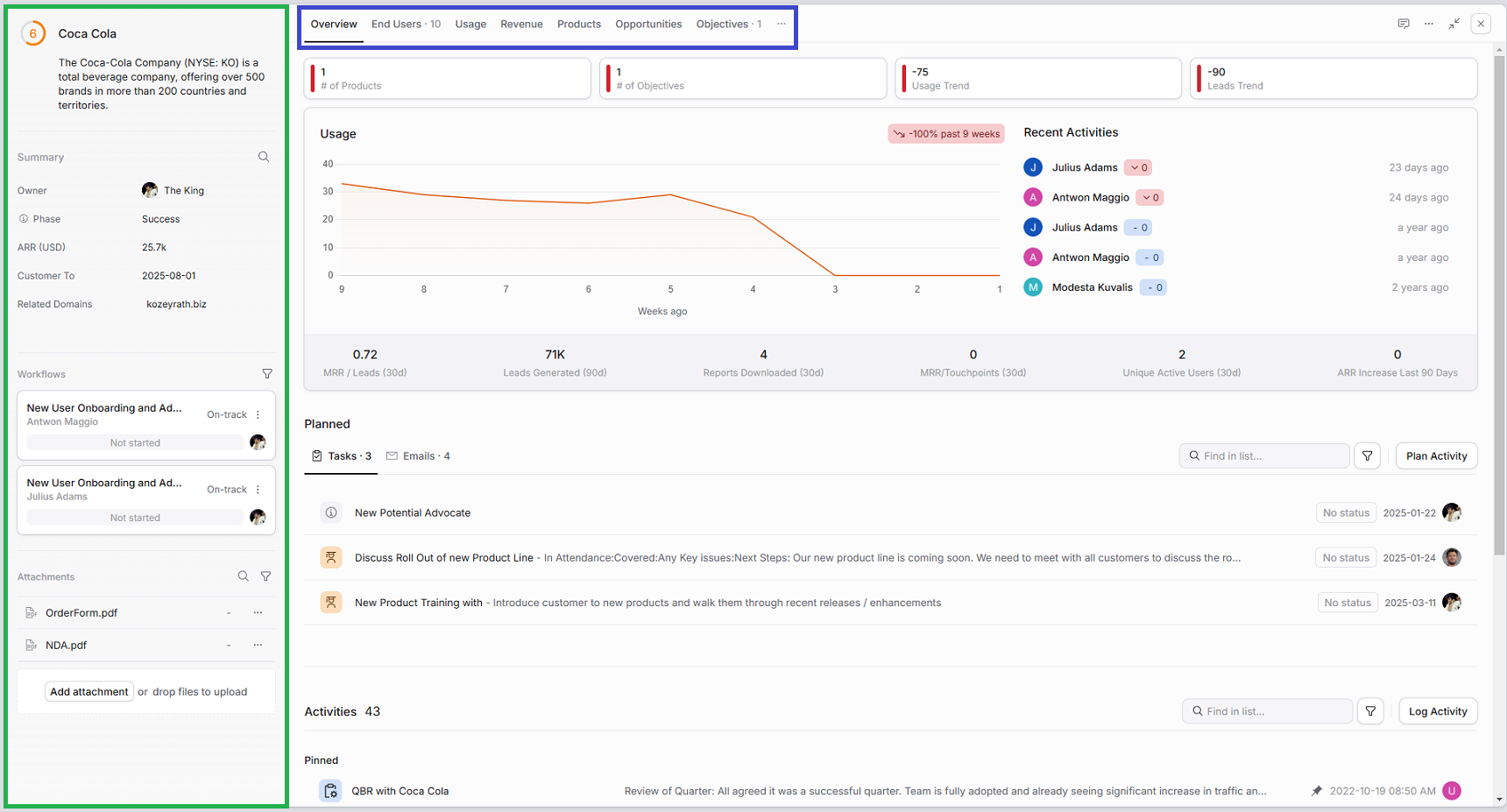
There are two main parts of the Company Full-Page Profile that you can customize:
The sidebar, ringed in green below
The tabs, ringed in blue below
In this article, we'll explain how you can personalize Company Profiles by editing these.
Click the image to view it enlarged
📌 Important to note
Previews are a more condensed view of a single record compared to Full-Page Profiles. They are available for more data models than Full-Page Profiles. Like Company Full-Page Profiles, you can configure Custom Templates for Previews.
When you create a Custom Full-Page Company Profile, it will be linked to a specific Company Preview, as together they make up the overall Profile.
You can read more about Previews here, and more about the umbrella concept of Profiles here.
Why create Custom Company Full-Page Profile Templates?
You can tailor Company Full-Page Profiles to better suit specific groups of Companies or for specific viewers (Planhat Users). The appropriate Template is automatically applied, based on criteria you set.
Here are some example scenarios:
Criteria on the Company model
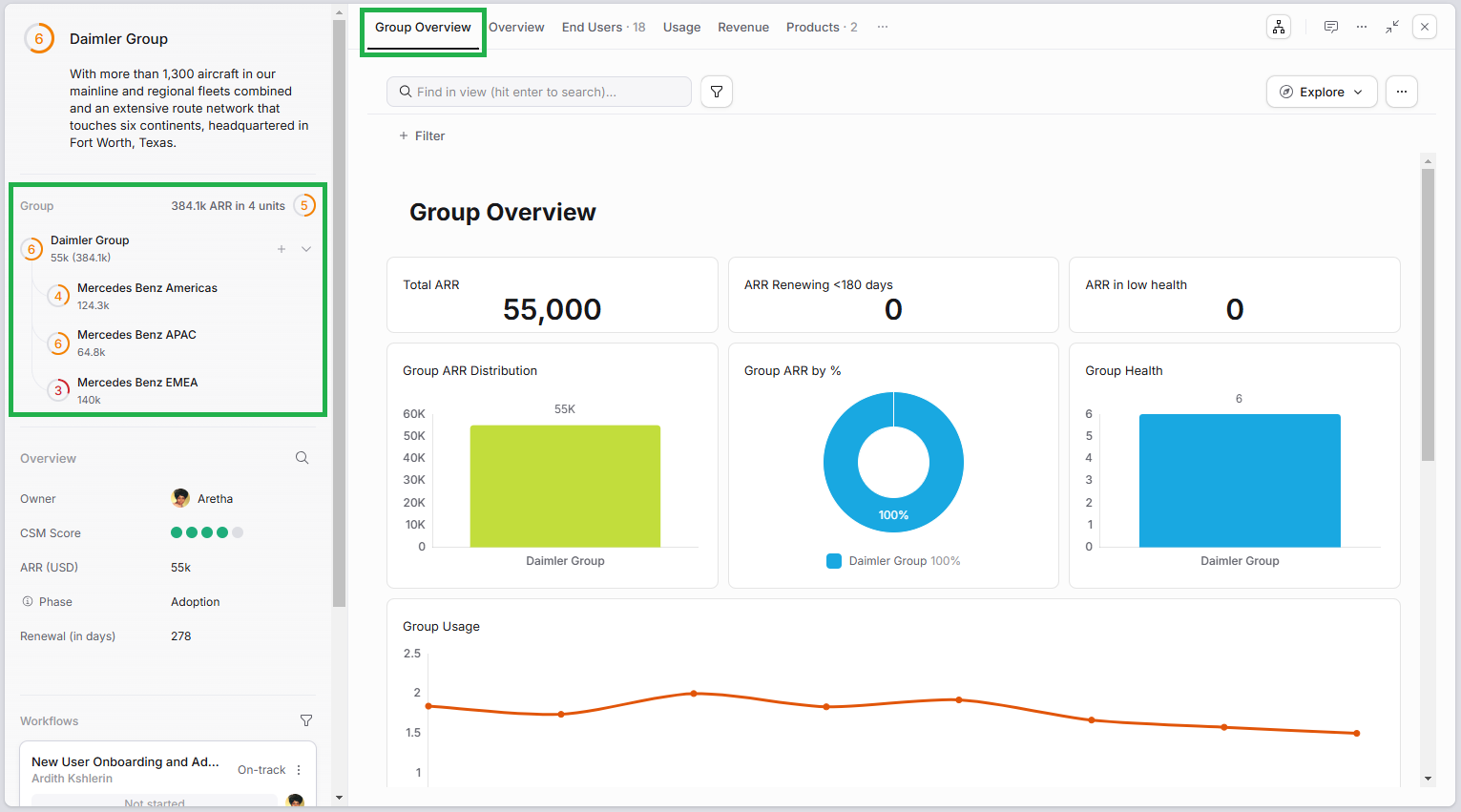
You create a Custom Profile Template with a "Group Overview" Custom Profile Page, specifically for parent Companies (in a group structure), to be automatically applied when a Company has child Companies - pictured below
With Companies in the Onboarding Phase, you want to include Custom Profile Pages for Sales Handover and Onboarding Review. You create a Custom Profile Template with these Pages, with criteria to automatically apply to Companies when Phase is equal to Onboarding
You carry out an in-depth Account Review just for your Enterprise Companies. You create a Custom Profile Page for this, and set it as part of a Custom Profile Template that's automatically applied to Companies where Tier is equal to Enterprise
Criteria on the User model
You create a Profile Template just for your Sales team, so rather than seeing everything about the customer, they only see information that helps them drive expansion
You design a concise Custom Profile Page specifically for your senior leadership, with a high-level view enabling them to get up to speed quickly before a meeting, without unnecessary detail cluttering their view
You set a Profile Template to only apply to you - as a Planhat admin/builder - and then test the affects of removing, adding, or moving different sidebar sections or tabs, safe in the knowledge that you're not affecting anyone else's view. Then, you simply remove this condition when you're ready to launch the Company Profile Template to your wider organization
Custom Company Profiles is an example of how, while Planhat is fantastic "out of the box", to gain its full value, you should customize it to fully suit your team's needs.
Click the image to view it enlarged
How to set up Custom Company Full-Page Profile Templates
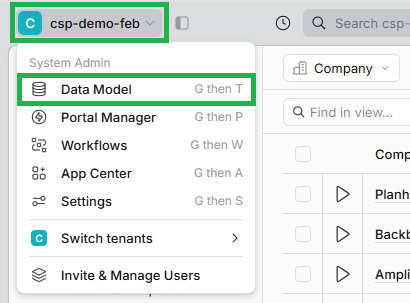
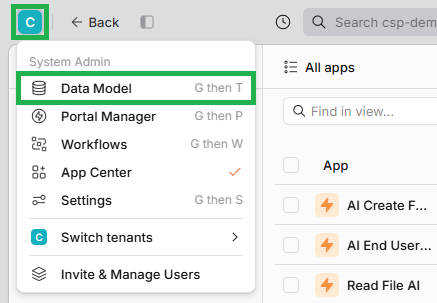
You configure Full-Page Profiles in the "Data Model" Global Tool for admins. To get to this, click on your tenant name or initial/picture in the top left of Planhat to open up the System Admin dropdown list, and click on "Data Model".
Next steps and further reading
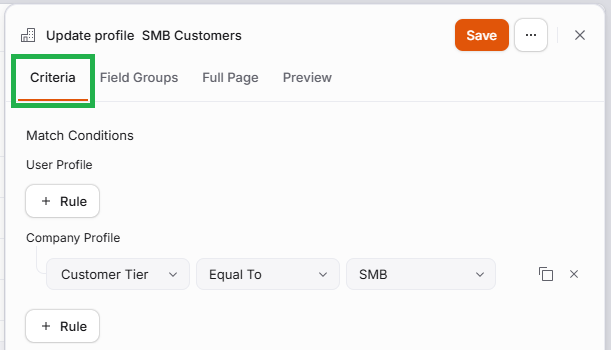
Once you've configured the Full-Page Profile Template itself, as described in this article, the next element for a Custom Template is to configure when it is automatically applied. This enables you to apply different Profile Templates in different circumstances. These criteria would also apply to the associated Preview. We describe these criteria in a separate article, here.
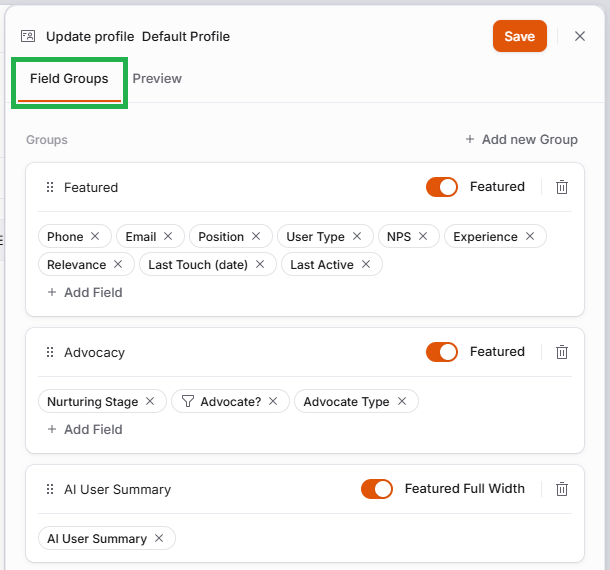
Remember you also need to configure your Field Groups, assuming you're including fields in your Profile Template. Again, we discuss these in a separate article, here.
To learn more about Custom Profile Pages, see here.