Configuring which Preview/Profile Template is applied
How to determine which layout is used, via criteria (conditions) and positioning
Summary
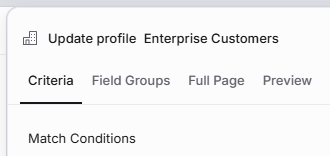
When you're designing a custom Preview/Profile layout (Template) for a model (e.g. Company), you set criteria that define when it's applied to a record
The criteria can refer to the model itself (e.g. when Company Phase is equal to Onboarding), or to the Planhat User viewing the record (e.g. for Salespeople)
You also use the order of Profile Templates in a list to determine which should be applied, if the criteria for multiple Templates are met
All of this means that the perfect customized layout is automatically used whenever a record (e.g. a Company, such as Amazon) is viewed in Planhat
Who is this article for?
This article is particularly relevant to Planhat builders/admins who configure their tenant for their team (e.g. CS Ops)
Article contents
Introduction

Custom Preview/Profile Templates enable you customize the layout of data when you're viewing an individual record (e.g. the Company GSK, or the End User David Attenborough). An example of a Company Full-Page Profile is shown below.
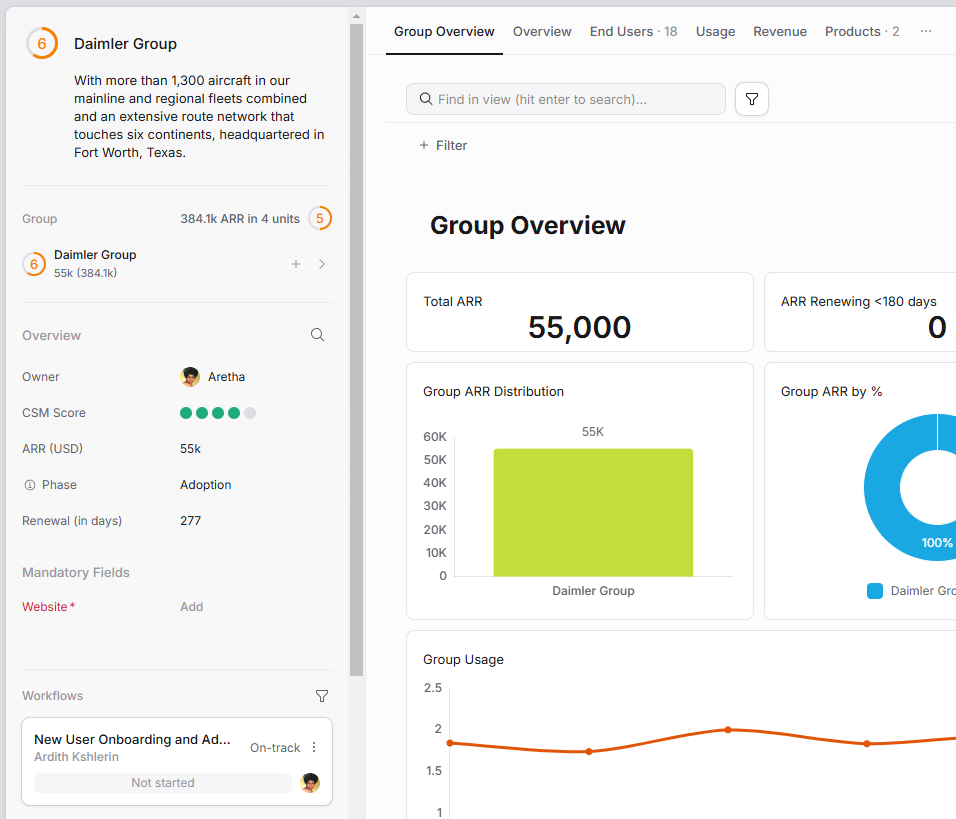
Click the image to view it enlarged
In separate articles, we talk you through designing Preview layouts and Full-Page Profile layouts, including setting up Field Groups, and in this article you'll learn how to set the criteria (rules) that determine which layout applies in any scenario.
For each data model, you could create a variety different templated layouts - which you can think of as "model variants" - with assignment criteria based on:
A property of the model - e.g. for the Company model, it could be:
SMB v. Enterprise Companies
Companies in Onboarding v. other Phases
Companies that have churned v. current Companies
Prospects. v. paying customers
A property of the viewer (Planhat User - you and your colleagues) - for example:
Sales v. Customer Success
Senior Leadership (e.g. C-suite) v. general staff members
Planhat admin/builder (e.g. yourself while testing the Templates)
This functionality is super powerful! It's a fantastic way to show just the most relevant data in each case, saving you time and making it even easier to take data-driven action. It's just one of the features allowing you to personalize Planhat to meet your needs.
How to set up criteria
These criteria are part of configuring Preview Templates and Full-Page Profile Templates. You can click on those links to learn more about how to design the actual layouts for records. In this article, we will focus specifically on setting the criteria.
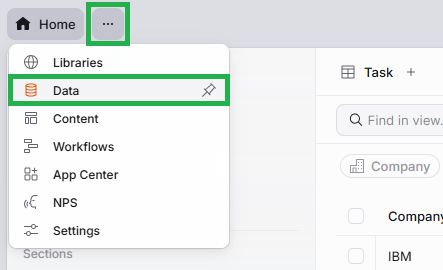
You configure this in the "Data" Global Tool for admins. You'll see "Data" as its own icon in the top left of the gray bar (at the top of your tenant) if you have pinned it, or otherwise you can access it via the ellipsis.
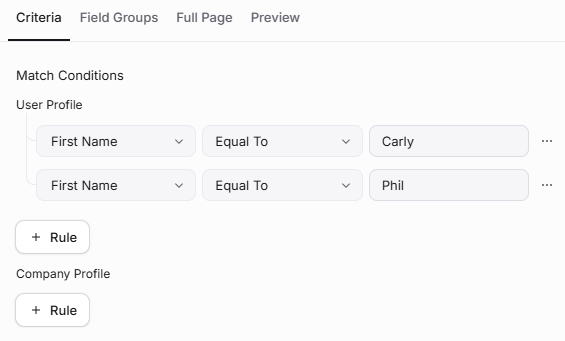
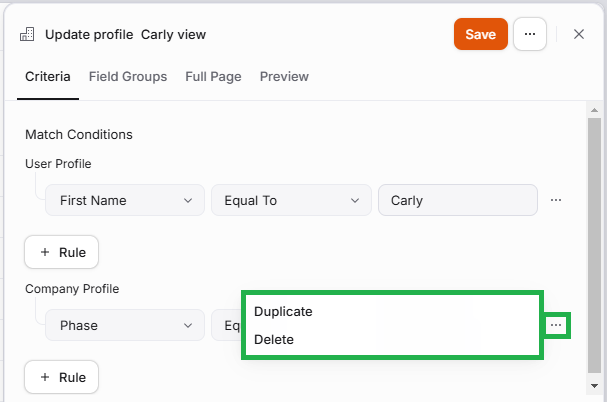
Positioning your Profile Template
Once you've finished configuring all the tabs of your Profile Template - Criteria, Field Groups, Full Page and Preview as applicable - then press the orange "Save" button in the top right to close the modal.
To make sure your Profile Template is applied, you need to manually enable it via the toggle switch - so if it doesn't seem to be applying to records as you expected, always double check you have done this!
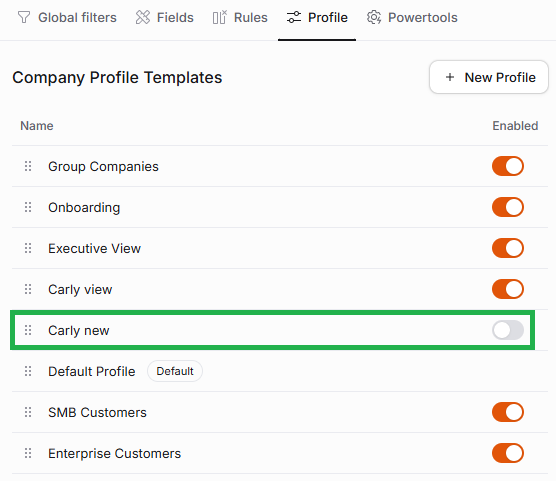
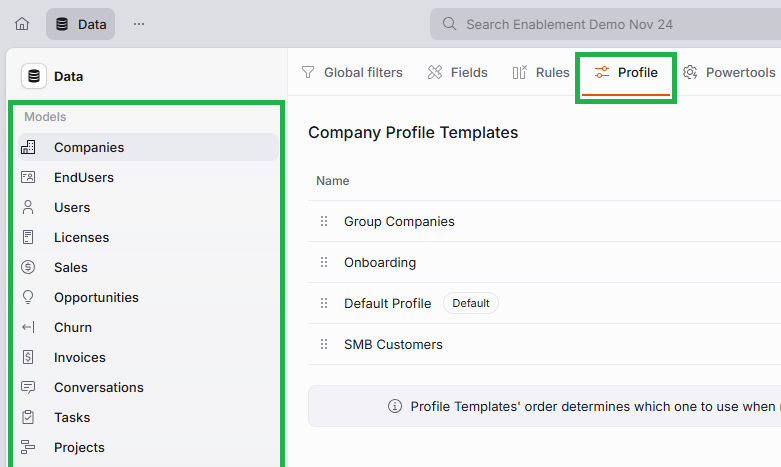
Then, as the text below the Profile Templates list describes (pictured below), in a scenario where the conditions for multiple Profile Templates are met (e.g. you have Company Profile Templates for Phase = Onboarding and for Tier = SMB, and you look at a Company that's both SMB and in Onboarding), then the first (top) Profile Template with met conditions will apply. (This is the same as how Health Profiles are applied.)
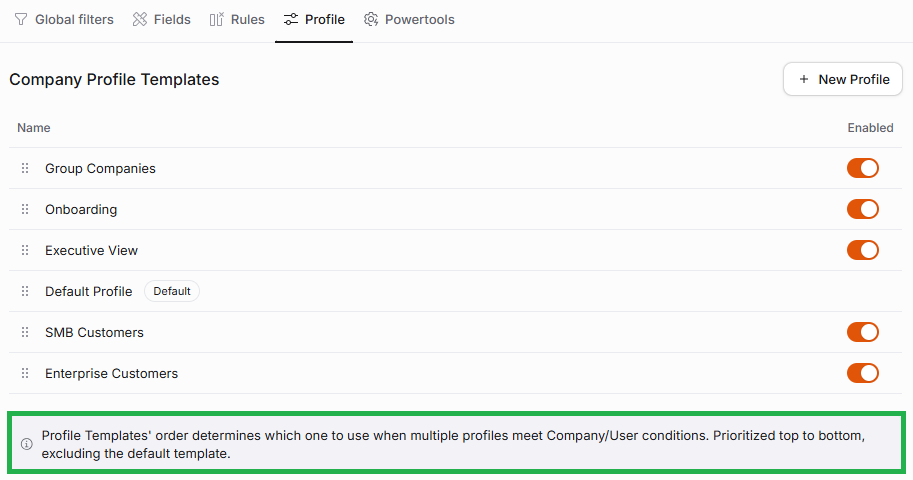
Therefore, you should position your Profile Templates in priority order. You can do this by clicking on the symbol of 6 dots to the left of a Profile Template name, and dragging and dropping it.
In the example screenshot here, "Onboarding" is higher up the list than "SMB Customers", so (if we ignore the other listed Profile Templates) an SMB Company would always have the "Onboarding" Profile Template applied while in Onboarding, and then once they moved out of that Phase and so no longer met those conditions, they would have the "SMB Customers" Profile Template applied.