Setting up the "Microsoft Teams: Transcripts" integration
Use the Planhat "Microsoft Teams: Transcripts" integration to sync your Teams meetings into Planhat as Conversations with call transcriptions
Summary
Planhat's "Microsoft Teams: Transcripts" integration syncs your Microsoft Teams meetings into Planhat, including call transcripts
The meetings are originally synced into Planhat as Tasks, via the Microsoft Outlook integration
Once a meeting has taken place and a transcript has been generated in Microsoft Teams, it is synced into Planhat as a Conversation
There is a separate "Microsoft Teams: Notifications" integration, which enables you to send Planhat notifications to Microsoft Teams (described in a separate article)
Who is this article for?
Anyone who would like to learn about Planhat's Microsoft Teams functionality related to meeting transcripts
Planhat admins configuring the "Microsoft Teams: Transcripts" integration for their organization
Planhat users who would like their Microsoft Teams meeting transcripts to sync into Planhat
This feature is currently in Early Access.
Article contents
What is the "Microsoft Teams: Transcripts" integration?
The Planhat "Microsoft Teams: Transcripts" integration is the easy way for you to connect between Planhat and Microsoft Teams, in order to send Microsoft Teams meeting transcripts automatically into Planhat.
📌 Important to note
There are actually two different native (standard) Microsoft Teams integrations in Planhat:
One for notifications - sending your personal Planhat notifications to Microsoft Teams, and/or posting team notifications to Microsoft Teams via Custom Automations
One for transcripts - syncing meeting data into Planhat, including call transcripts
This article is specifically about the "Microsoft Teams: Transcripts" integration.
For information on the "Microsoft Teams: Notifications" integration, see our separate article here.
Once set up, completed meetings with transcripts in Microsoft Teams will sync into Planhat as records of the Conversation model, with a custom Conversation Type of "Teams Call". "Transcript" is a field on the Conversation, and the second screenshot below shows it in a Conversation Preview of a meeting.

Click the image to view it enlarged
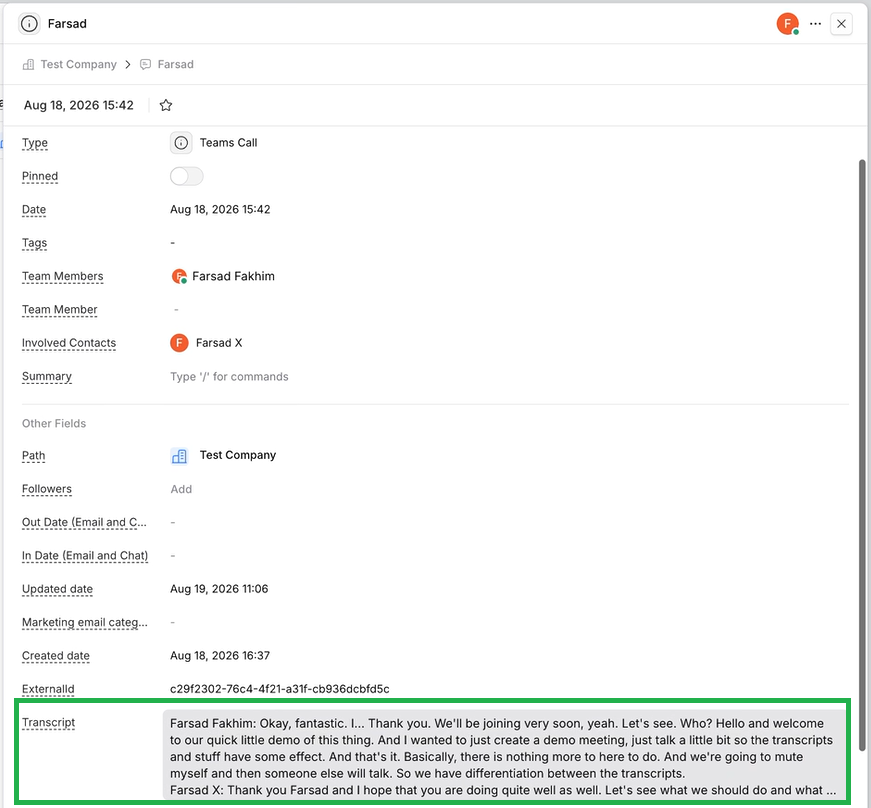
Click the image to view it enlarged
📌 Important to note
Once a meeting has happened, it may take a little while for the transcript to be synced into Planhat as part of a Conversation record. That's because two stages need to be completed:
After the meeting has taken place, the meeting is processed and the transcript is generated in Microsoft Teams
The transcript is made available to the API, and is synced into Planhat
The overall process may take around 30-90 minutes, after the meeting has ended.
Why use the "Microsoft Teams: Transcripts" integration?
If you use Microsoft Teams, then you'll likely want to sync those customer/prospect calls into Planhat.
With Planhat, you can compile, organize and analyze all your customer/prospect data, from various sources, giving you a full 360-degree view of your customers/prospects.
With Microsoft Teams call transcript data in Planhat, you ensure that call recordings are accessible alongside other types of data, and those Conversations can easily be evaluated and acted upon - identifying risks and opportunities, for example.
How to set up the "Microsoft Teams: Transcripts" integration
Stage 1: Planhat Labs
Who? Planhat staff ("Super Admins")
Where? In Planhat
What? Enable Planhat Labs toggle switch for Microsoft Teams
At the time of writing, to enable the functionality to connect your Planhat tenant to Microsoft Teams, there is a toggle switch (feature flag) in Planhat Labs (itself in Help) that a Planhat staff member ("Super Admin") needs to turn on, called "Microsoft Teams". This feature flag is for both the "Microsoft Teams: Notifications" integration and the "Microsoft Teams: Transcripts" integration.
Stage 2: Centralized Connect
Who? You, if you're an admin in your Planhat tenant and Microsoft
Where? In Planhat
What? Set up Centralized Connect for Microsoft Outlook
To set up the Microsoft Teams integrations, you first need to have configured Centralized Connect for Microsoft Outlook, within "Email Setup" in the "Settings" Global Tool, for your Planhat tenant.
📚 Further reading
For details of how to set up Centralized Connect, see our separate article here.
Stage 3: Connect integration
Who? You, if you're an admin in your Planhat tenant and Microsoft
Where? In Planhat and Microsoft Entra/Azure
What? Add the Microsoft Teams integration via the Planhat App Center, and connect it to Microsoft
Once the preliminary steps above have been carried out, you can add the "Microsoft Teams: Transcripts" integration (app) to your Planhat tenant, and connect it up. These are steps for you as an admin in Planhat and a Microsoft Entra ID admin. This process only needs to be carried out once per Planhat tenant.
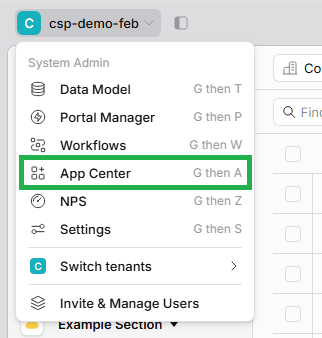
Stage 4: sync Microsoft meetings with transcripts into Planhat
Who? General users
Where? In Planhat and Microsoft
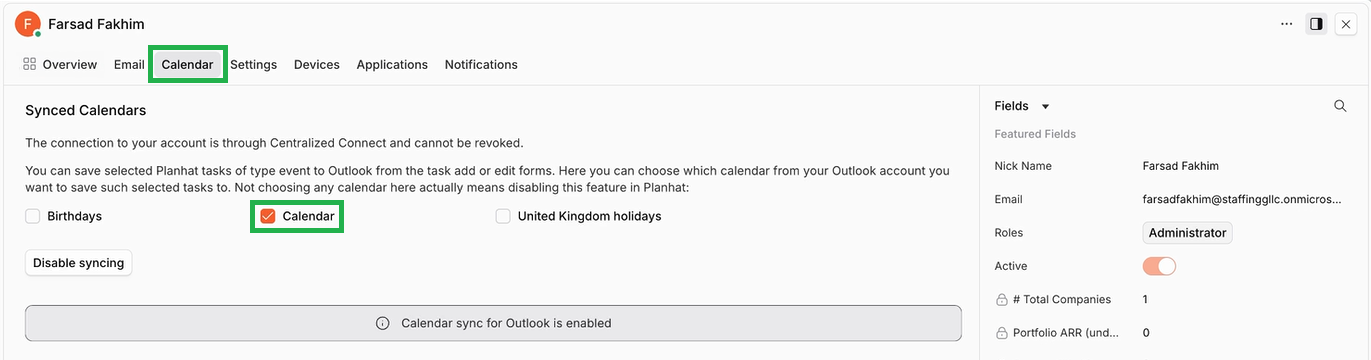
What? Enable the calendar sync, and configure your Microsoft meetings to record transcripts
Background information
The syncing of Microsoft Teams meetings initially works via the Microsoft Outlook calendar integration, which you can read more about here. Future calendar events are synced into Planhat as records of the model "Task", which is the model for planned activities.
When meetings are completed, they are saved in Planhat as records of the model "Conversation", which is the model for logged activities.
With the "Microsoft Teams: Transcripts" integration enabled, Conversation records are created that include the meeting transcripts. These Conversations are specifically of type "Teams Call", and are separate from any Conversations you may make manually from Tasks (which would have the default Conversation Type "note").
Instructions
For general users, there are two main factors to ensure your own meeting transcripts are synced into Planhat:
📌 Important to note
Once the meeting has happened, you may need to wait a short while for the transcript to be synced into Planhat as part of a Conversation record. That's because two stages need to be completed:
After the meeting has taken place, the meeting is processed and the transcript is generated in Microsoft Teams
The transcript is made available to the API, and is synced into Planhat
The overall process may take around 30-90 minutes, after the meeting has ended.