Setting up the "Microsoft Teams: Notifications" integration
You can display your personal Planhat notifications in Microsoft Teams, and/or you can use Custom Automations to post messages to public Microsoft Teams channels
Summary
Planhat's "Microsoft Teams: Notifications" integration means you can easily send notifications automatically to Microsoft Teams
This can be both your personal Planhat notifications ...
... and team notifications via Custom Automations
Who is this article for?
Anyone who would like to learn about Planhat's Microsoft Teams functionality related to notifications
Planhat admins configuring the "Microsoft Teams: Notifications" integration for their organization
Planhat users who would like their Planhat notifications to show in Microsoft Teams
Article contents
What is the "Microsoft Teams: Notifications" integration?
The Planhat "Microsoft Teams: Notifications" integration is the easy way for you to connect between Planhat and Microsoft Teams, to send Planhat notifications to Microsoft Teams.
📌 Important to note
There are actually two different native (standard) Microsoft Teams integrations in Planhat:
One for notifications - sending your personal Planhat notifications to Microsoft Teams, and/or posting team notifications to Microsoft Teams via Custom Automations
One for transcripts - syncing meeting data into Planhat, including call transcripts
This article is specifically about the "Microsoft Teams: Notifications" integration.
For information on the "Microsoft Teams: Transcripts" integration, see our separate article here.
Once set up, there are two main elements to the Microsoft Teams notifications functionality:
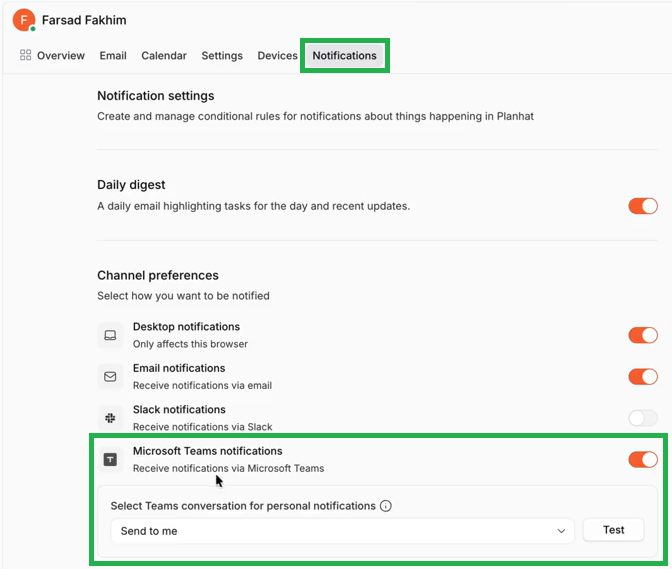
Personal Planhat notifications can be sent to your own private Microsoft Teams channel
E.g. notify me when a Company is added to Planhat and I am the Owner
See first screenshot below
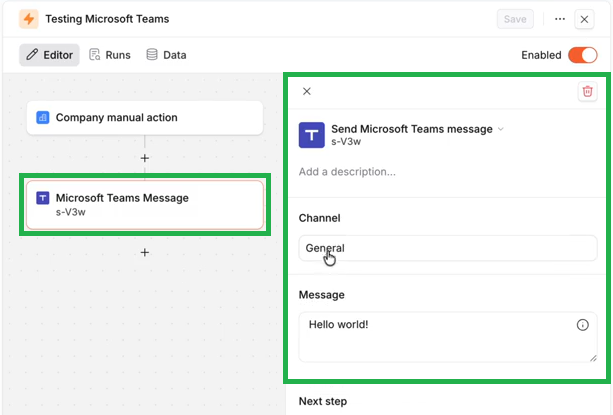
Use Custom Automations to send a message to a public Microsoft Teams channel
E.g. when an NPS survey response is added to Planhat, post into a specific Microsoft Teams channel with the details, tagging the relevant people
See second screenshot below
Why use the "Microsoft Teams: Notifications" integration?
Planhat's flexible Microsoft Teams integration for notifications enables you to send data from Planhat to Microsoft Teams, keeping you and your team fully informed and up to date, so you can take data-driven actions for maximum impact.
Planhat is your central source of truth for all customer/prospect/project information, and the Microsoft Teams integration allows you to easily set up notifications so you can be alerted in Microsoft Teams when there is an opportunity or risk identified in Planhat.
You can configure both team-level notifications via Custom Automations, and your personal notifications, choosing which changes in data trigger the notifications, and in the case of Automations, what the message says.
How to set up the "Microsoft Teams: Notifications" integration
Stage 1: Planhat Labs
Who? Planhat staff ("Super Admins")
Where? In Planhat
What? Enable Planhat Labs toggle switch for Microsoft Teams
At the time of writing, to enable the functionality to connect your Planhat tenant to Microsoft Teams, there is a toggle switch (feature flag) in Planhat Labs (itself in Help) that a Planhat staff member ("Super Admin") needs to turn on, called "Microsoft Teams". This feature flag is for both the "Microsoft Teams: Notifications" integration and the "Microsoft Teams: Transcripts" integration.
Stage 2: Centralized Connect
Who? You, if you're an admin in your Planhat tenant and Microsoft
Where? In Planhat
What? Set up Centralized Connect for Microsoft Outlook
To set up the Microsoft Teams integration, you first need to have configured Centralized Connect for Microsoft Outlook, within "Email Setup" in the "Settings" Global Tool, for your Planhat tenant.
📚 Further reading
For details of how to set up Centralized Connect, see our separate article here.
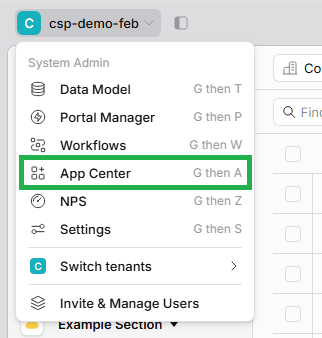
Stage 3: Microsoft Teams in App Center
Who? You, if you're an admin in your Planhat tenant and Microsoft
Where? In Planhat
What? Add the Microsoft Teams integration via the Planhat App Center, and connect it to Microsoft Teams
Once the preliminary steps above have been carried out, you can add the Microsoft Teams integration (app) to your Planhat tenant, and connect it up. These are steps for you as an admin in Planhat and a Microsoft Entra ID admin. This process only needs to be carried out once per Planhat tenant.
Stage 4: Planhat app in Microsoft Teams
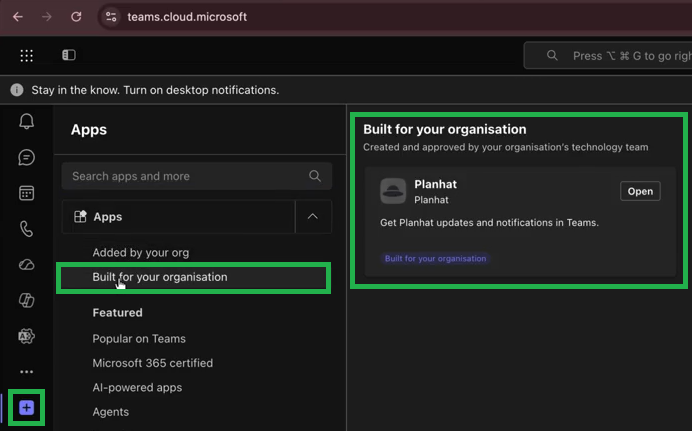
Who? All users who would like to use the Microsoft Teams integration
Where? In Microsoft Teams
What? Open the Planhat app in Microsoft Teams for 1:1 communication; select any relevant public channels for posting from Custom Automations
Now an admin has made the connection between your Planhat tenant and your organization's Microsoft Teams, each individual user who wants to use this functionality needs to enable/configure the connection for themselves.
Stage 5: configure personal notifications
Who? General users
Where? In Planhat
What? Configure your personal Planhat notifications to be sent to Microsoft Teams
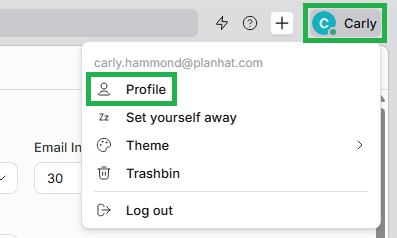
If you would like to use Microsoft Teams for your own personal Planhat notifications (i.e. your Planhat notifications will be posted to your Microsoft Teams, as well as in Planhat and any other methods you select), then you need to configure this within Planhat.
📚 Further reading
You can refer to our main notifications article for more general information on notifications, such as configuring different rules.
Stage 6: configure Custom Automations with Microsoft Teams steps (if desired)
Who? Planhat users who have access (permissions) to configure Custom Automations in the App Center (e.g. Planhat admins)
Where? In Planhat
What? Optionally, configure Custom Automations involving a "Send Microsoft Teams message" step
In addition to having your personal notifications sent to Microsoft Teams, you can also set up Custom Automations (in the App Center) with a "Send Microsoft Teams message" step type, like in the example shown below.
In "Channel", select which Microsoft Teams channel you would like the Automation to post your message to.
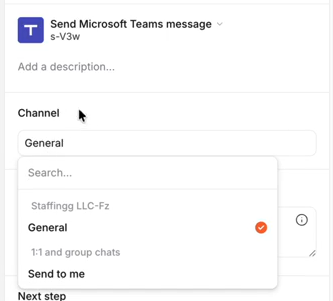
Here you can choose from:
"Send to me" to send notifications to yourself
Any public channel that you have specified in Microsoft Teams, for team notifications
Private channels or chats cannot be used for this functionality; this is a limitation of Microsoft's endpoints.
You configure the message text that's sent to Microsoft Teams in this step. You can include dynamic references (replacement codes), such as referring to the Company (Account) Owner. You can format text in a similar way as we describe for Slack here.
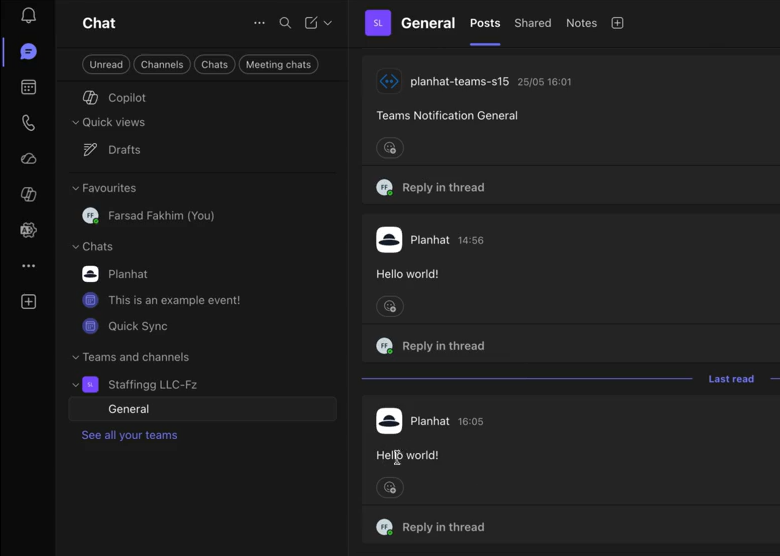
Once you have finished configuring your Custom Automation, you can use your Automation to send messages to Microsoft Teams.
📚 Further reading
You can refer to our main Custom Automations article for general information on setting up Custom Automations.