Importing data via Excel spreadsheet - overview
Learn the main method to import data via spreadsheet
Summary
Spreadsheet import is an easy way to create or update data in Planhat in bulk
Planhat provides spreadsheet templates for you to fill in, for ease
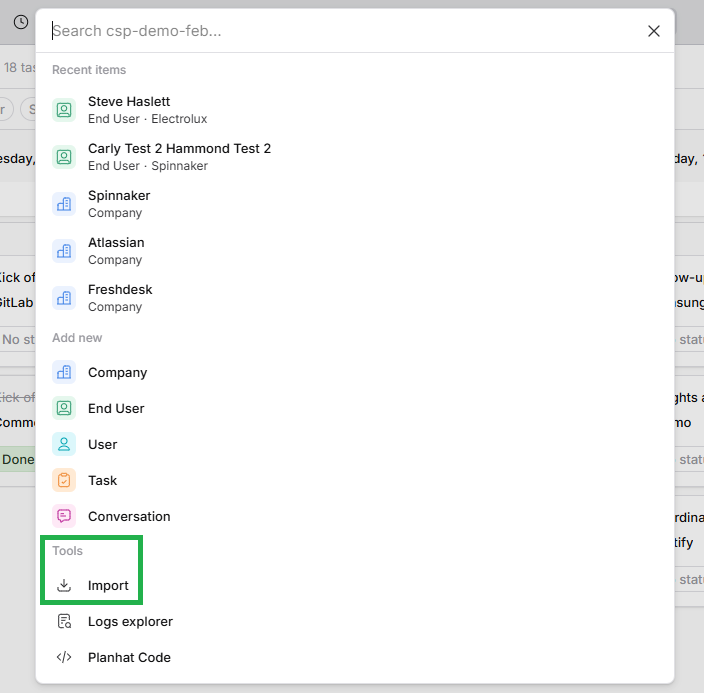
You can access the import tool by clicking in the main search box ("Federated Search") and selecting "Import"
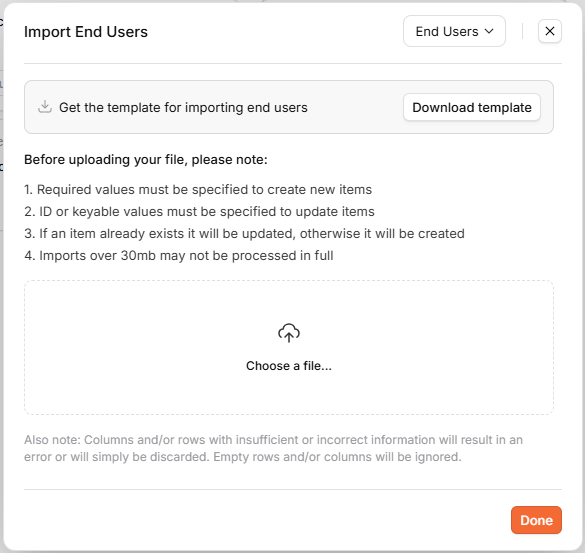
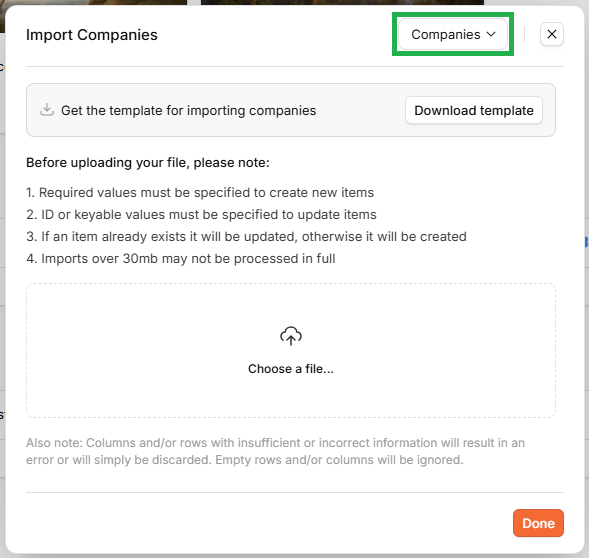
In the form, ensure you specify which data model you are uploading (e.g. Companies or End Users)
Planhat preloads Company mapping and column/field mapping in the form, but you can view and edit this before proceeding with the import
Who is this article for?
Anyone who would like a quick overview of importing data into Planhat via spreadsheet
Series
Importing data via Excel spreadsheet - overview ⬅️ You are here
Importing data via Excel spreadsheet - match records to Companies
Importing data via Excel spreadsheet - map source columns to model fields
Article contents
Introduction
There are various ways you can bring data into Planhat:
Manual data entry - e.g. adding a single Company record in the UI and typing in the details directly
Excel spreadsheet upload - great for manual bulk data entry; this is the method we focus on in this article
Integrations to sync data into (and out of) Planhat, such as the Salesforce and HubSpot integrations
Planhat Automations with incoming webhooks
Using the Planhat API
Our simple (yet advanced) spreadsheet import functionality makes it easy for you to create or update multiple records in a quick manual action.
🔑 Key details - summary of method
You can upload records for any model by clicking in the main search box at the top of Planhat ("Federated Search") and then "Import"
Select your choice of model, and then click "Download template"
Complete the template spreadsheet with your desired data, then upload it (by clicking "Choose a file...")
Confirm data mapping and click "Import"
📌 Definitions
Planhat "models" (also called "data models") are similar to the "objects" you may be familiar with from other tools
E.g. "Company" is the model representing organizations that are your customers or prospects (i.e. your accounts)
"Records" are data items within those models
E.g. "Samsung" and "Pfizer" could be Company records
Where to upload data via Excel spreadsheet
Federated Search
The main way to upload data by spreadsheet is via the main search box at the top middle of Planhat (in the top gray bar) - the Federated Search box.

Click the image to view it enlarged
Clicking in the Federated Search box, you should then click on "Import" in the "Tools" category at the bottom, as shown below.
This will open up a modal (form) like so, which we will go through here. You can select your choice of Planhat data model from the dropdown in the top-right corner (as shown below).
Page e.g. Data Table
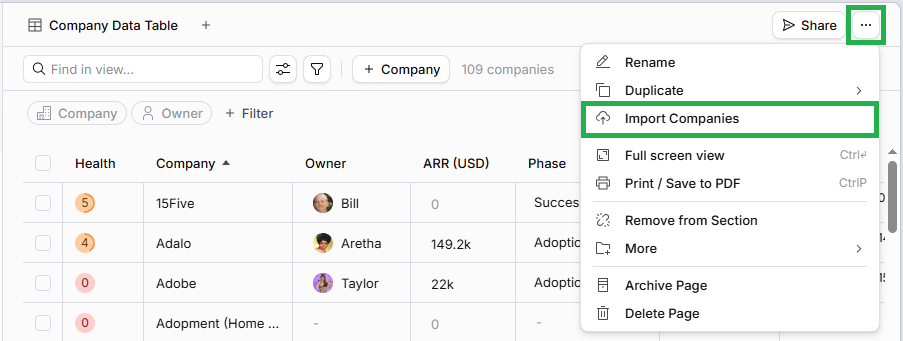
Alternatively, you can get to this same upload modal via a suitable Page, such as a Data Table Page for the relevant data model.
For this option, click on the ellipsis icon in the top right-hand corner, and select the import option.
For example:
Click the image to view it enlarged
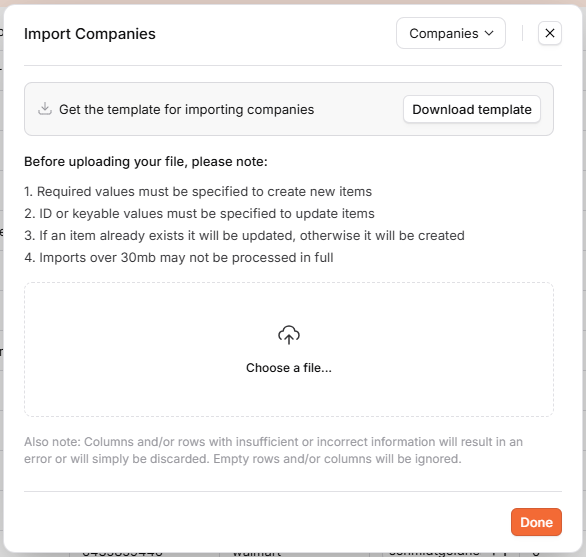
The import form will open, like we have just seen above. The data model that your Page is for will be pre-selected in the top-right corner (e.g. Company in this example), but you can actually still select a different model from the dropdown if you like.
How to import data via Excel spreadsheet
Once you have opened up the import modal (form) as discussed/pictured above ...
📌 Important to note
Although we are focusing on importing model/record data in this series of articles, it's also possible to use this import tool to (download templates for and then) import spreadsheets of raw time-series data: User Activities and Custom Metrics. As these are a completely different type of data, you wouldn't go through the process of viewing/editing field mapping in that case.
Further reading
For additional details and support, check out our other articles in this series: