Importing data via Excel spreadsheet - troubleshooting
Follow these tips to ensure you have a successful upload
Summary
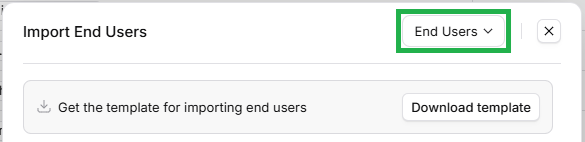
Ensure you have the correct data model selected in the top right of the initial import form when you are uploading a spreadsheet (or downloading a template)
Make sure the "Match records to Companies" section in the form (if showing) is correctly mapped for the ID(s) you are using
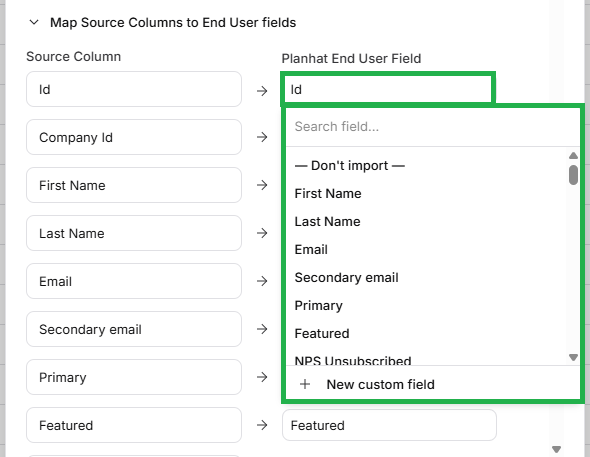
Review and revise the "Map Source Columns to [Data Model] fields" section as necessary
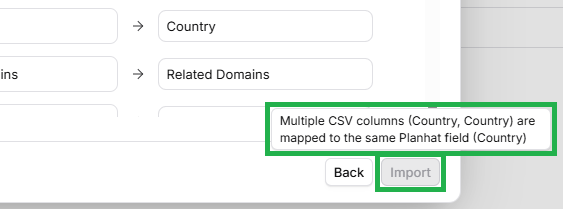
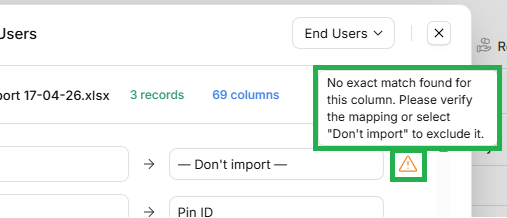
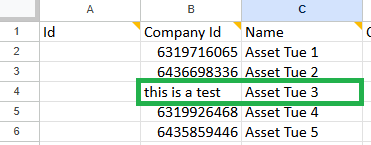
Tooltip messages and error messages give you an indication of issues (or potential issues), so you can understand the situation and adjust as appropriate
Who is this article for?
Planhat users who are importing data via spreadsheet
Series
Importing data via Excel spreadsheet - match records to Companies
Importing data via Excel spreadsheet - map source columns to model fields
Importing data via Excel spreadsheet - troubleshooting ⬅️ You are here
Article contents
Introduction

The process of bulk-importing data by uploading an Excel spreadsheet should be very straightforward, but you may occasionally encounter an issue. Not to fear: here we will take you through what to check, tips, Q&As (questions and answers), and some worked examples, to help solve common queries.
Quick troubleshooting checklist
Additional tips
Questions and answers (Q&As)
Further details
Selecting the correct data model in the top right
When you open up the import modal (form) via the Federated Search box (the main Planhat search box in the top middle of your Planhat tenant), it will have a data model (e.g. Companies or End Users or Deals etc.) preselected in the top-right corner.
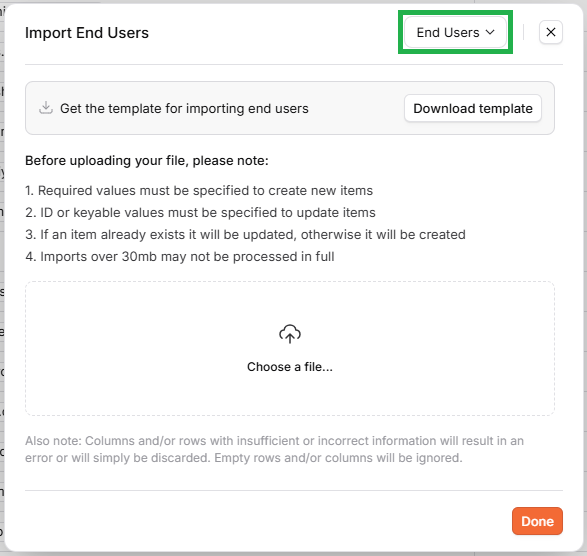
Before you download a template (if you will be using one), and before choose a spreadsheet file to upload (via "Choose a file..."), you should always take a moment to review whether the currently selected data model is the model whose records you want to import this time - if not, then use the dropdown menu to change it:
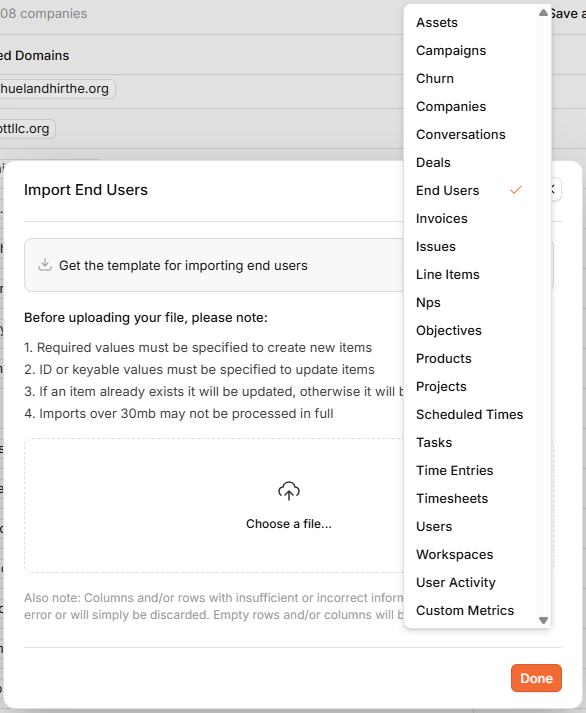
If you have the wrong data model selected in the top-right corner of this import form, then depending on the combination of model selected v. model uploaded, and also how you set up the column/field mapping, you will either:
find that the data uploads but to the wrong place (e.g. you could accidentally create Assets out of your End User data),
or the import will fail.
Ensuring Company ID matching has been configured correctly for your uploaded spreadsheet; examples using Related Domains
When you are importing records of data models other than Company, at the top of the import data mapping screen you will see a section for Company ID mapping:
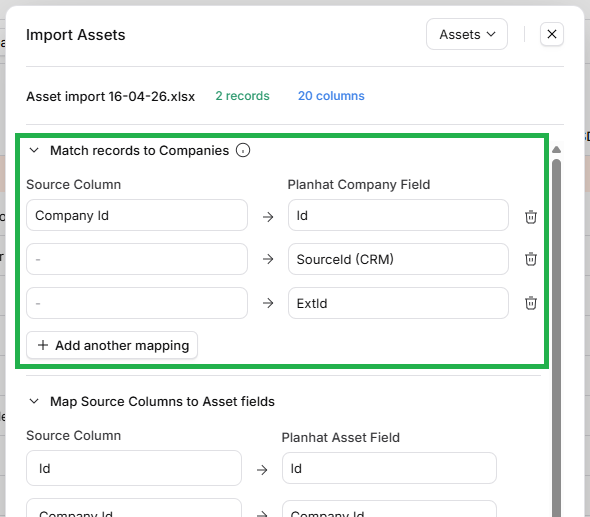
The reason for this is that Company is at the top of the Planhat data model hierarchy, and so records of most other models need to link to a Company - e.g. each End User and Asset and Campaign etc. needs to be associated with a Company.
When you're creating new records, e.g. new Assets in the example screenshot above, you need to specify which Company each record should be linked to.
In the Company matching section as pictured above, you can choose to map between spreadsheet columns (e.g. "Company Id") and any of Planhat ID ("Id"), Source ID ("SourceId (CRM)") and External ID ("ExtId") - or you can clear the mapping and not specify Company matching here.
Circumstances where you don't need a Company ID mapped here:
If you are just updating existing records, rather than creating new records, then you don't need to include the Company reference, because the records being updated (identified by their own IDs) are already associated with Companies
If you are creating new End Users, you can actually map these records to Companies via email domains rather than needing to use one of the three ID types
If you are not using this Company mapping, it's important that you clear it, and don't leave it mapped as "Company Id column to Planhat Id field" as is loaded by default (like in the example screenshot above) - or the import will likely fail. Similarly, if you are using Company mapping but it's slightly different than the pre-loaded default (e.g. you are using the External ID rather than the Planhat ID in the "Company Id" column) adjust it to match your mapping, or it will fail.
Next we will go through a couple of examples of mapping End Users via email domains, showing potential issues and how to resolve them.
Worked example 1
Let's say we want to create new End Users via a spreadsheet upload, and we want to map those End Users to Companies via their email domains ("Related Domains" field).
We download the End User import template, and add in our End Users like so:

If we go to upload this in Planhat, the "Match records to Companies" section is pre-loaded like this as default:
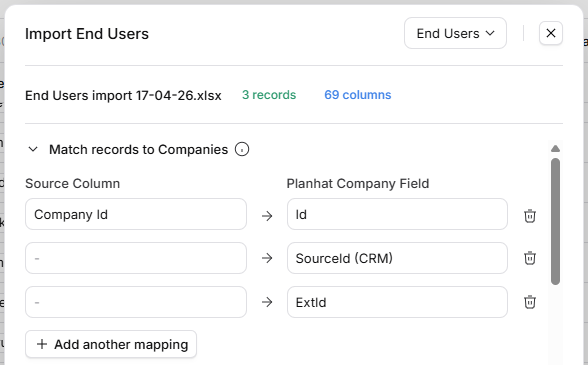
If we don't adjust anything here, and we simply click the "Import" button in the bottom-right of the modal, the import will fail like so:
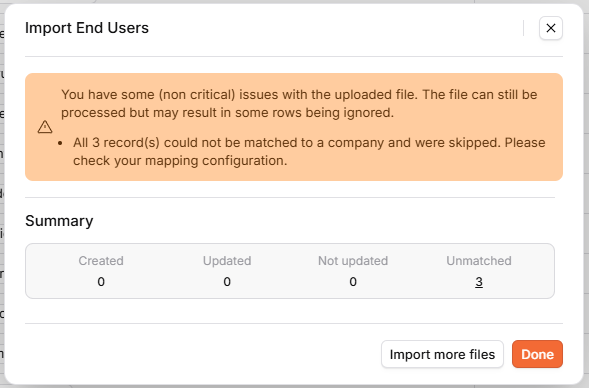
You have some (non critical) issues with the uploaded file. The file can still be processed but may result in some rows being ignored.
All 3 record(s) could not be matched to a company and were skipped. Please check your mapping configuration.
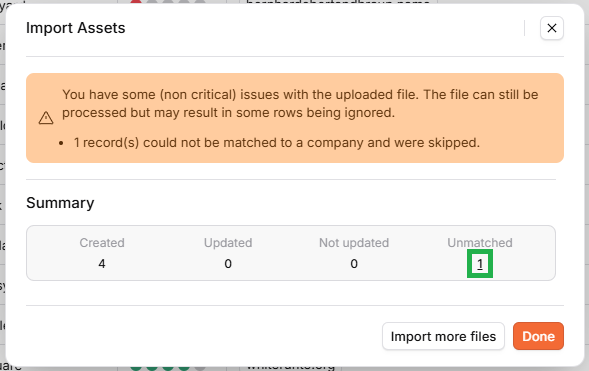
We can actually click on the number of "Unmatched" records (3 in this case) to see the details of which records failed and what the problem is. In this case, the records could not be matched to a Company.
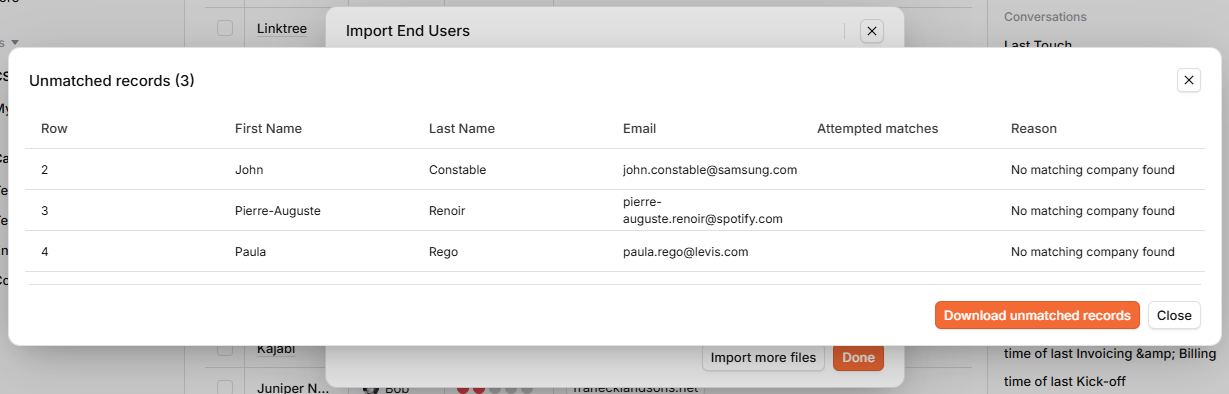
Click the image to view it enlarged
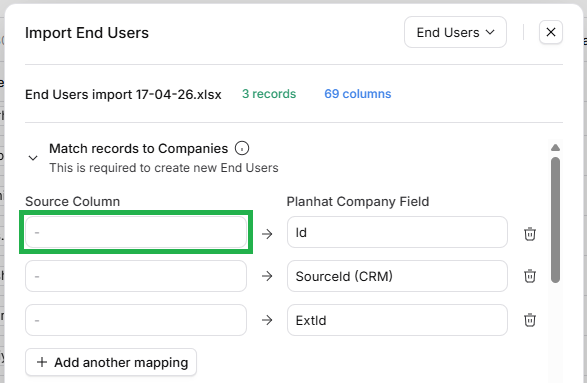
The reason for this failure is that we left the default "Company Id" mapping in place, and so Planhat is looking in the "Company Id" column in the spreadsheet to try to map its values to Planhat ID to identify the relevant Companies, but in our spreadsheet that column has been left blank (as you can see in a previous screenshot).
The solution here is to remove the mapping for "Company Id". We can either click on its name and clear the cell ...
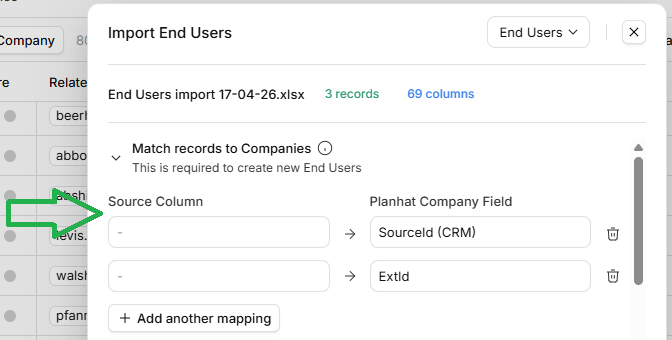
... or we can delete that whole line (screenshot below).
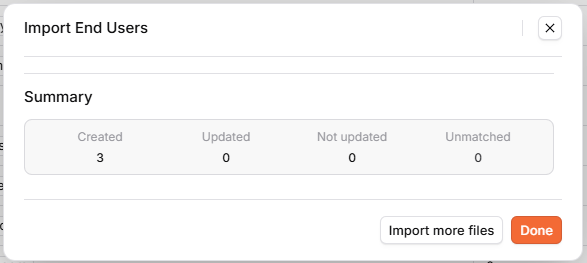
Now, when we import the exact same spreadsheet, it succeeds:
Worked example 2
It's important to note that if you are importing new End Users and mapping them to Companies via email domains rather than one of the three types of IDs, then the Companies need to have the email domains saved in the "Related Domains" field in Planhat in order for this mapping to work.
For example, let's say that this is our spreadsheet that we want to upload. We want to create one End User for the Company "Wrangler", and one for the Company "Tripactions".

We proceed with importing this spreadsheet, making sure that the "Company Id" column (which we are not using in this case) is not mapped in the import modal (form), as discussed in the previous example.
But in this particular case, when we attempt the import, we see an error message:
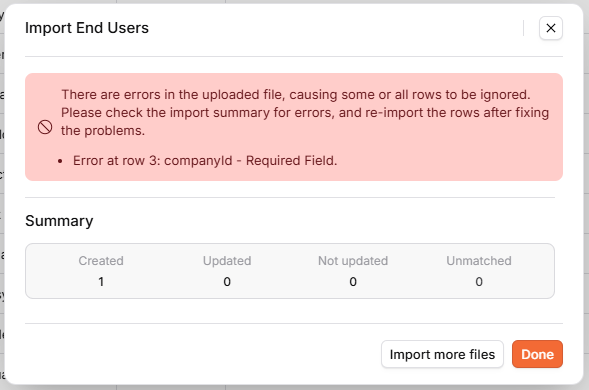
There are errors in the uploaded file, causing some or all rows to be ignored. Please check the import summary for errors, and re-import the rows after fixing the problems.
Error at row 3: companyId - Required Field.
The error in this case indicates that the End User in row 3 (the second End User) has had a problem.
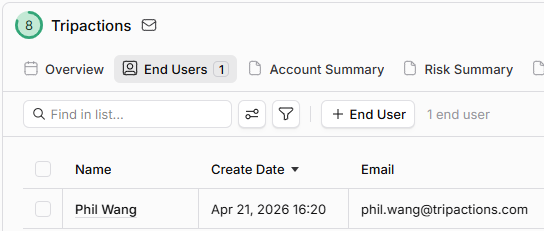
We can see in the "Summary" (in the screenshot above) that actually the other End User was successfully created - and if we go to that Company (Wrangler) we can confirm that that End User is now there:
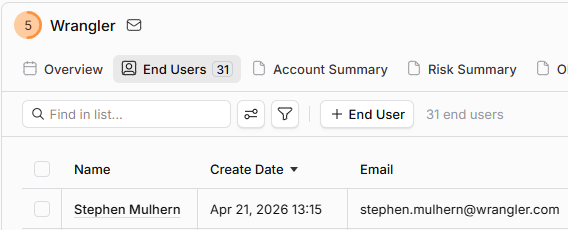
Although the error message points towards Company Id, we are not using Company Id specifically in this case - but the issue is indeed that the other End User could not be successfully matched to the right Company.
If we take a look at the Related Domains field for Tripactions, we can see that it was populated incorrectly, and so the email address phil.wang@tripactions.com could not be mapped to that Company via the email domain.
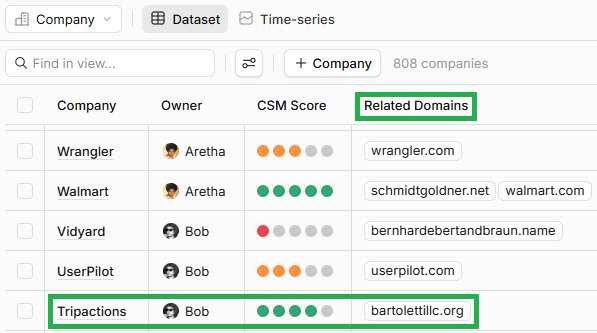
If we add the correct domain (tripactions.com) to the Related Domains for this Company in Planhat, and then try importing the same spreadsheet again (again ensuring that Company Id is not showing in the Company matching section at the top), this time the import succeeds:
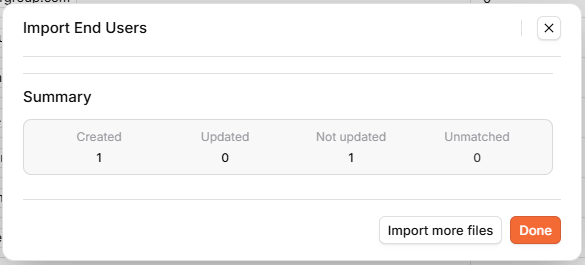
(The "Not updated" record is the End User that was already successfully created.)