How to Sync Cases from Salesforce to Planhat
Planhat's Salesforce integration enables you to seamlessly sync your Cases from Salesforce into Planhat. Once the Cases sync has been enabled, new Cases will sync to Planhat within 10 minutes! If you would like to know more about our Salesforce integration sync times then check out this article 👍.
How to Enable and Setup your Cases Sync
Start Syncing your Cases from Salesforce to Planhat today 😃! It's quick and easy to enable the Cases sync on your Salesforce Integration page in Planhat, simply follow these steps:
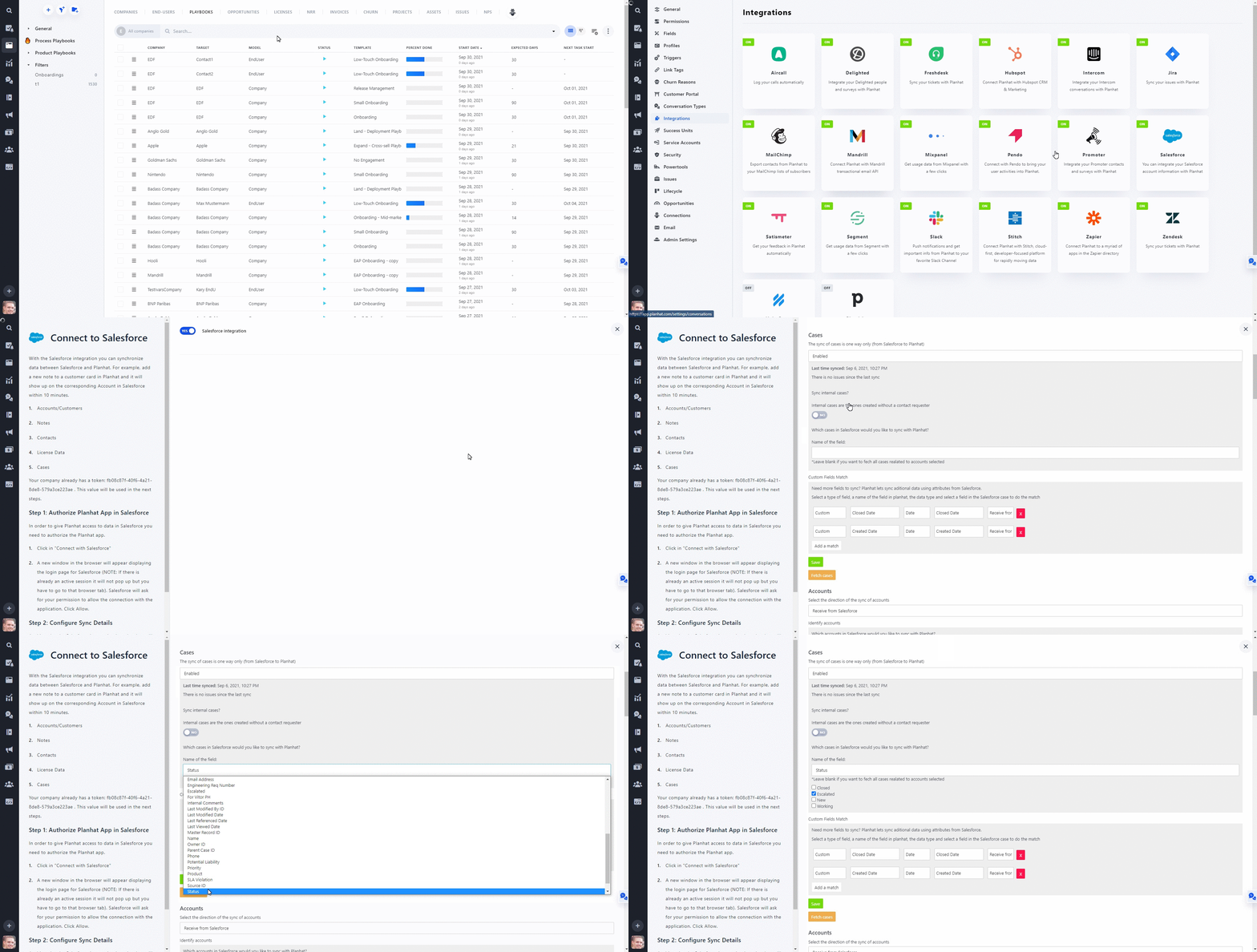
Navigate to the Integrations page in Planhat then select "Salesforce".
Scroll down until you see the Cases object, then click on the first drop down menu. You will see two options: "Enabled" and "Disabled", select "Enabled".
Now you have the option to choose which Cases in Salesforce you would like to sync to Planhat (leave this blank if you want to sync all cases). Below the header "Name of the field" click on the drop down menu and you will see a list of Case fields that exist in Salesforce. Once you have chosen a field you need to enter a value or select an option (it changes depending on the type of field you select).
For example, if I only want to sync Cases with a status equal to "Escalated" then I would select the field "Status" and check the "Escalated" box.
🚀 Quick tip: Just below the "Cases" heading on the Salesforce Integration page you can view the date and time of the last sync. Directly below that, there's a message that will tell you if there's been any issues since the last sync.
How to Sync Additional Case Fields
If there's additional "Case" fields that you need to sync from Salesforce to Planhat then you can sync those fields by adding them under the "Custom Fields Match" section. To learn more about this, check out this article 😃.