Planhat OS - Profile widgets (sections)
Use Profile widgets/sections to set the main layout of Profile Templates
Summary
You choose and arrange widgets (sections) within the "Profile" tab when you're configuring Profile Templates
These determine the main layout of Profiles visualized using the Profile Template
Typical examples of Profile widgets (sections) are Fields, Sessions, Signals, Pages, Metrics (time-series data), Planned (planned activities - Tasks) and Conversation (logged activities)
The exact options of Profile widgets (sections) available to select in a Profile Template will depend on the data model the Profile Template is for
You can also choose to add tables of related records (of other models) in a Profile Template, although "Related Data" enables access to related records (and attachments) in a more concise format
Who is this article for?
This article is particularly relevant to Planhat builders/admins who configure their tenant for their team (e.g. CS Ops)
Series
Planhat OS - Profile widgets (sections) ⬅️ You are here
Article contents

What are Profile widgets?
In this article, we'll take a closer look at the widgets (sections) you can include in a Profile Template. These determine the main layout of Profiles visualized using the Profile Template.
You'll see the widgets/sections in the "Profile" tab of each Profile Template.
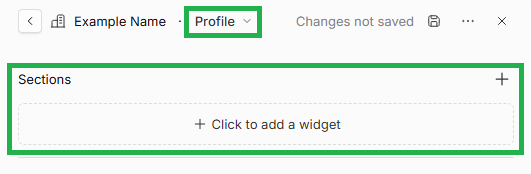
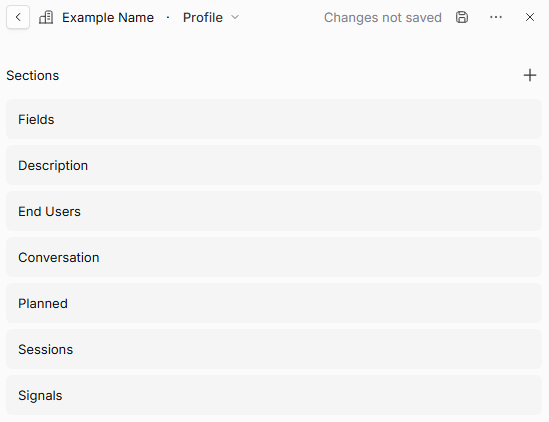
Adding in your selection, you'll end up with something like this in the Profile Template:
📌 Important to note
Profile widgets are not to be confused with widgets (chart types) that can be included in Dashboard and Presentation Pages
Profile sections (the alternative name for Profile widgets) are not to be confused with Sections of content (Pages/Views)
Types (categories) of Profile widgets
When you click to add a widget/section in a Profile Template, you will see the available options organized in two categories:
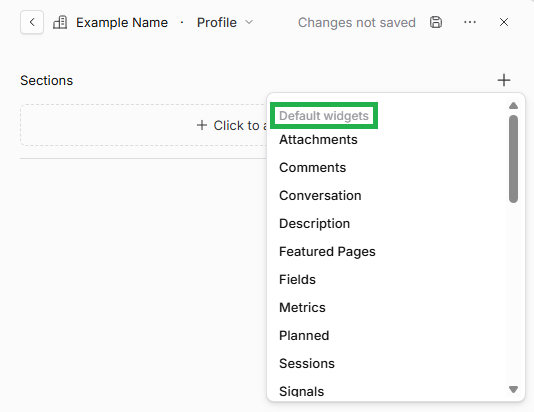
Next we'll look at these in a bit more detail.
Default widgets
The table below describes some common Profile Template widgets.
Widget | What it shows in a Profile |
Fields/Details | Particular fields on that model, including the field values for the record being displayed - see our separate article on Field Groups. Note that although this is called "Fields" in a Profile Template, it is called "Details" when viewed in a Profile. In Profiles, you will see "Group" included automatically where applicable, to show parent/child relationships between Companies |
Sessions | Sessions related to the record |
Pages | A table of Pages you select, here for quick access - e.g. you might have an "Account Overview" Page or a "Sales Handover" Page. Pages can be added to the Profile Template to be applied to multiple records, or added in an individual Profile for an individual record. For more on this widget, see below |
Signals | Signals related to the record |
Description | The record's rich-text "Description" field |
Attachments | Files attached to the record. (Note you can alternatively include attachments in Related Data) |
Metrics | A chart of the metrics (time-series data) you pick (up to 3 metrics) |
Planned | Upcoming Tasks (planned activities) |
Conversation | Past Conversations (logged activities, e.g. emails and logged meetings) |
Related Data | A list of data model records (and potentially attachments) that have a relationship to the Profile's data model record. For more on this widget, see below |
Success Units | You can add Success Units to Company Profiles using this widget |
The exact widgets available for you to select within the "Default widgets" list depend on the data model you are building a Profile Template for - you will only see the widgets applicable to that model. Examples of more specific Profile Template widgets are "Work Roles" on a Workflow, "Line Items" on a Deal or an Invoice, and "Checklist" on a Task.
Related Objects
Selecting a model in the "Related Objects" list brings a table of related records of that model/object onto each Profile visualized via this Profile Template.
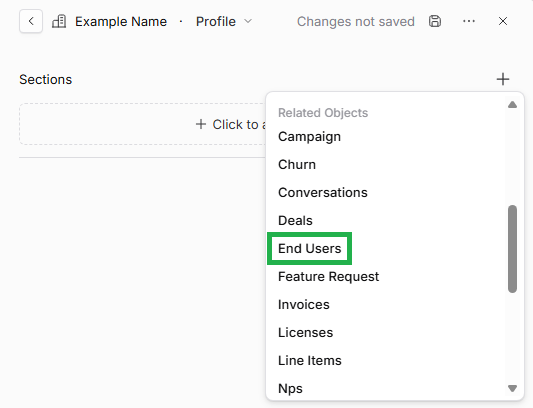
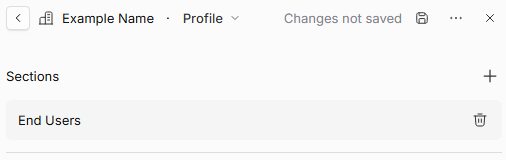
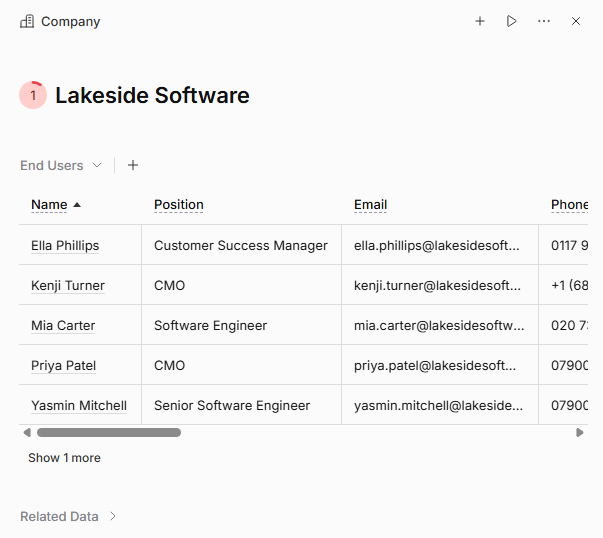
For example, if you select "End Users" here in a Company Profile Template, Companies viewed using that Profile Template will include a table of End Users (i.e. End User records) linked to that Company in the Profile, as shown in the screenshots below.
Selecting End Users in the "Related Objects" list:
"End Users" showing as a section within the Profile Template:
Corresponding table of End Users on a Company Profile using this Profile Template:
Note that you should only add a table for a related model (object) if it's one that's particularly relevant to the Profile's model - that you'll often want to view and interact with - because you can alternatively simply use the Related Data widget as a more condensed/concise way of displaying this data.
As it's not intended that you add lots of Related Objects, note that you can select a maximum of 6 models (objects) here. Once you have selected 6, you will no longer have the option to add more, and you will see the message "Maximum of 6 related objects".
Moving and removing Profile widgets within a Profile Template
Once you have added multiple widgets/sections to a Profile Template (example shown below), you can drag and drop each of them to move them up or down. The order they are listed within the Profile Template determines the order they will appear within each Profile visualized using this Template.
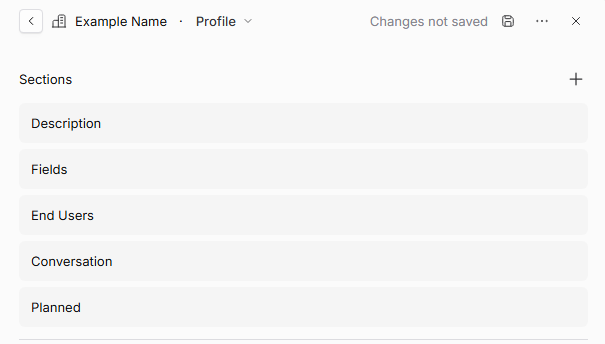
To remove any widget/section you have added, mouse over it and you'll see a trash can (bin) appear - click on this to delete it from the Profile Template.
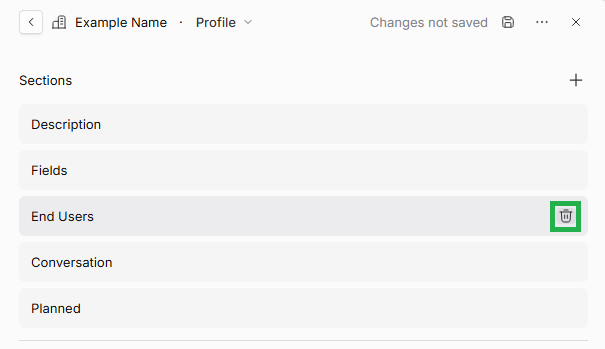
Further technical details
"Related Data" widget
Let's take a deeper look at the Related Data widget. Related Data is a place in your Profiles where you can display model records and attachments (files) that are related to the record being viewed in the Profile. It's a concise display that means you do not need to use "Related Object" widgets to add tables for every model to a Profile.
There are two variants of Related Data in Profiles:
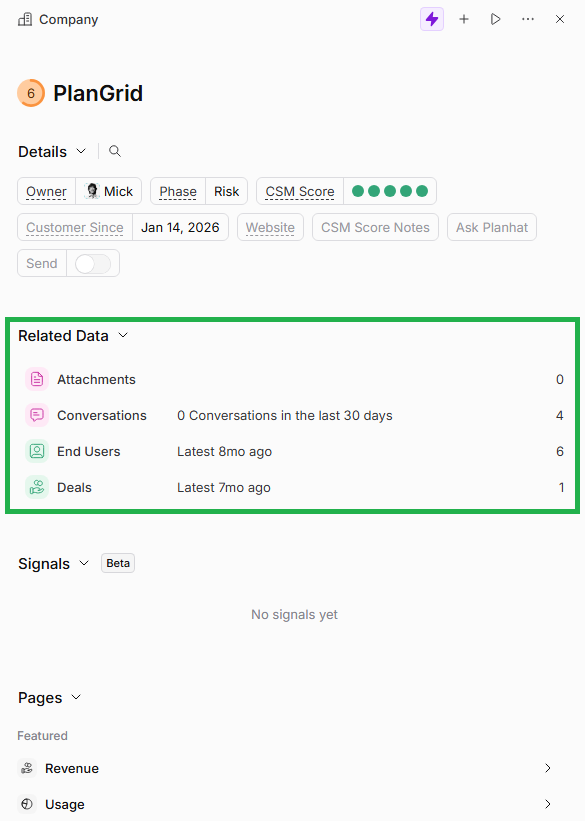
Either you can choose to add the Related Data widget to a Profile Template, which is customizable:
You can select which models to include, and in which order (and whether to include attachments)
You can configure where the Related Data widget is positioned within the Profile layout
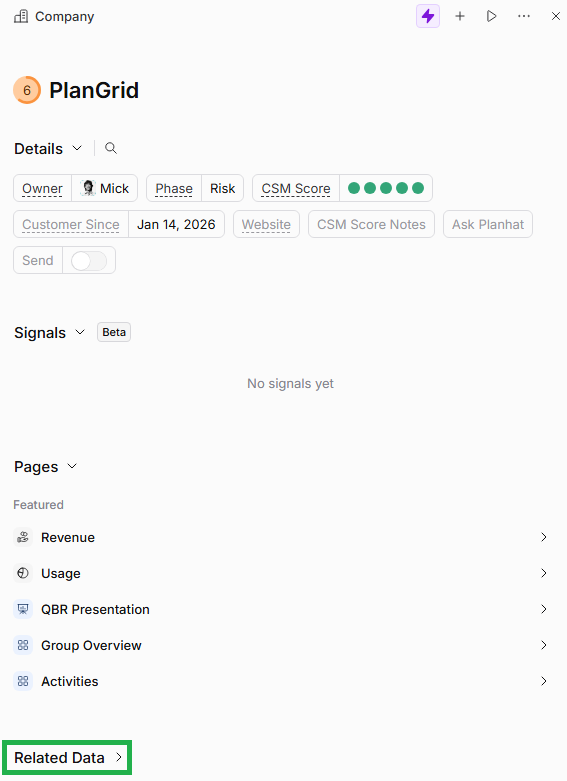
Or if you don't add/customize the Related Data widget, it will automatically appear at the bottom of the Profile, but collapsed (so you would click on its name to open it up), and using a structure defined by Planhat
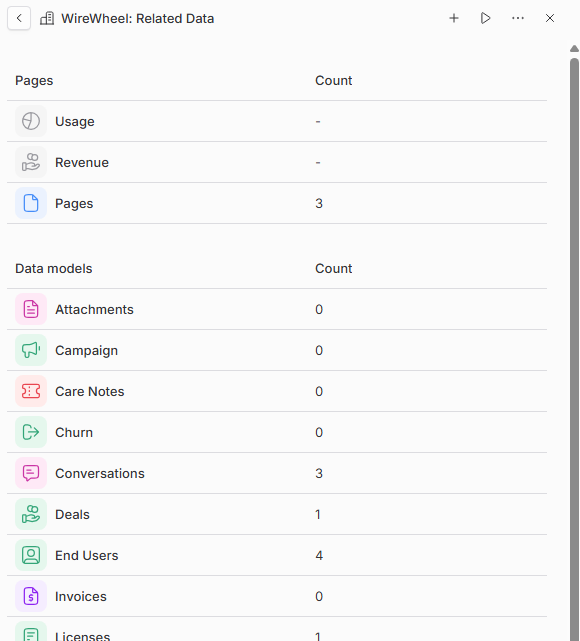
In each case, the Related Data widget shows a limited number of models on each Profile (so it doesn't take up too much space), but you can click on any of these rows to open up a table listing the records, or click "More" in the top right of the widget to see all related data models.
Related Data widget showing in a Profile, showing 5 data models; you can click on "More" to see the full data model list:
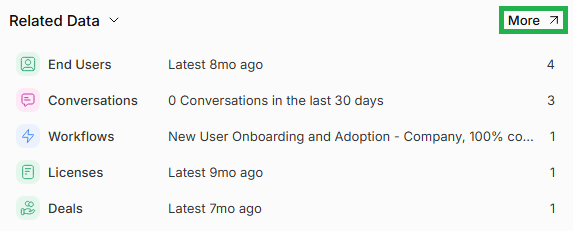
Example of a full data model list:
Clicking on any of the models opens a list of the actual records - for example:
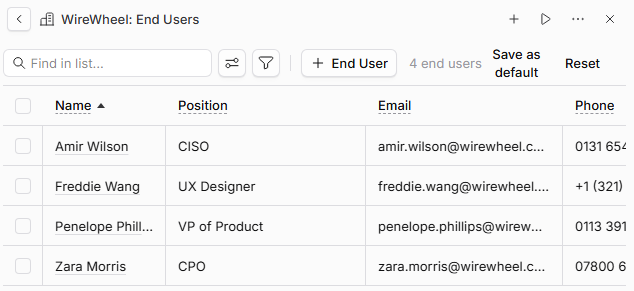
This allows you to quickly access any related record from a Profile, without needing many individual tabs for each model on the Profile (like in the pre-OS Planhat layout) or many "Related Objects" tables.
Further details on customized Related Data
You can select "Related Data" within the "Default widgets" list when you're configuring the layout of a Profile Template.
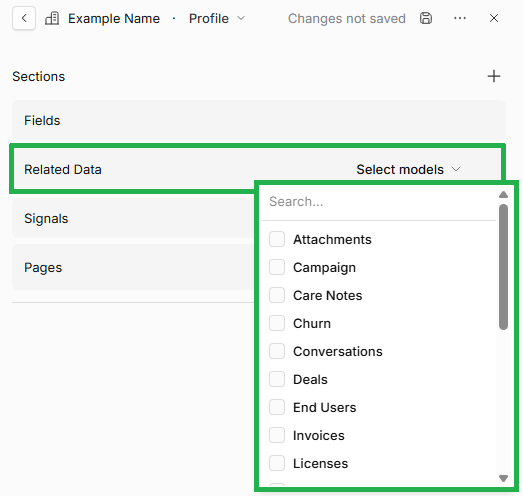
Once you've added that widget as a section within the Profile Template, click on "Select models" to open up a list of options, as pictured in the screenshot below. Use the checkboxes to select the models you would like to include. Attachments (files) is also an option here.
🚀 Tips
The order you click on these models(/attachments) when selecting them in a Profile Template will determine the order that they display in Related Data in the corresponding Profiles
You can select a maximum of 5 models(/attachments) here, so choose the ones that are the most relevant to this Profile Template
Related Data widget in a Profile Template, showing checkboxes for models:
Related Data widget showing in a Profile, in a custom position, and with a custom data models list:
Further details on default Related Data
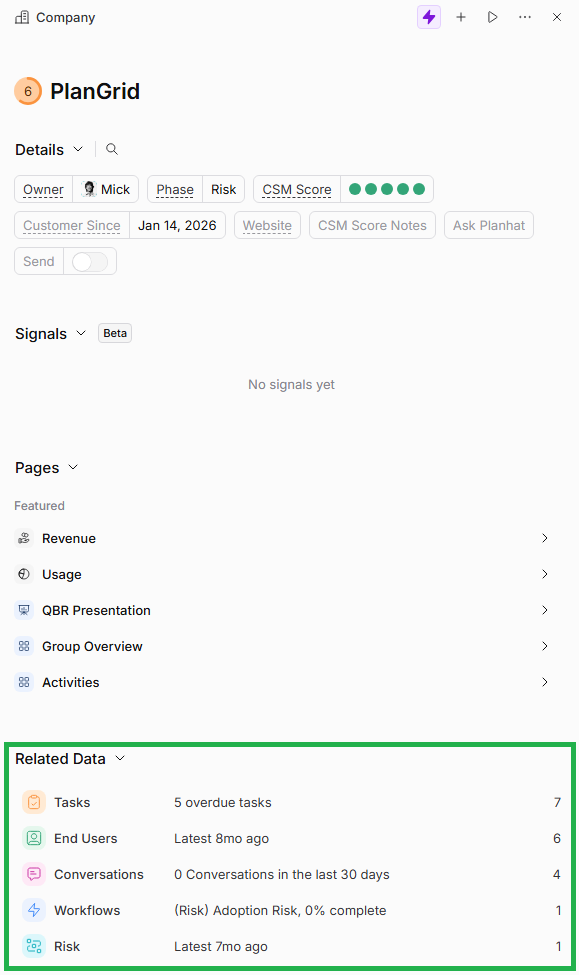
If you don't add a customized Related Data widget to a Profile Template, then when you view a Profile using that Profile Template, you will see "Related Data" listed at the very bottom, in a collapsed format (i.e. just showing the section name). You can click on it to expand out the list. This default Related Data widget will automatically list the top 5 related data models, dynamically sorted by the most records.
Profile with a default Related Data widget, collapsed:
The same Profile showing the list expanded:
"Pages" widget
The Pages widget is how you can display Pages in Planhat OS Profiles, which actually includes:
Standard/default Pages that Planhat has built to display key data (which you may be familiar with from pre-OS Profiles) - "Usage" and "Revenue" (if applicable to the data model of your Profile Template)
Custom Profile Pages that you have created and select to include in a Profile Template (e.g. an "Account Handover" Page for internal use by you and your colleagues, mirrored on multiple Company Profiles and with automatically populated data)
Custom Profile Pages that you have created and select to use in an individual Profile/record (e.g. a fully customized "QBR" Presentation Page on a specific Company Profile) - these are referred to as "Related Pages"
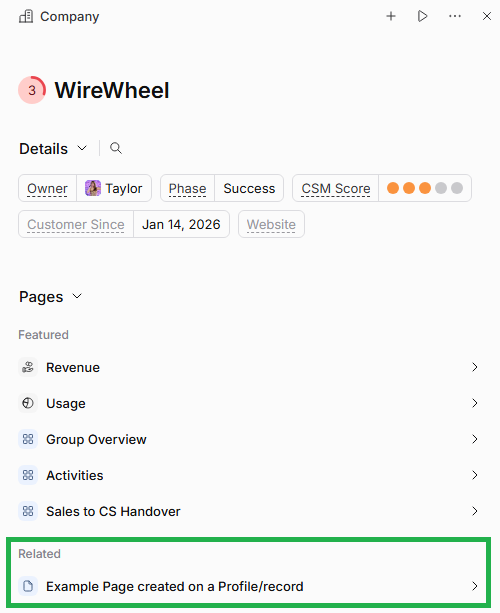
Pages widget on a Profile, showing examples of all 3 Page categories:
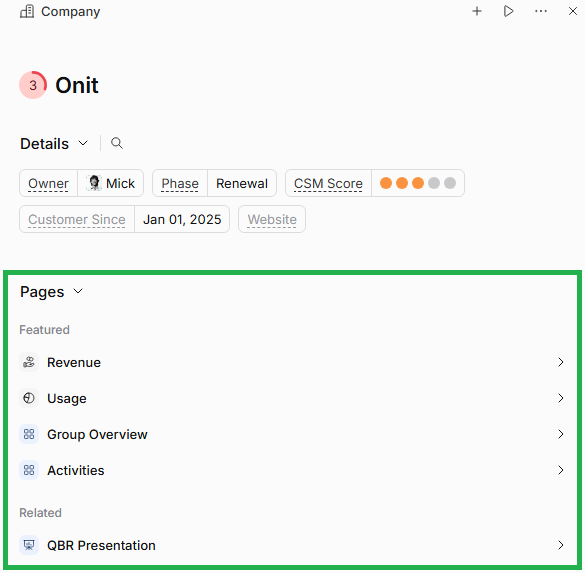
Next we will go through each of these Page categories in turn.
Standard/default Pages
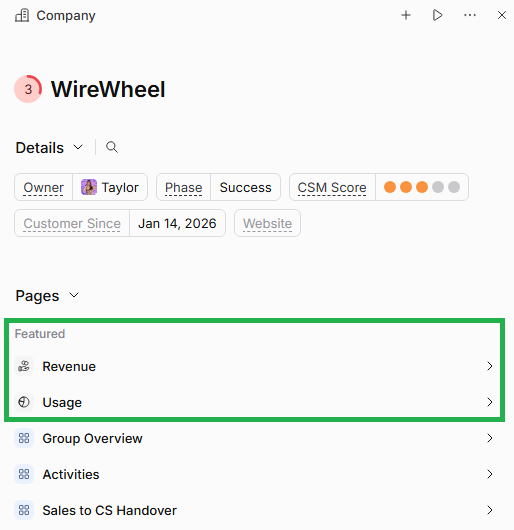
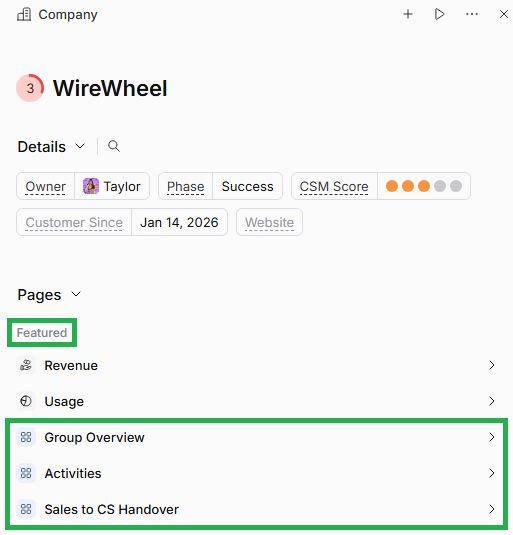
When selected in the Profile Template, you will see these listed under "Featured" in the Pages widget.
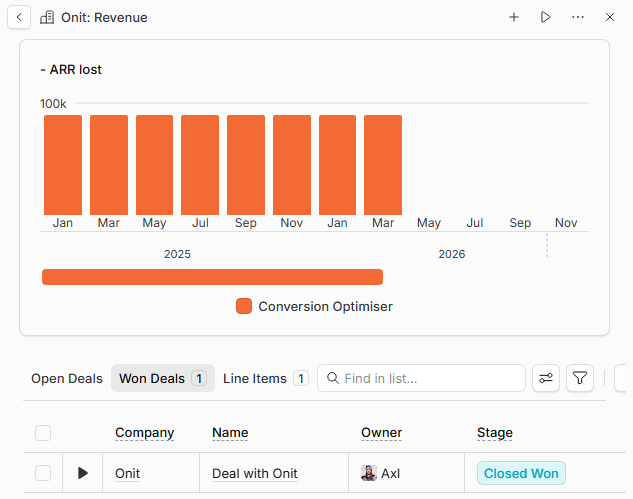
"Revenue" is where you can find all your revenue data for a Company.
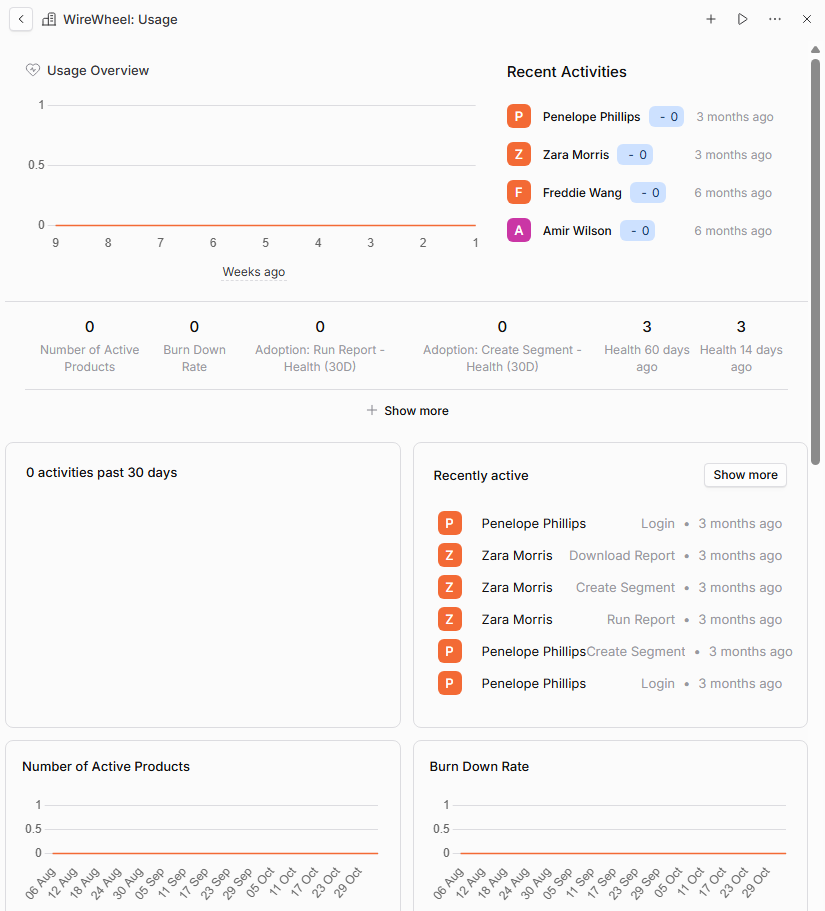
"Usage" is where you can see data showing your customer/prospect activity - the screenshot below shows an example on a Company Profile.
Custom Profile Pages in Profile Templates
In the "Data Model" Tool, once you've selected a model, under the "Profiles" area where your Profile Templates are listed, you will see "Profile Pages" - these are custom Pages created in your tenant to use in Profiles.
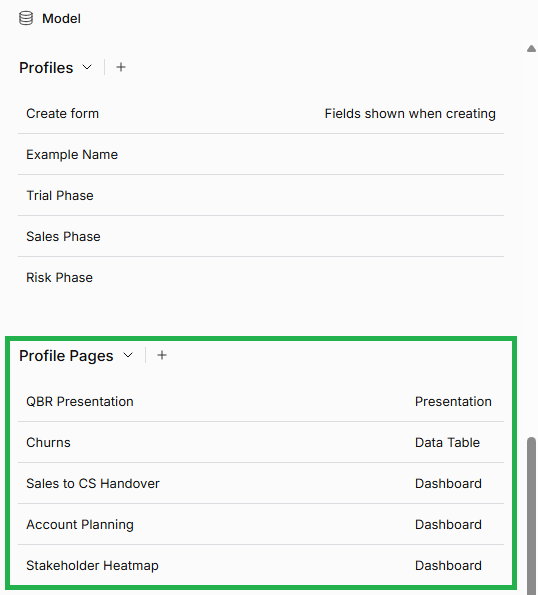
One place you can use these Profile Pages is within Profile Templates, which means they are mirrored in each Profile. This setup is particularly suitable for Pages such as internal Pages for use by you and your colleagues, e.g. a "Sales to CS Handover" Page. See here for details of the implications of adding a Custom Profile Page to a Profile Template as opposed to an individual record/Profile.
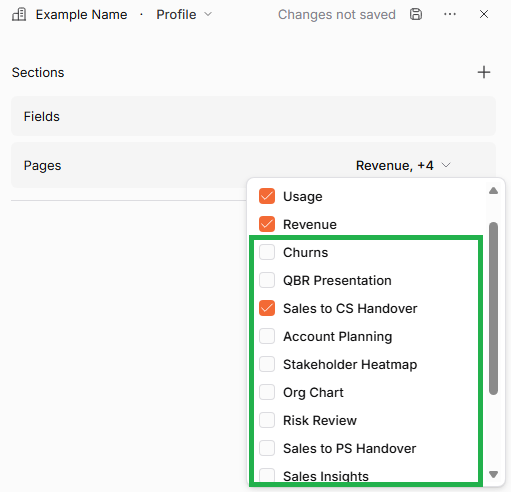
When selected in the Profile Template, you will see these listed under "Featured" in the Pages widget on the Profile.
Custom Profile Pages added to individual Profiles/records - "Related Pages"
You can also add Custom Profile Pages to individual records (e.g. directly to one Company). These Pages are referred to as "Related Pages".
You can either select an existing Profile Page to add in this way - in which case, it will be a copy for that record, which can be fully edited (as discussed here) - or you can even create a new Page directly on that record's Profile.
Adding a Page like this is done on the Profile rather than via a Profile Template - but you do need to ensure the "Pages" widget is included in the Profile Template first.
To add a Related Page, when looking at the Profile of the record you want to add it to, mouse over the "Pages" widget and then click on "More".
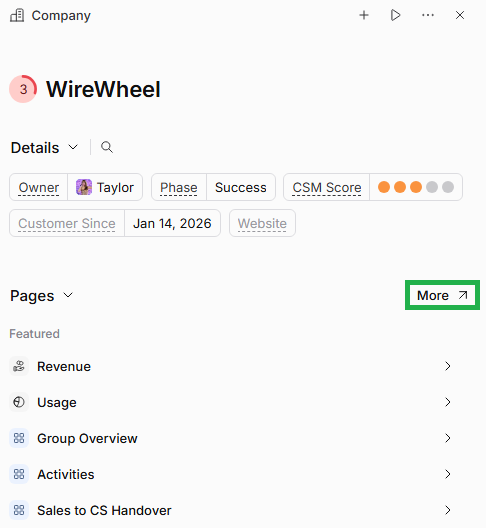
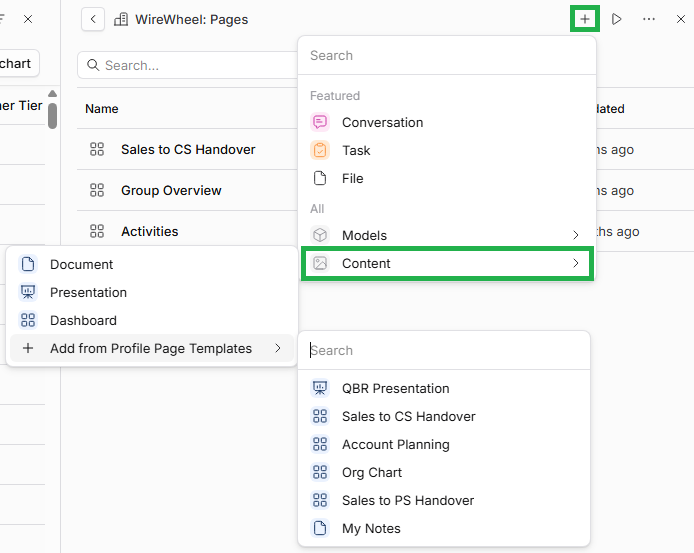
Then, click on the "+" symbol, and select "Content". As shown in the screenshot below, you can then either click "Add from Profile Page Templates" to select a pre-existing Page, or select a Page type (Document, Presentation or Dashboard) to create a new Page here.
When added to a record, you will see these Pages listed under the "Related" heading in the Pages widget on the Profile.