Shared mailboxes (Centralized Connect)
You can connect shared inboxes to Planhat (when using Centralized Connect with either Google Gmail or Microsoft Outlook), for syncing and sending emails
Summary
Once you have set up Centralized Connect in Planhat, for either Google Gmail or Microsoft Outlook, you can then add shared mailboxes to Planhat - e.g.
support@yourcompany.comWithin Planhat, you enter the shared mailbox email address, and specify which Planhat Users are members
Eligible emails sent from/to the shared mailbox going forward are automatically synced into Planhat. All Users associated with the shared mailbox will be listed on the Conversation record, in the "Team Members" field. You can also sync historical (existing) emails (for a specified time window)
The relevant Users can select the shared mailbox to send emails from in Planhat. Shared mailboxes are also supported in Automations for sending emails automatically (Sequence Automations / "Schedule Email" steps) and in NPS emails
Google Groups are not shared mailboxes so don't have the same functionality, but you can add them to Planhat so that the relevant Users are shown on the relevant Conversations
Who is this article for?
Any Planhat User who is part of a shared Google or Microsoft mailbox
Planhat admins who configure their Planhat tenant for their organization
Related articles
Other articles particularly relevant to this article are:
Article contents
Introduction
"Centralized Connect" is a way of connecting the email (and calendar) of all Users, managed centrally by an admin, rather than each User needing to connect their account to Planhat individually.
In addition to regular individual-User email accounts, it's possible to configure shared Google Gmail / Microsoft Outlook mailboxes in Planhat, such as support@yourcompany.com for your Support Team, or sales@yourcompany.com for Sales. You add these within the "Settings" Tool in Planhat OS. Each mailbox is connected separately, and can be modified/removed at any time.
Once set up, you can send and receive shared mailbox emails in Planhat. Eligible shared mailbox emails sent outside Planhat are automatically synced into Planhat. Users belonging to the shared mailbox are populated in the Team Members field on the Conversation records - so the right people, responsible for managing that mailbox, are associated with the emails.
Note that shared mailboxes are not added as if they were Planhat Users themselves - you do not use any "seats".
There is also some support for Google Groups, although there are limited possibilities because Google Groups are not true shared mailboxes.
📌 Important to note
For details of which mailboxes are supported, and which emails are synced into Planhat, you can refer to our technical appendix here.
📌 Definitions
"Data model" (also called simply "model") - how data is organized in Planhat, similar to the "objects" you may be familiar with from other software. For example, "Company" is the model representing organizations that are your customers or prospects
"Record" - a piece of data within a model. For example, a Company record could be "Apple" or "BMW"
"User" (sometimes called "Team Member") - the Planhat model representing users of Planhat, i.e. you and your co-workers
"End User" - the Planhat model representing people working at prospect/customer Companies, i.e. your contacts and the users of your product
"Conversation" - the Planhat model representing communications (logged activities), such as emails, tickets, chats and meetings
"Your tenant" - your organization's copy of Planhat, i.e. your organization's Planhat environment
What shared mailbox emails look like in Planhat
🚀 Tip
This is the same whether the shared mailbox is Google Gmail or Microsoft Outlook.
You can send emails from a shared mailbox in Planhat (shown later in this article), and you can receive emails from a shared mailbox in Planhat, the same as with "regular" email accounts.
These emails are saved in Planhat on the Conversation model - the same as emails sent by/to individual Users.
When you reply in Planhat to an email that came in through a shared mailbox, the reply is sent from the shared mailbox, so it stays in the same thread.
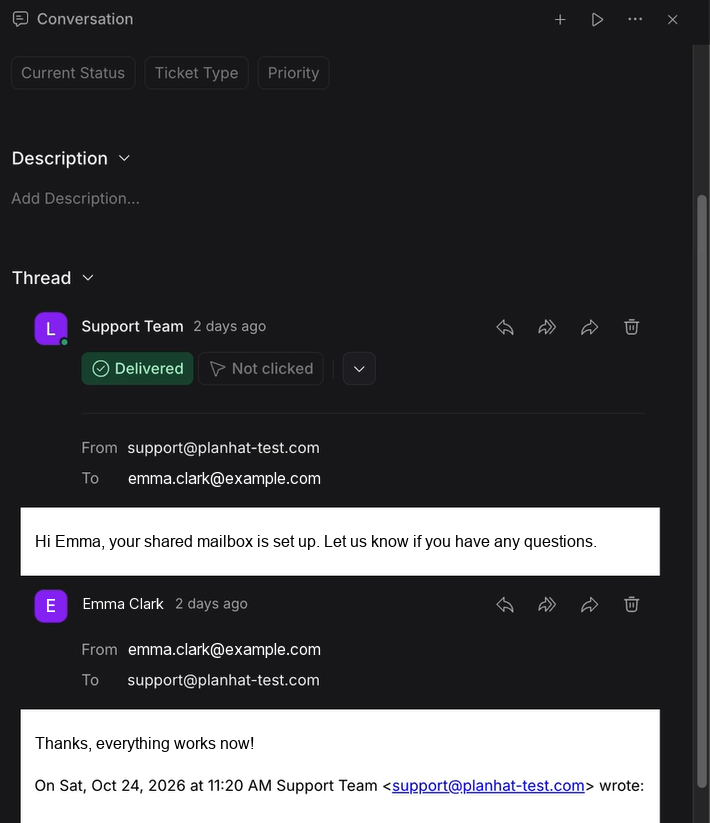
The screenshot below shows an example of an email sent from a shared mailbox in Planhat ("Support Team") to an End User, and then a reply from the End User back to that shared mailbox.
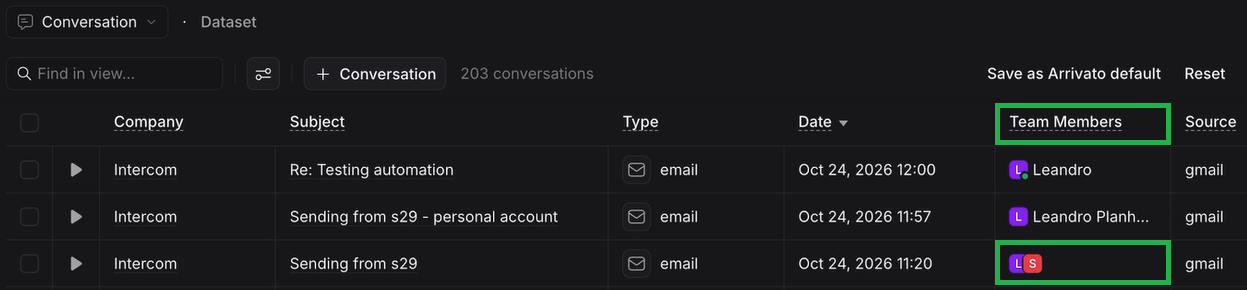
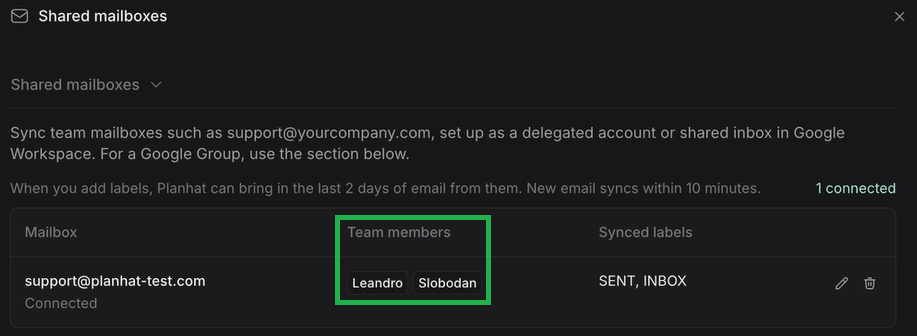
A difference between shared mailbox emails compared to standard individual-User emails is that in the "Team Members" field of the Conversation record (first screenshot below), you will see all the Users added as Team Members in that shared mailbox's settings in Planhat (second screenshot below), not just the individual User who sent the email from Planhat using the shared mailbox.
Click the image to view it enlarged
Click the image to view it enlarged
Where you can use a shared mailbox in Planhat to send an email
🚀 Tip
This is the same whether the shared mailbox is Google Gmail or Microsoft Outlook.
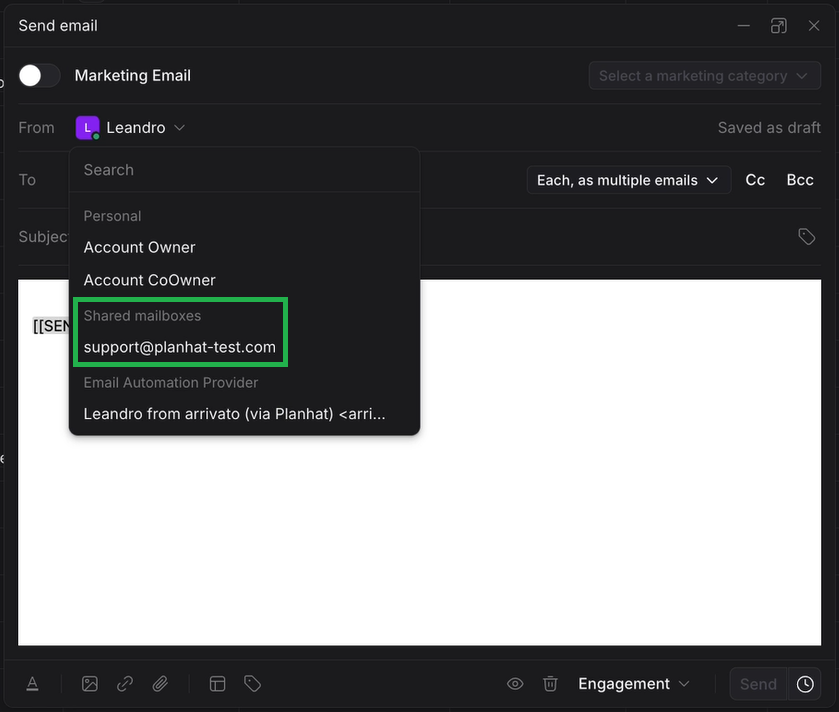
When you're sending an email from Planhat, you will see shared mailboxes listed to select from, as shown in the example email dialog screenshot below. Only Users who are listed as Team Members in the Settings for a shared mailbox (shown in the screenshot above) will be able to select and send from that mailbox when sending emails manually in the email dialog like this - so you can think of that Team Members list as giving permission for those Users to use the shared mailbox in Planhat.
Shared mailboxes can be selected and used in Sequence Automations, which are how you can automatically send emails in Planhat. The screenshot below shows an example of a shared mailbox being used in a "Schedule Email" step in a Custom Automation. Shared mailboxes are also supported in NPS emails. Note that an admin can pick any shared mailbox in an Automation or an NPS email, even if the admin isn't one of its Team Members.
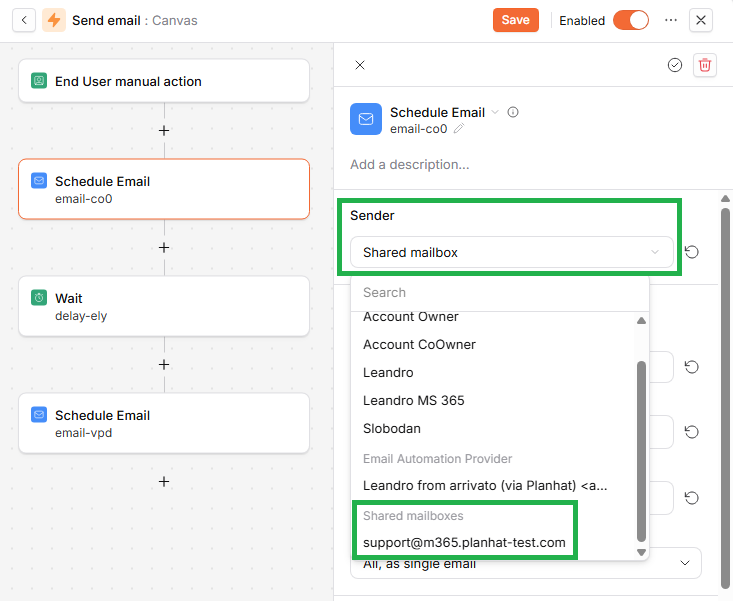
Shared mailboxes are not supported in Sequence Workflows, as that is the legacy method of automatically sending emails, which is being deprecated.
How to add shared mailboxes to Planhat
📌 Important to note
You need to have first set up Centralized Connect for Google Gmail or Microsoft Outlook before carrying out these steps. For instructions on how to do this, see our separate article here.
🚀 Tip
Shared mailbox functionality is available in both Planhat OS and pre-OS Planhat. The screenshots and instructions in this article correspond to Planhat OS.
The steps are the same whether you are using Google Gmail or Microsoft Outlook.
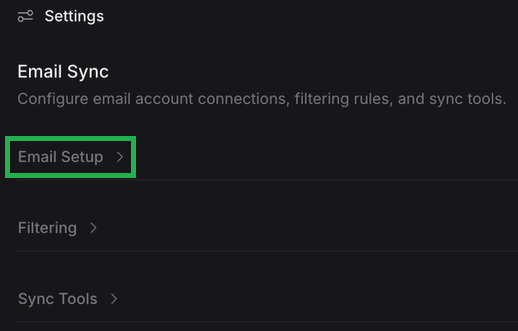
🚀 Tip
You can add multiple shared mailboxes if you like, e.g. if you have
support@yourcompany.comandsales@yourcompany.com.
Editing the shared mailbox settings
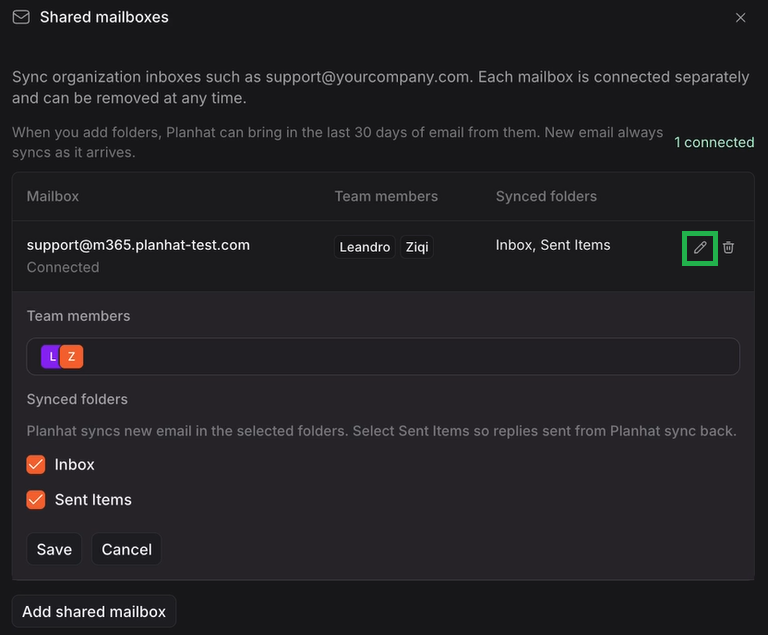
You can go back and edit the shared mailbox in Planhat if necessary. For example, this could be because you want to add an additional User to the Team Members list.
To edit an existing shared mailbox, just click on the pencil icon on the right-hand side to open up its details to change.
Removing a shared mailbox
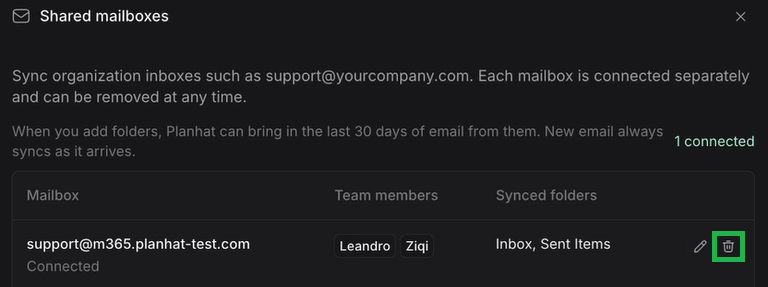
You can also remove a shared mailbox from the list, via the trash can (bin) icon. Planhat then stops syncing it, and nobody can send from it in Planhat. Emails that were already synced stay in Planhat, rather than being deleted from Planhat.
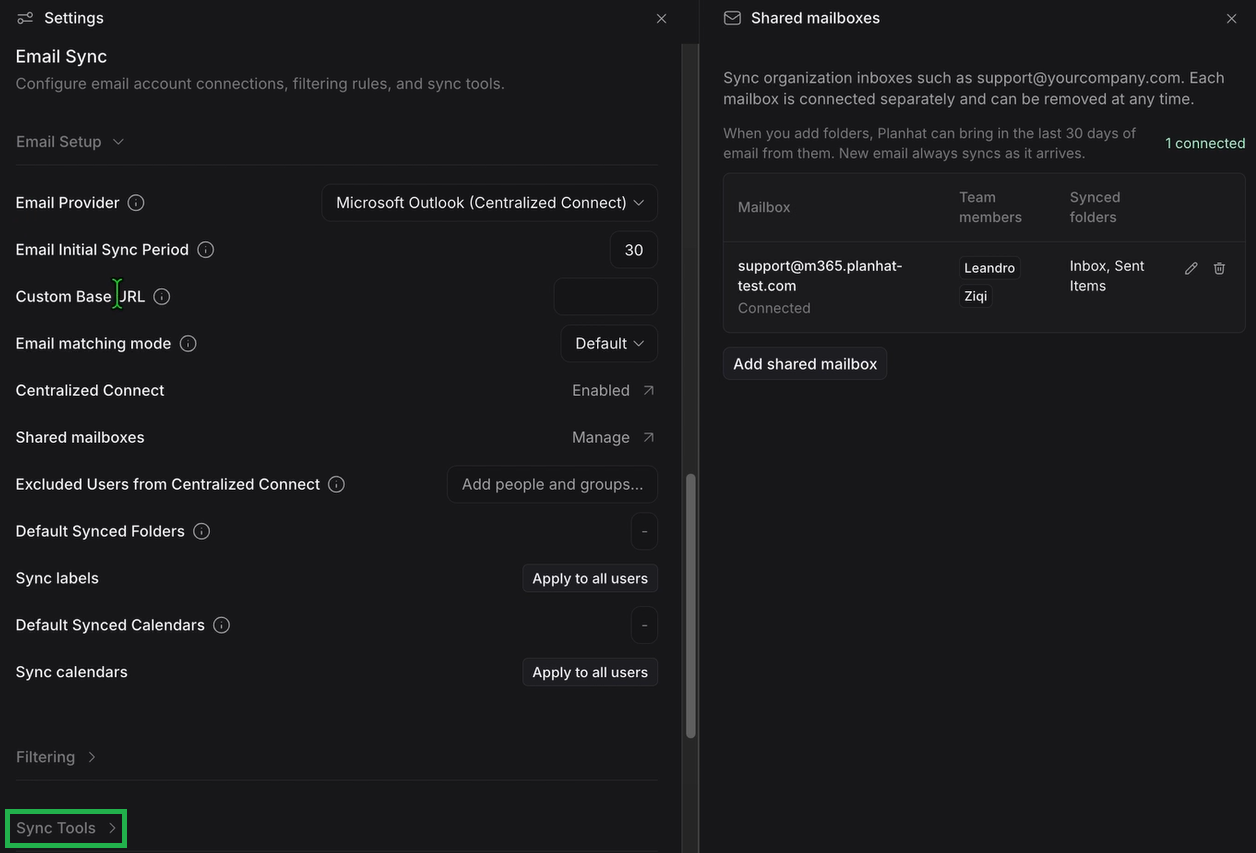
Manually syncing historical emails via Sync Tools
As mentioned above, it's possible to manually initiate a backward sync of existing emails.
To do this:
Google Groups
📌 Summary
A Google Group isn't an email account, so you can't send emails from its address in Planhat, and Planhat can't sync the Group on its own. Instead, the Group's emails sync through one Member's mailbox. For this to work, at least one Group Member needs their email synced to Planhat, and their subscription to the Google Group must be set to "Each email" (in Google Groups, under that Member's membership settings). Then, every Group email lands in that person's inbox, syncs to Planhat, and the Users you add in Planhat appear as Team Members on those Conversations.
It's important to note that "Google Groups" are not a true shared mailbox. Rather than being an actual email account, they work more like an email distribution list. We recommend that you use an actual shared mailbox, rather than a Google Group, wherever possible.
You can still connect Google Groups to Planhat, on the "Shared mailboxes" screen, but this is in a separate part at the bottom, as shown in the screenshot below. Like the setup method for shared mailboxes, you type/paste in the Google Group email address, and select which Planhat Users are the associated Team Members.
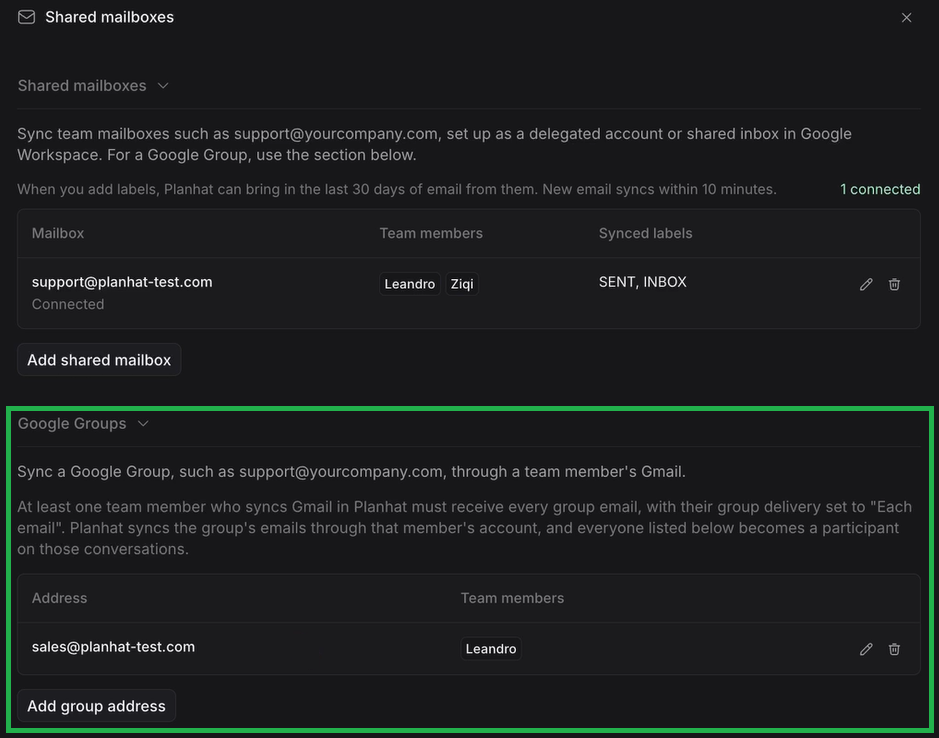
Emails sent to/from Google Groups can be synced into Planhat, not directly but via an individual User, by having copies of the Google Group emails in their own Gmail account, and then being connected to Planhat as a User.
Each member of a Google Group can choose to "subscribe" to the Google Group emails, which means they can get a copy of each email that's sent to the Google Group, into their own personal Gmail mailbox. To do this, they should make sure that their Google Groups subscription level is set to "Each email" - not "Digest", "Abridged" or "No email". You will need at least one member of the Google Group to have this setup.
Then, this person needs to have their Gmail account connected to Planhat as a User (via Centralized Connect, as with the rest of this article). Because that User's emails are synced to Planhat, this will include the Google Group emails in their mailbox.
The benefit of defining the Google Group here in the Planhat settings is that the synced emails, which are stored as Conversation records in Planhat, will have the Google Group Users listed in the Team Members field (like we have shown above for shared mailboxes). This works because Planhat sees the Group address on the email (in "From", "To" or "Cc") and uses the settings to identify the relevant Users / Team Members.
Also note that even though it's not possible to send from that Group address directly, the Users linked to that Group address can still reply to these emails in Planhat using their own email addresses - just like they'd do in Google Groups outside of Planhat.
Further technical details
Which shared mailbox email addresses you can add
Google Gmail: you can add a Google Workspace account that your team shares, for example through Gmail delegation - a Google delegated account. The address must be in one of the domains allowed in your Centralized Connect setup
A Google Group is not a mailbox; you can refer to the part of the article on Google Groups here
Microsoft Outlook: you can add a shared mailbox in the same Microsoft 365 tenant you connected.
Note that a Microsoft Outlook mailbox that a person signs in to can't be added
For both: the shared mailbox doesn't need its own equivalent Planhat User. The address can't be the email address of a Planhat User
Note that Planhat checks the address when you add it, so the wrong kind of address fails with an error.
Which shared mailbox emails are eligible to be synced into Planhat
Emails sent from/to the shared mailbox going forward are automatically synced into Planhat, with the same rules as other synced emails. For example, internal emails are not synced. You can refer to "Matching incoming emails with Companies" and "Email sync: tenant filter settings" for more information.
[Tags for search purposes: shared inbox; shared email account]