Comparison and FAQ: email functionalities in Planhat
This article explains the three choices behind every email Planhat sends, how they combine, and which setup to choose for common use cases
Summary
Every email you send from Planhat comes down to three choices: the send channel, the trigger mechanism, and whether future communication preferences are natively tracked
Send channel is either a connected mailbox (Gmail or Outlook, including shared mailboxes such as success@) or Email Automation Provider. This is what governs sending limits
Trigger mechanism is either a manual send - you press send - or an automated sequence running through an Automation (or a legacy Workflow Template)
Native communication preference tracking - most of what you send is everyday email: follow-ups, nudges and reminders. Marketing email is a special case: a one-off push to a whole list, which carries a native unsubscribe link
Email analytics lands in one of two data models: Sendout for marketing email, Email Engagement for everything else. Both are queryable for custom Dashboards
Who is this article for?
All Planhat users
It's particularly relevant to Planhat admins/builders (e.g. CS Ops) who configure their Planhat tenant for their organization
It's also useful for anyone else who would like to learn about Planhat email functionality
Related articles
We have lots of email-related articles within our Help Center, covering many different aspects. Articles particularly relevant to this article are:
Setting up and working with Email Automation Provider functionality
An overview of Planhat marketing emails and the Sendout model
Article contents
Introduction
Email is how most customer communication actually happens, so Planhat gives you several ways to send it - from a 1:1 follow-up you type yourself, to a multi-step onboarding sequence, to a product newsletter going to your entire base.
This article covers the basic concepts behind email sending in Planhat. There are a few variables you get to choose from, and together they decide how a given email should be set up - which limit applies, whether unsubscribe is included, and where the reporting lives.
How does email sending work in Planhat?
Planhat offers a rich set of email capabilities. Before you launch an email campaign, there are three factors to consider, and together they decide the right email setup.
The choice | Your options | What it decides |
Send channel | A connected inbox (Gmail/Outlook), or the Email Automation Provider | Your sending limit, the sender address, and whose domain reputation is at stake |
Trigger mechanism | A manual send, or an automated sequence | Whether it is a single email or a multi-step series |
Communication preference tracking | Everyday email, or marketing email | Whether a native unsubscribe link and communication preferences are applied |
Send channel
Planhat can put an email on the wire in two ways, and which one you pick governs your sending limit and whether the sender address can vary from record to record.
A connected individual inbox (Gmail/Outlook): The email goes out through a connected mailbox. That can be an individual user's mailbox, or a shared one such as success@yourcompany.com. The sender can be dynamic - any user, or whoever owns the account - so the email arrives as a genuine message from the right person, sits in that sender's own Sent folder, and collects replies in their inbox.
Sender: dynamic - any user, or the account owner
Setup: native, no add-on - connect your inbox
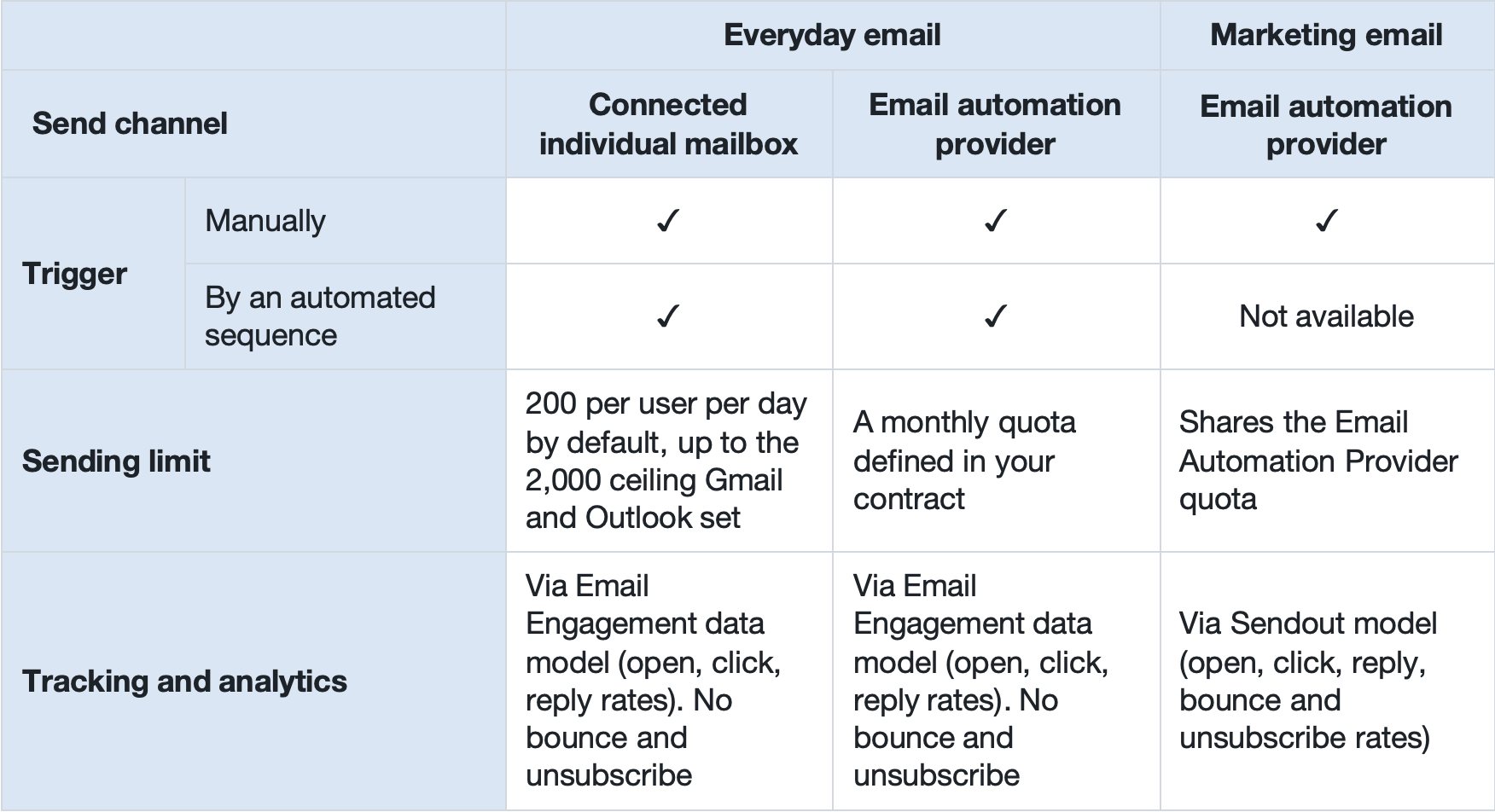
Limits: Gmail and Outlook themselves cap a mailbox at up to roughly 2,000 emails per day. Planhat defaults to 200 per day per user for automated sends, and this can be raised towards the provider ceiling for your tenant
Email Automation Provider: The email goes out through a dedicated transactional sending service connected to your tenant. The sender is a static address you configure. Capacity is built for volume, and the sending domain's reputation is managed separately from your corporate mailboxes.
Sender: static - one configured address per send
Setup: contract add-on (speak with your CSM for more details)
Limits: a monthly quota defined in your contract, well beyond what a connected mailbox can carry
Trigger mechanism
There are only two options on how an email send is triggered:
Communication preference tracking
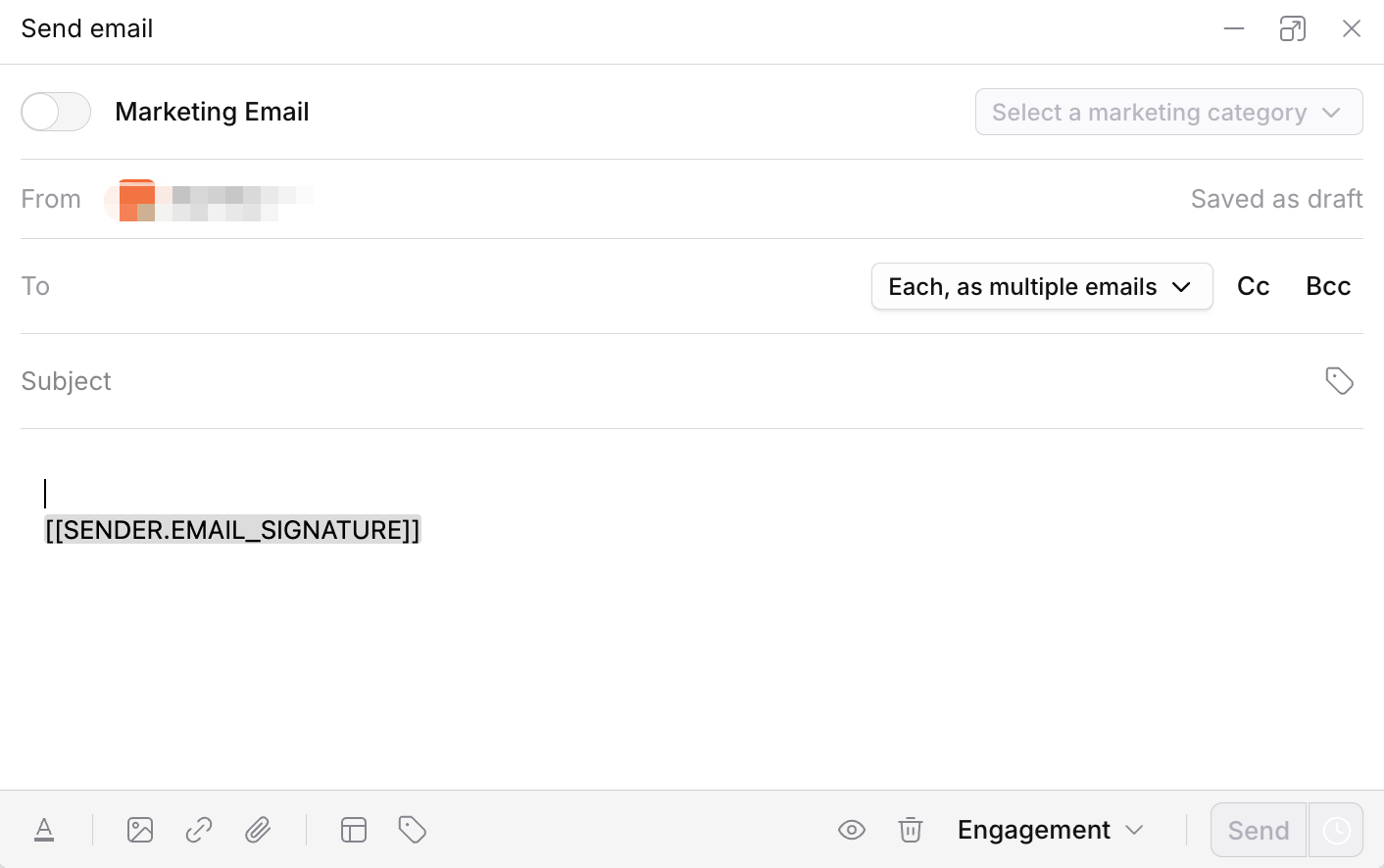
Whether a native unsubscribe link is applied comes down to what the email is for. Most of what you send from Planhat is everyday email - follow-ups, nudges and reminders going to people you are already working with. Marketing email is the special case: a one-off push to a whole list.
Everyday email - a meeting follow-up, an onboarding nudge, a renewal reminder, an overdue-invoice chaser, an internal notification. No unsubscribe link is auto-applied, and communication preferences are not checked
Marketing email - a newsletter, an announcement, a product update, a promotion. Planhat applies a native unsubscribe link and honors communication preferences for you, and reports unsubscribes and bounces back
📌 Important to note
Marketing email is a special case. It must go through the Email Automation Provider, and has to be sent manually for now - it cannot be triggered from an Automation. Promotional mail at volume from a connected individual mailbox could risk damaging your corporate domain's reputation.
Overall comparison
Which setup should I use for my use case?
Each of the scenarios below is one we hear regularly, with the three choices spelled out underneath.
"I just came out of a customer meeting and want to follow up personally"
A manual send · Connected inbox · Everyday email
Compose in the email editor panel (email dialog) and select your own inbox in the Sender field dropdown. The message goes out from your own address, lands in your Sent folder, and any reply comes straight back to your inbox. No cap applies to manual 1:1 sends. Engagement is tracked in the Email Engagement model.
"I run onboarding for 300 accounts and want every email to look like it came from the account owner"
An Automation · Connected inbox · Everyday email
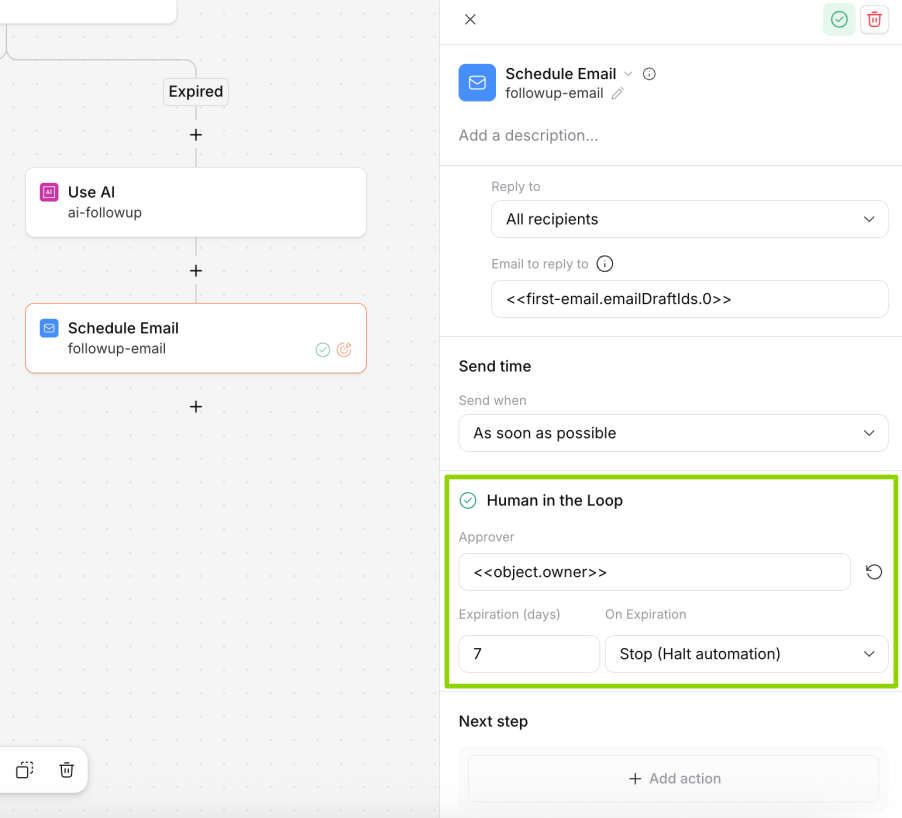
Build an Automation (automated sequence) with email steps and set the Sender field to a dynamic reference - the account owner, or<<object.owner>>. Each email leaves from that user's own mailbox, so replies go to the person who owns the relationship. Volume here sits comfortably inside the connected-inbox daily limit, and there is no add-on cost.
"I run Product Marketing and send a monthly product newsletter"
A manual send · Email Automation Provider · Marketing email
Use Marketing Email: build the content, define the audience with a filter, press go. Unsubscribe links and communication preferences are applied automatically, which is exactly why this cannot be run from a connected inbox. Reporting comes out of the box on the Sendout dashboard template.
"I want to run NPS across the customer base"
A module · Either sending route · Everyday email
The NPS Global Tool sends in its own right. You pick the sending route when you set the survey up - a connected inbox for a relationship-led base, the Email Automation Provider for scale.
Where do I find email analytics and reporting?
Which data model your analytics lands in depends on what the email was for - and the two give you different things out of the box. Both are fully queryable, so you can build custom Dashboards on either.
Everyday email
Everyday email - whether it sends from a connected inbox or the Email Automation Provider - is tracked in the Email Engagement model: opens, clicks and replies per email. Reporting on top of it is flexible; the options below are all different ways of surfacing the same Email Engagement records.
Dashboard KPIs
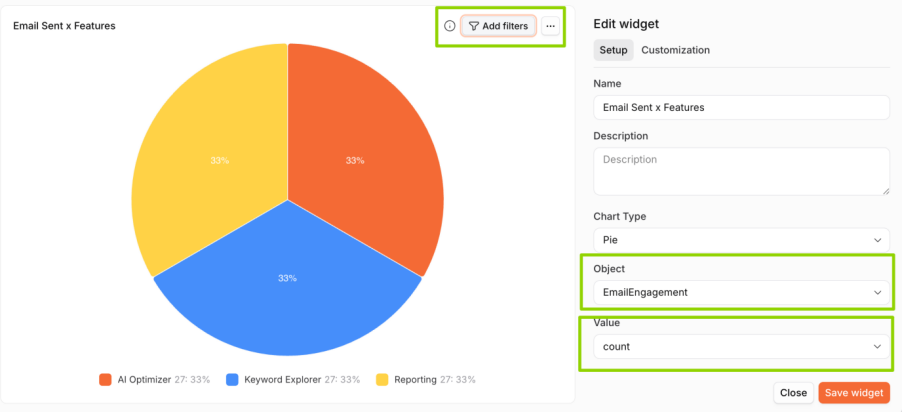
Build a widget in a custom Dashboard that references Email Engagement directly, as a filter or as a KPI. This works well for Inbox Pages too.
Click the image to view it enlarged
A full data table
Use an ID match by association - from Workflow, matching to Email Engagement, for example - to bring engagement fields onto an End User or Workflow view.
Per-sequence metrics
For emails sent from an Automation's email step, turn on the Automation's sequence mode and enable click and reply tracking. The same metrics then appear on the Workflow record each run creates.
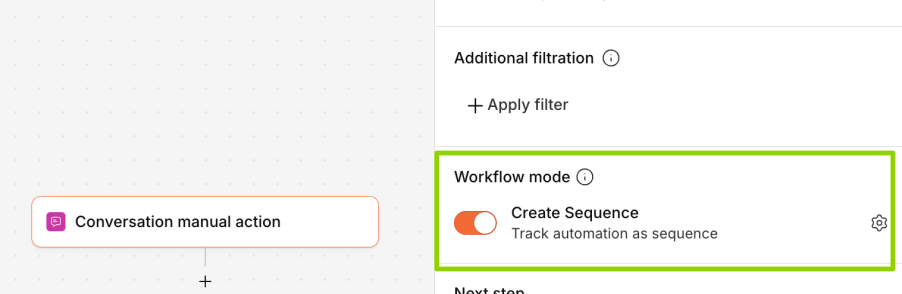
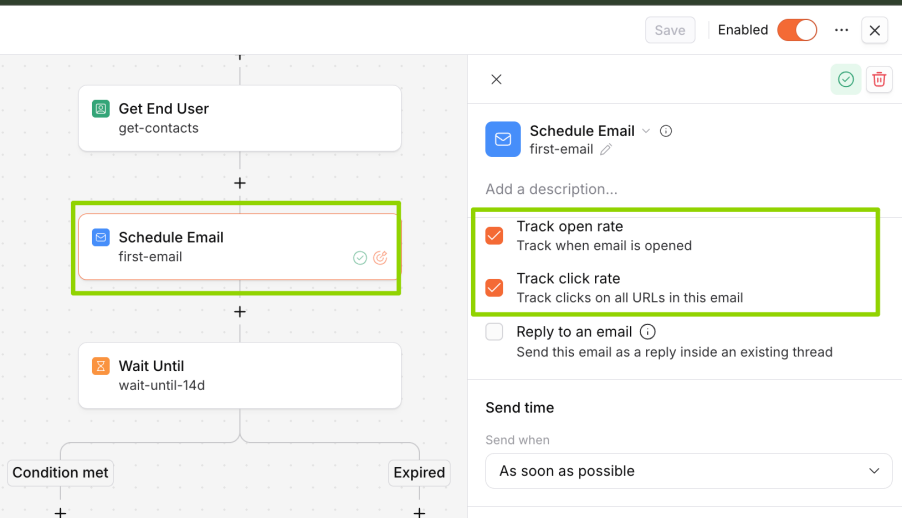
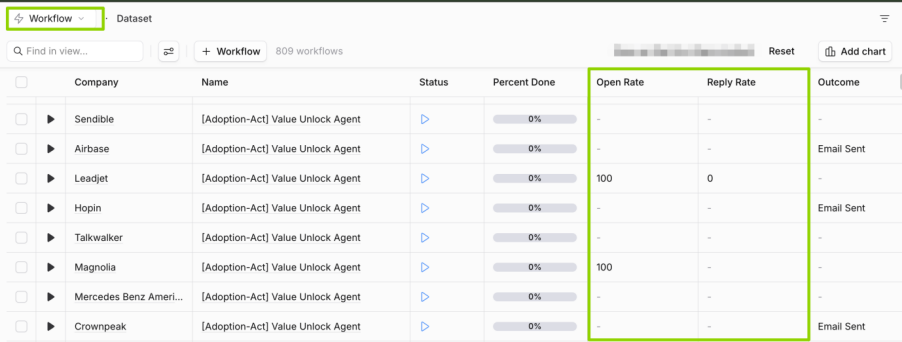
Click the image to view it enlarged
Marketing email (Sendouts)
Every marketing send is tracked in the Sendout model. It is fully queryable in the Data Explorer, and an out-of-the-box Dashboard template gives you the complete analytics view - sends, opens, clicks, bounces and unsubscribes - with no build effort. You can refer to our separate article on analyzing marketing emails via the Sendout model here.

Click the image to view it enlarged
📌 Important to note
Unsubscribe reporting is currently available for marketing emails only
Bounce is captured behind the scenes for everything sent through the Email Automation Provider, but it is not yet exposed as a reportable field outside Sendouts - that is coming soon
Frequently asked questions (FAQs)