Automation failures - adjustable thresholds and notifications
You can enable personal notifications for each Automation, so you are alerted to any failed runs, and can fix the Automation ASAP. Define after how many failed runs an Automation is disabled
Summary
In the App Center, you can view if each Automation has run recently, and whether the runs were successful or failed, and you can also see if an Automation is disabled
You can optionally change the failure threshold for an Automation, meaning it can fail more (or fewer) times in a day before it's automatically disabled
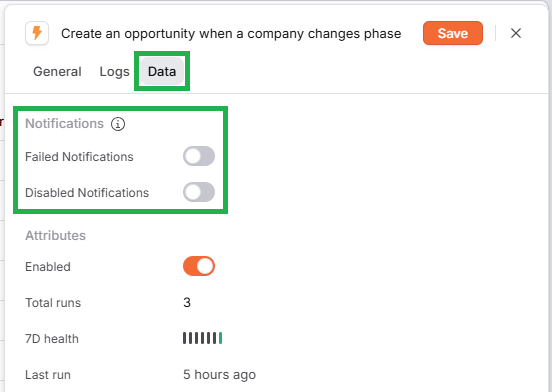
To ensure you know about any issues right away, you can enable notifications for each Automation, to alert you if Automation runs fail and/or Automations are automatically disabled due to repeated failures
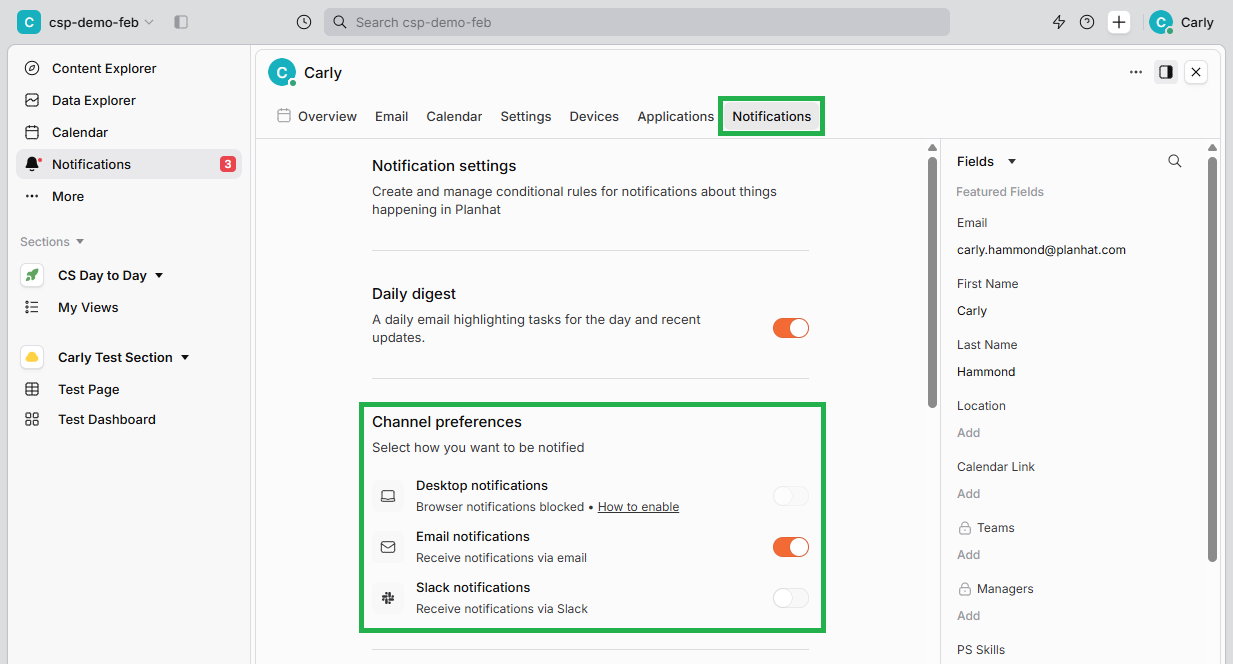
As with other notifications, you can view them in Planhat (in the "Notifications" Home feature), and choose whether you would also like to receive them externally (e.g. via email)
Once you're aware of any failures, you can resolve any Automation setup issues, and enable the Automation again if required
Who is this article for?
Planhat Users who are building/managing Automations for their organization (e.g. Tech/Ops)
Series
This article is part of a series on Automations:
How to choose between Automations and other Planhat features
Automation failures - adjustable thresholds and notifications ⬅️ You are here
Article contents
Introduction
Automations rarely encounter issues. When they do, it's often because the Automation was incorrectly set up. If any of your Automation runs do fail, it's important that you're aware, so you can address any configuration issues.
By default, when you're viewing your list of Automations in the App Center, you can see at a glance whether each Automation has run successfully or unsuccessfully recently, and whether an Automation is disabled (which can happen if an Automation is repeatedly failing).
You can choose to enable personal notifications for each Automation if you would like to be alerted when the Automation has a failed run or is automatically disabled, rather than needing to check the App Center. It's really quick and easy to turn these notifications on. The notifications can be viewed in the Planhat UI, and you can also receive them externally (e.g. via email) depending on your personal notification preferences in Planhat.
You can also optionally adjust (within each Automation's settings) how many failures are allowed before an Automation is automatically disabled.
📚 Further reading
Check out our separate article on troubleshooting Automation failures, including details about Automation logs, here.
Default: Automation failures without notifications
Even without turning on specific notifications to alert you about Automation run failures, you can see in Planhat if an Automation run has failed, and Planhat will automatically disable Automations that repeatedly fail.
By default, Planhat will ...
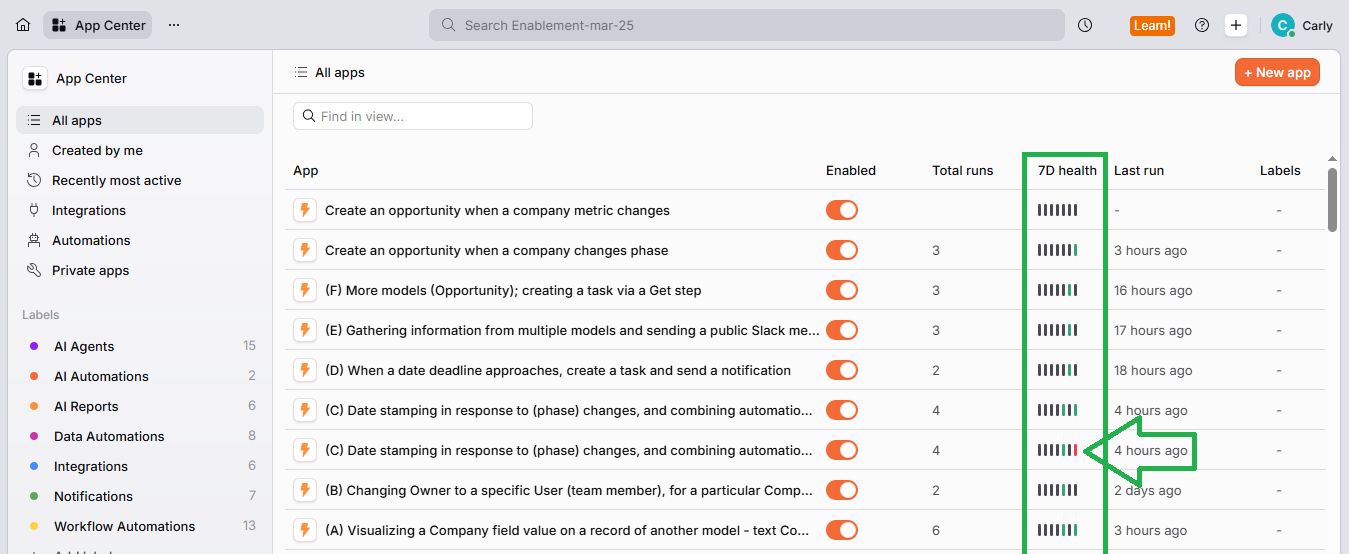
... and disable an Automation after 10 failed runs (executions) in any 24-hour period - this is to avoid repeatedly running an Automation that isn't set up correctly
You can optionally adjust this value to up 200 for each individual Automation; we describe this in further detail below
Custom: notifications about Automation failures
How to enable the notifications
You can choose to receive notifications if an Automation run fails or an Automation is disabled. These notifications are personal to you (as a Planhat User), and should be configured individually for each Automation - this means you can be notified about Automations you are responsible for, for example.
What the notifications look like
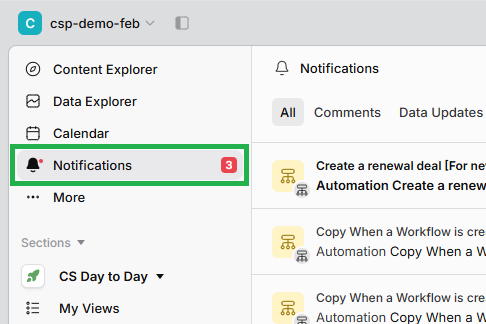
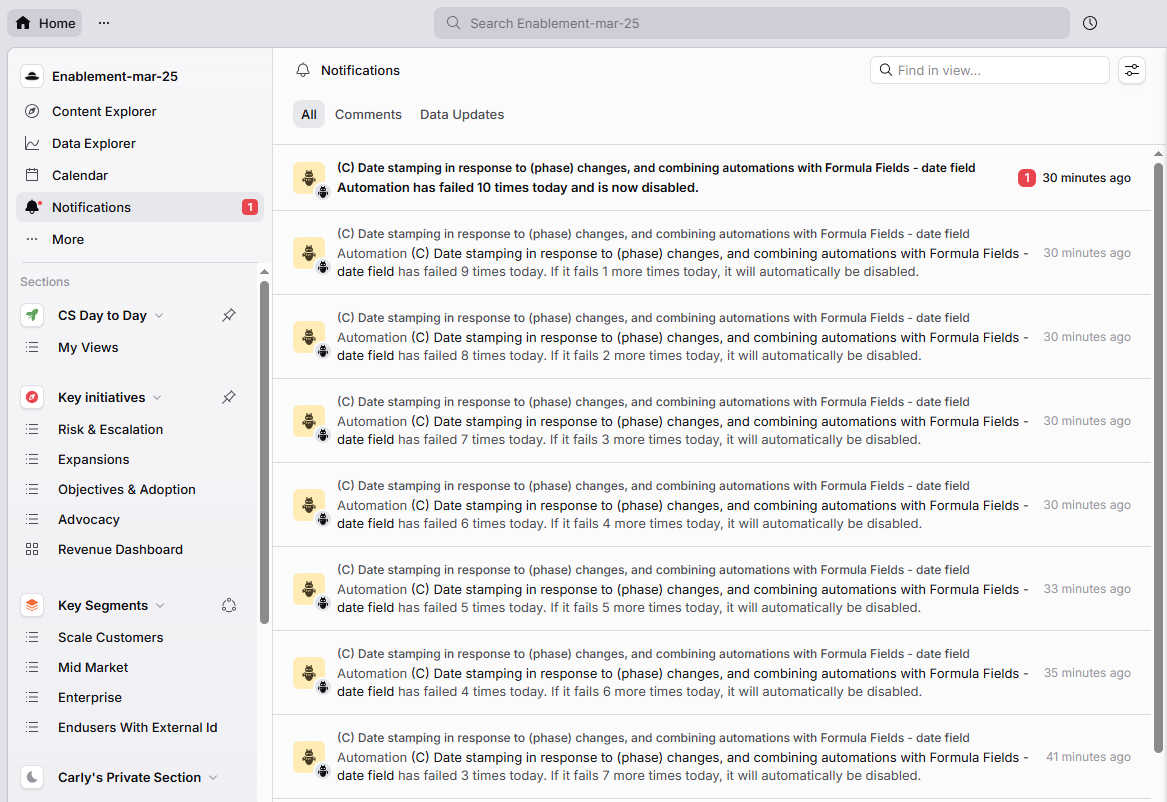
You can read all about notifications in upgraded Planhat (ws.planhat.com) in general here. You can view notifications within Planhat in the "Notifications" Home feature (shown in the first screenshot below), and you can configure how you receive additional external notifications in your User Profile (shown in the second screenshot below).
Click the image to view it enlarged
Here's what the notifications can look like in the "Notifications" Home feature (with both "failed" and "disabled" notifications turned on for an Automation). In this example you can see repeated notifications about the Automation failing, letting you know that if it keeps failing it will be disabled, and then the final notification stating that the Automation has been disabled.
Click the image to view it enlarged
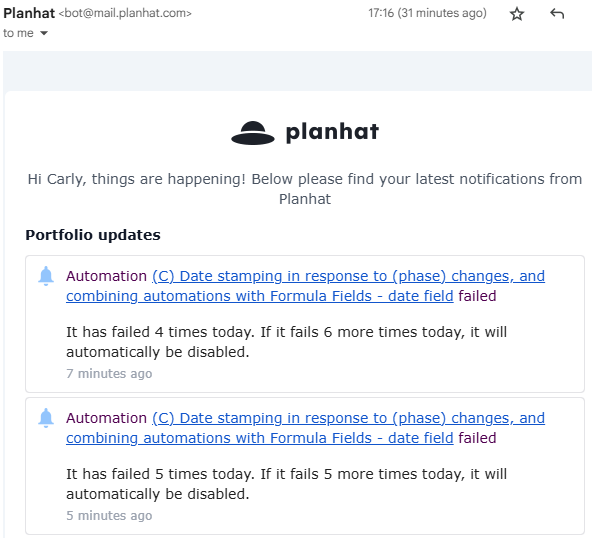
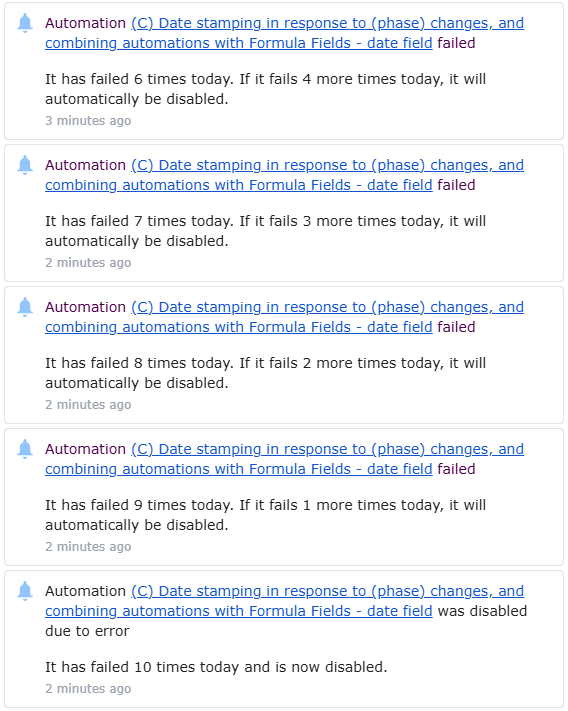
Here's the same thing in notification emails:
Custom: adjusting the daily failure threshold
As we have mentioned, by default each Automation will be automatically disabled if it fails 10 times on a single day (24-hour period), to avoid scenarios where incorrectly-configured Automations are running repeatedly despite not working.
However, in some circumstances, you may want the failure threshold to be higher. This is especially for useful for Enterprise organizations with Automations that process large data ingestions or bulk syncs, where a handful of failures shouldn't block the rest of your runs from successfully executing.
In this case, you can configure a custom failure threshold for each individual Automation. The maximum you can set for each Automation is 200 failures a day (for performance reasons).
📌 Important to note
At time of writing, this functionality is available for Custom Automations but not Templated Automations, although it is expected to be added for Templated Automations in future.
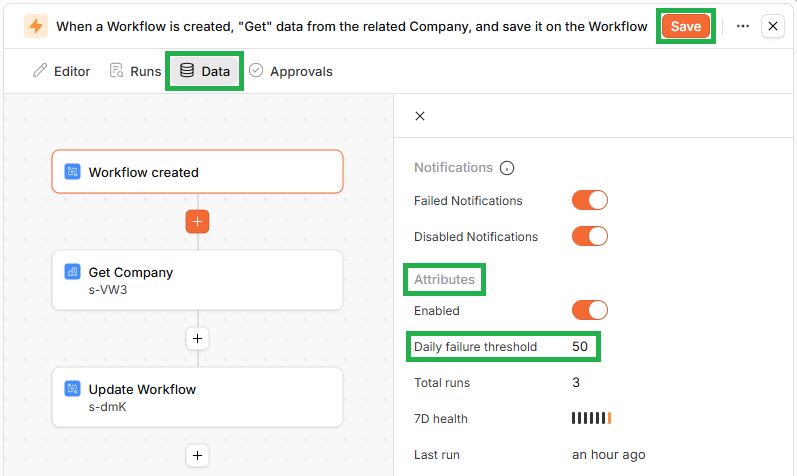
To set this, open up your choice of Custom Automation, and click on the "Data" tab. Within "Data", in the "Attributes" section, you will see a "Daily failure threshold" that you can type into (remembering that the maximum allowed value is 200), and then you press "Save" to confirm. All this is shown in the screenshot below.
Click the image to view it enlarged
You will see your new failure threshold referenced in any notifications - example shown below (where the daily failure threshold was set to 100):

Click the image to view it enlarged
Re-enabling an Automation if it's been automatically disabled
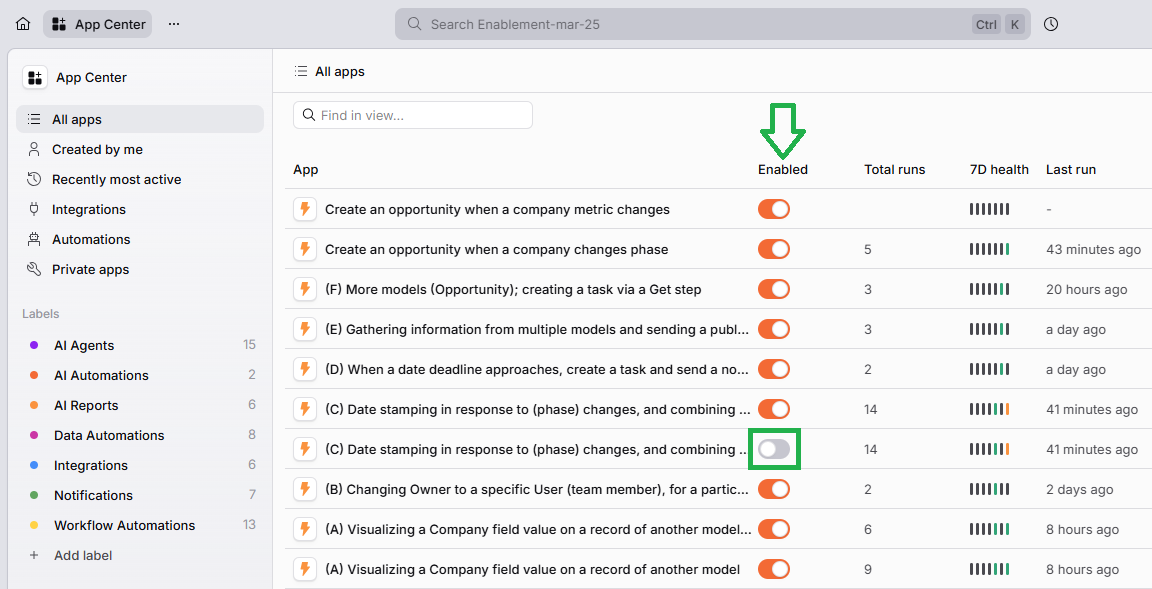
If an Automation has automatically been disabled because it failed 10 (or the custom set number of) times in a day, you should troubleshoot it (using the guidance in this separate article), and then once you have fixed your Automation and you're ready for it to start running again, simply enable it via the relevant toggle switch for that Automation in the App Center.
Click the image to view it enlarged